Sharing
Share repository access with another workspace, inspect incoming changes, and apply fetched commits.
Sharing connects project repositories across workspaces. It shows projects shared with you, shared projects on this machine, their members, and commits waiting to be applied.
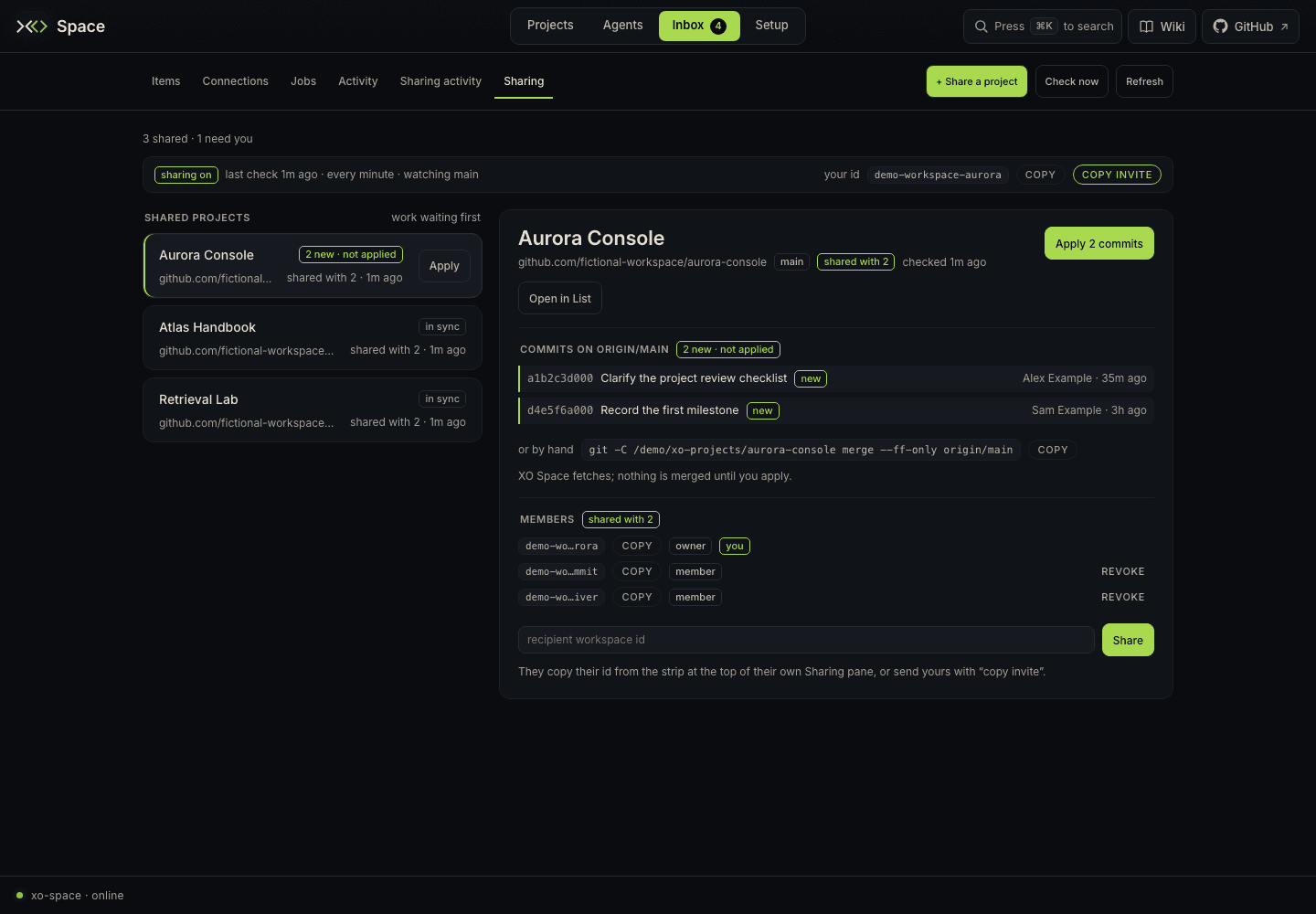
Open Inbox → Sharing, or use /space/#/inbox/sharing. The older #/sharing and #/projects/sharing routes also resolve here. Sharing activity has its own neighboring Sharing activity page.
Check that sharing is ready
The top strip shows whether sharing is on, its last check, the watched branch, and your id. It normally checks about once a minute. Check now asks the sharing service to run its next check sooner.
If the strip says sharing parked, its reason identifies what is missing:
- Sharing was disabled for the installation.
- This installation has no workspace ID (
XO_SPACE_ID). - The installation is not authenticated with the XO service.
Sharing a project also requires a valid Git origin repository. Reading or cloning a private GitHub repository requires an account with access. Fix the stated prerequisite before retrying; an empty rail alone does not mean the service is ready.
Share a project
For a project already on this machine, you can also open Projects → Manage, choose Share on its card, enter the recipient's Space ID, and submit. The inline form shows the result without leaving Manage.
From the Sharing page:
- Click + Share a project.
- Use Filter projects… in the composer, then select a project with a Git origin.
- Enter the recipient's workspace ID. They can copy it from their own Sharing strip.
- Click Share or Share [project name].
Sharing the same project with an existing member is harmless. To add another recipient later, select the shared project and use the form beneath Members.
copy beside your workspace ID copies only the ID. copy invite copies a short invitation explaining where to paste it. Send that invitation yourself to someone who should share a project with you.
Receive a project
Incoming repositories first appear under Shared with you · not on this machine yet. With automatic cloning enabled, Space clones an accessible repository into the XO root and then lists it as a local shared project.
| State | Next step |
|---|---|
| cloning… | Wait for the clone to finish; it joins the shared-project list when ready. |
| needs GitHub | Connect GitHub opens Setup → Connectors. Configure the required GitHub access, then let the next check retry. |
| no access | Ask the repository owner to give the connected account access. Workspace sharing does not make an inaccessible private repository readable by itself. |
| folder in the way | Inspect and move or rename the conflicting local folder before the next retry. |
| clone failed | Read the reason. Space retries later, and clone by hand copies a command for manual recovery. |
clone by hand copies a command; clicking it does not execute the clone. Use the command's destination under the configured XO root so Space can discover the result.
Review and apply commits
The shared-project rail puts work waiting ahead of quiet projects. A row can show N new · not applied, in sync, or fetch failed. Select it for details.
The detail panel shows the repository, watched branch, latest check, up to five recent commits, and members. New commits are marked new. Open in List switches to that project's expanded drawer in Projects → Data → List.
When commits are waiting, click the row's Apply or the detail panel's Apply N commits. This runs a fast-forward merge from the watched origin branch into the project's current checkout. The equivalent command and a copy button appear beside it for manual use.
Space fetches incoming changes automatically; applying them is a separate action. Apply changes local project files through git merge --ff-only. It does not create a merge commit or resolve divergent histories. If Git refuses because of divergence or conflicting local edits, the error explains why; resolve the project state before retrying.
To send your own changes, commit and push them to the watched repository branch using your normal development tools. Sharing does not automatically commit or push uncommitted edits.
Manage members
The member list shows roles, short workspace IDs, you, and status. Hover an ID for its full value or use copy. Not seen yet means the member workspace has not checked in.
The owner can Revoke an active non-owner member. This opens Confirm / Cancel controls in the row; the request is sent only after Confirm. Revoked entries can remain visible as history. Only you means there are no other active members.
A membership change does not erase files already cloned onto another machine. Use repository access controls as well when deciding who can fetch a private repository.
When information looks stale
Use Check now and inspect the last-check and fetch status. Status starts fresh after a server restart, so checking… is an intermediate state. A commits or members request can fail separately; the pane shows its own explanation. The Open in List route remains useful for inspecting the local project while a remote check is unavailable.