Commands & Schedules
Save commands, run them manually or on an interval, and inspect results in Setup or Inbox Jobs.
Setup → Commands saves commands that run on the Space server's machine. Run them on demand, or add an interval and optional first run time. Results remain available in each command's Inbox drawer.
Open /space/#/setup/commands. An empty installation shows No commands yet;
opening this page does not create or execute an example.
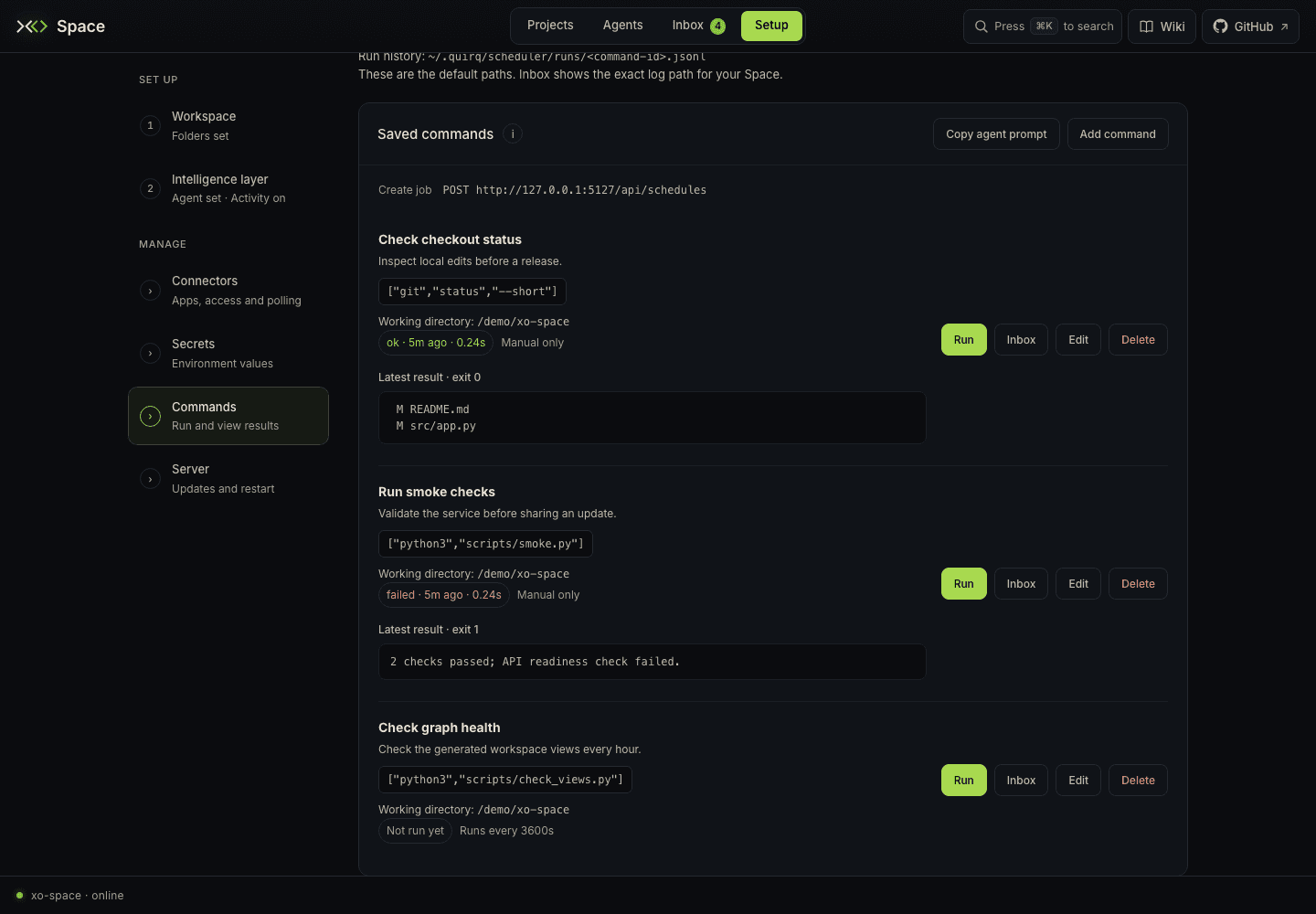
Add and run a command
- Click Add command and enter a name and optional description.
- Enter Command line or argv JSON, such as
git status --shortor["git", "status", "--short"]. - Set Working directory when the command needs a particular checkout. Leaving it blank uses the server's working directory.
- Set Timeout (seconds). A timeout is required; the form starts at 30 seconds.
- Leave Interval blank for manual runs, then click Save command.
- Click Run when you want to execute it.
Commands execute with the server's permissions and inherited environment, without a shell. Shell operators in a command line are rejected; put multi-step work in a script and invoke the script explicitly. Definitions and output can contain sensitive data, so keep secrets out of command arguments.
While a command runs, its row shows the start time and disables Run. The row updates automatically for an active run and shows the latest status, duration, and output preview after completion. A command cannot overlap itself; all jobs also share the server's concurrency limit. A conflict message means another run could not be started.
Add a schedule
Set Interval (seconds) to a positive whole number at least as long as the watcher tick. Optionally set First run at using the date and time in your browser's time zone. The form includes the UTC offset when it sends the start time to Space.
For example, an interval of 3600 with a first run at 09:00 schedules hourly
slots from 09:00. A first run time in the past preserves that schedule and uses
its next future slot. Leaving the first run time blank schedules the initial
run one interval after creation. This is a fixed interval, not a recurring
calendar-time rule.
After saving, check the next time on the command's row. First run at is only available when the command has an interval. Invalid intervals or start times leave the form open with an error.
Automatic launches require Intelligence layer → Update activity
automatically and the server scheduler (XO_SCHEDULER_ENABLED) to be enabled.
The server must be running. Missed slots advance to the next interval instead
of replaying every missed run.
Manual Run still works when automatic collection is off or the job is disabled. It does not move the next scheduled time. Disabling automatic scheduling does not cancel a command already running.
Ask an agent to manage commands
Click Copy agent prompt, paste it into your agent, and describe the command
you want. The prompt gives the agent the /api/schedules API contract and your
current UTC offset. It asks the agent to check for duplicates, use a working
directory and timeout, keep commands manual unless you request a schedule, and
verify the next run time.
The page shows the full Create job endpoint for this Space. The agent must be able to reach that server; commands run there. The copied prompt directs the agent to use the API rather than editing scheduler files.
Read results and history
Click a command's Inbox button to open its newest 20 runs, newest first. Each result includes start and finish, manual/interval trigger, status, exit code, duration, and the recorded output tail. While the selected command is running, results refresh automatically; Refresh also reads them on demand.
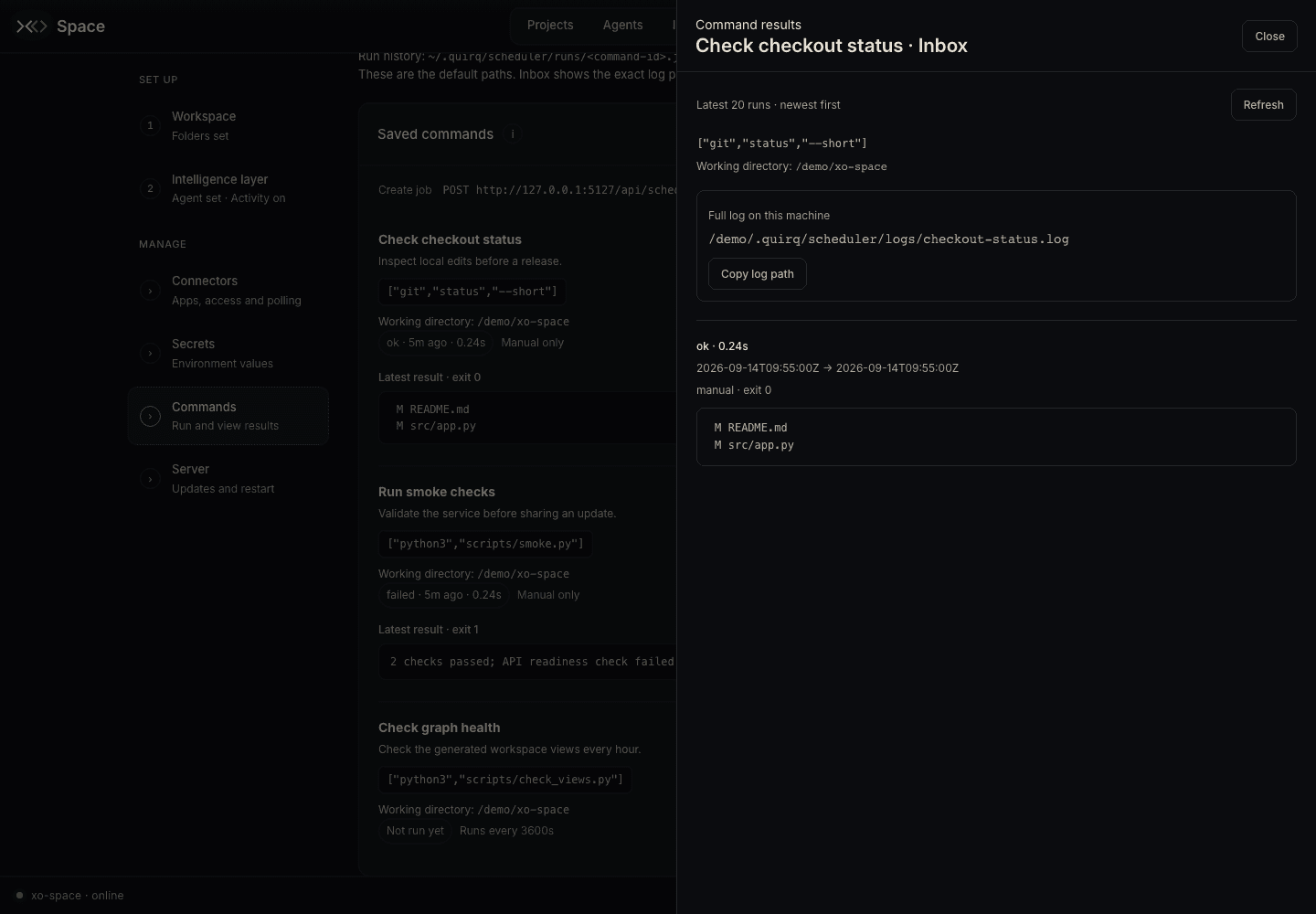
The drawer shows Full log on this machine and a Copy log path button. Under the configured Space data folder, the locations are:
<state root>/logs/scheduler/<command-id>.log
<state root>/scheduler/runs/<command-id>.jsonl
Use the path in the drawer; the Commands introduction can still show the older
scheduler/logs/ layout. Results are rendered as text. Opening a results drawer neither runs the command nor
creates a triage item under Inbox → Items.
| Result | Meaning |
|---|---|
ok | The process completed with exit code zero. |
failed | The process returned a nonzero exit code. |
timed_out | The command exceeded its timeout. |
missing_binary | Its executable could not be found. |
error | The executor could not launch or complete the command normally. |
lost | An in-flight run could not be recovered after a server restart. |
skipped | An automatic run was due while the previous run was still active. |
Monitor scheduled jobs
Open Inbox → Jobs (#/inbox/jobs) to see commands that have an interval.
Each row shows its cadence, enabled state, next due time, and latest result or
running status. Manual-only commands remain in Setup.
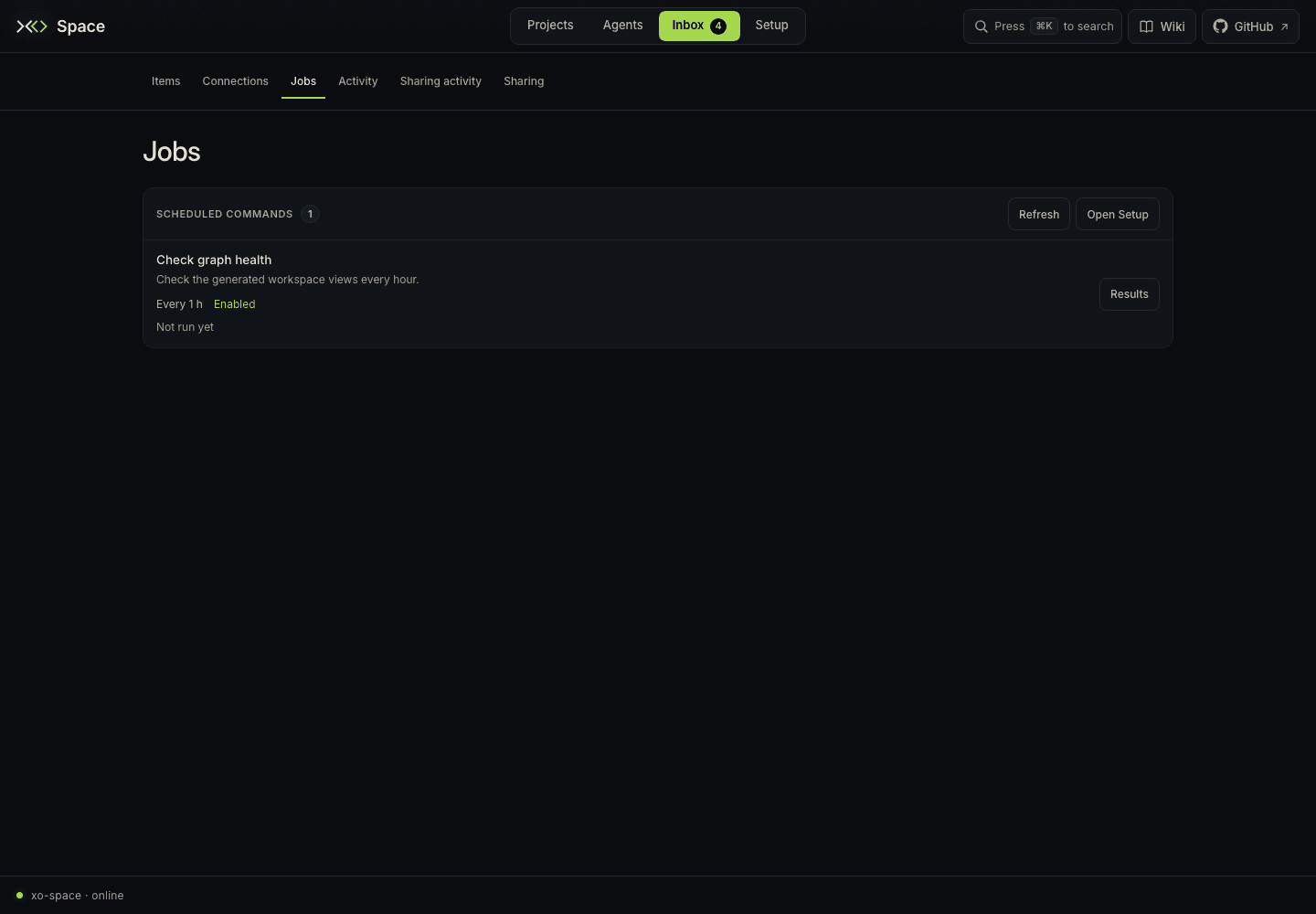
Results opens the same command drawer. Open Setup takes you to Commands to edit or run a job. Jobs refreshes every 30 seconds, or every three seconds while a displayed job is running. This page monitors saved schedules; it does not add schedules or mark their runs seen/done.
Edit or delete a command
Edit updates the saved definition. Existing environment overrides, project association, and enabled state are preserved even though the form does not expose those fields. Delete removes the definition after confirmation and keeps its history and logs on disk. Deleting does not cancel an active process; its completion can still be collected on a later read or tick.
See Setup → Server for local and HTTPS proxy access requirements, and the storage guide for scheduler files.