Manage Your Workspace Machine
Monitor resources, open available interfaces, and control the remote machine behind an XO project.
Your project's workspace dashboard is the control center for its remote machine. From the Launch tab you can monitor resources, open available interfaces, and stop or start the machine. OpenClaw projects also expose gateway controls.
Controls vary by agent. Sections that mention the OpenClaw Gateway apply only to projects where that service is installed. Check the Agent Compatibility Guide if you are unsure which setup path applies.
What You'll Need
- An XO account with an active workspace
Open Your Workspace
Open beta.xo.builders.
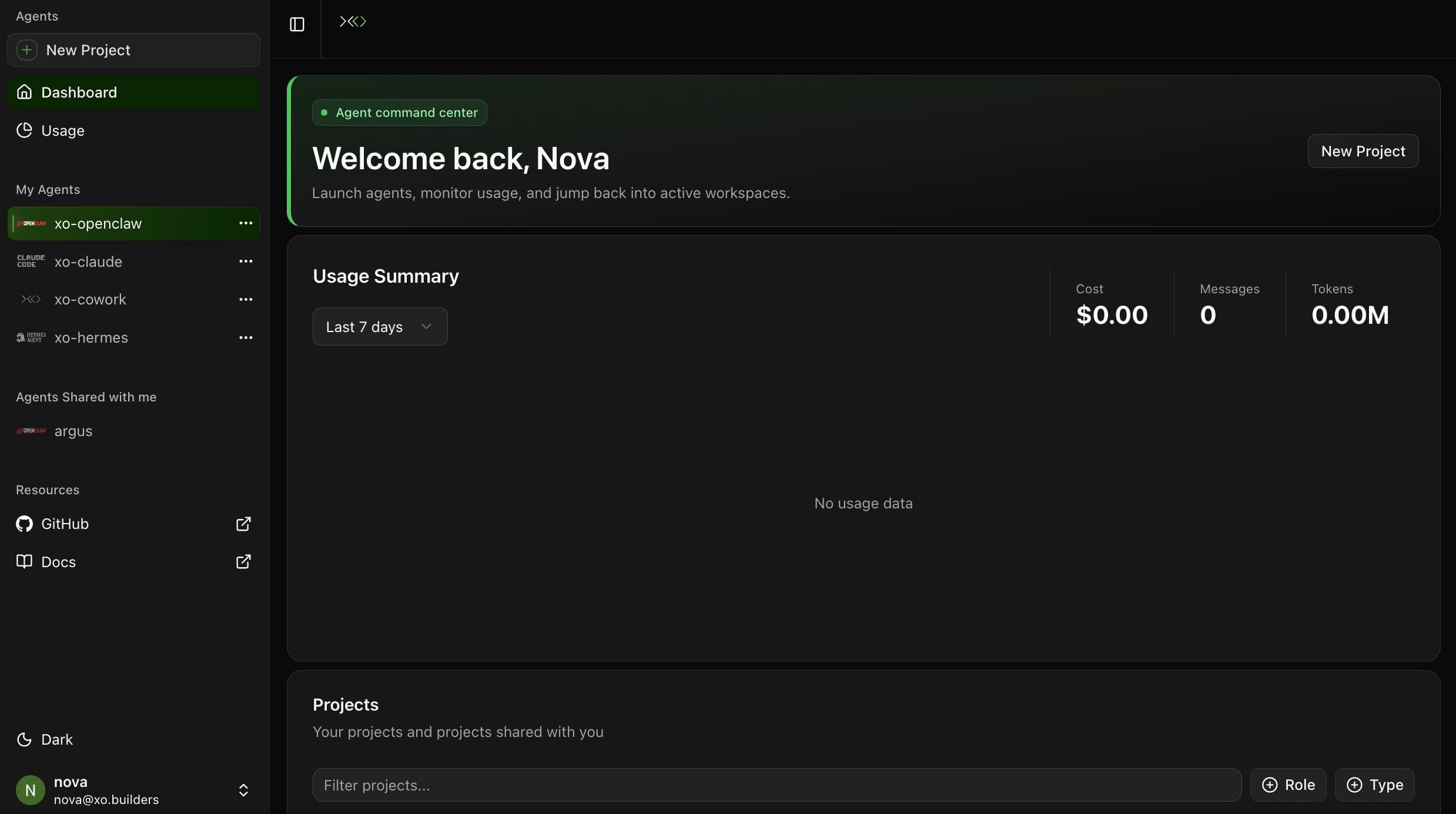
Select your agent from the sidebar.
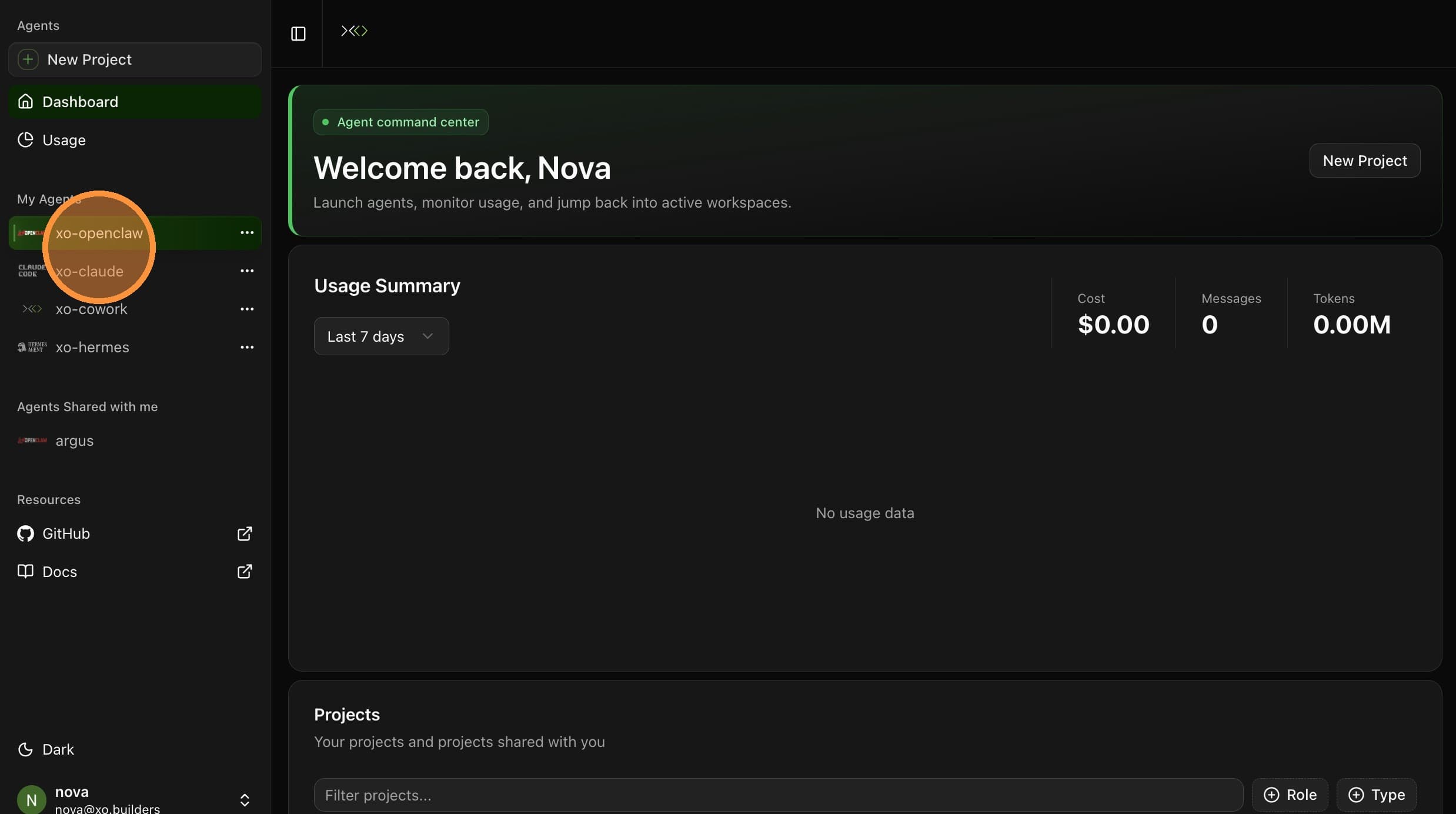
If your machine is stopped, click Start to boot it up.
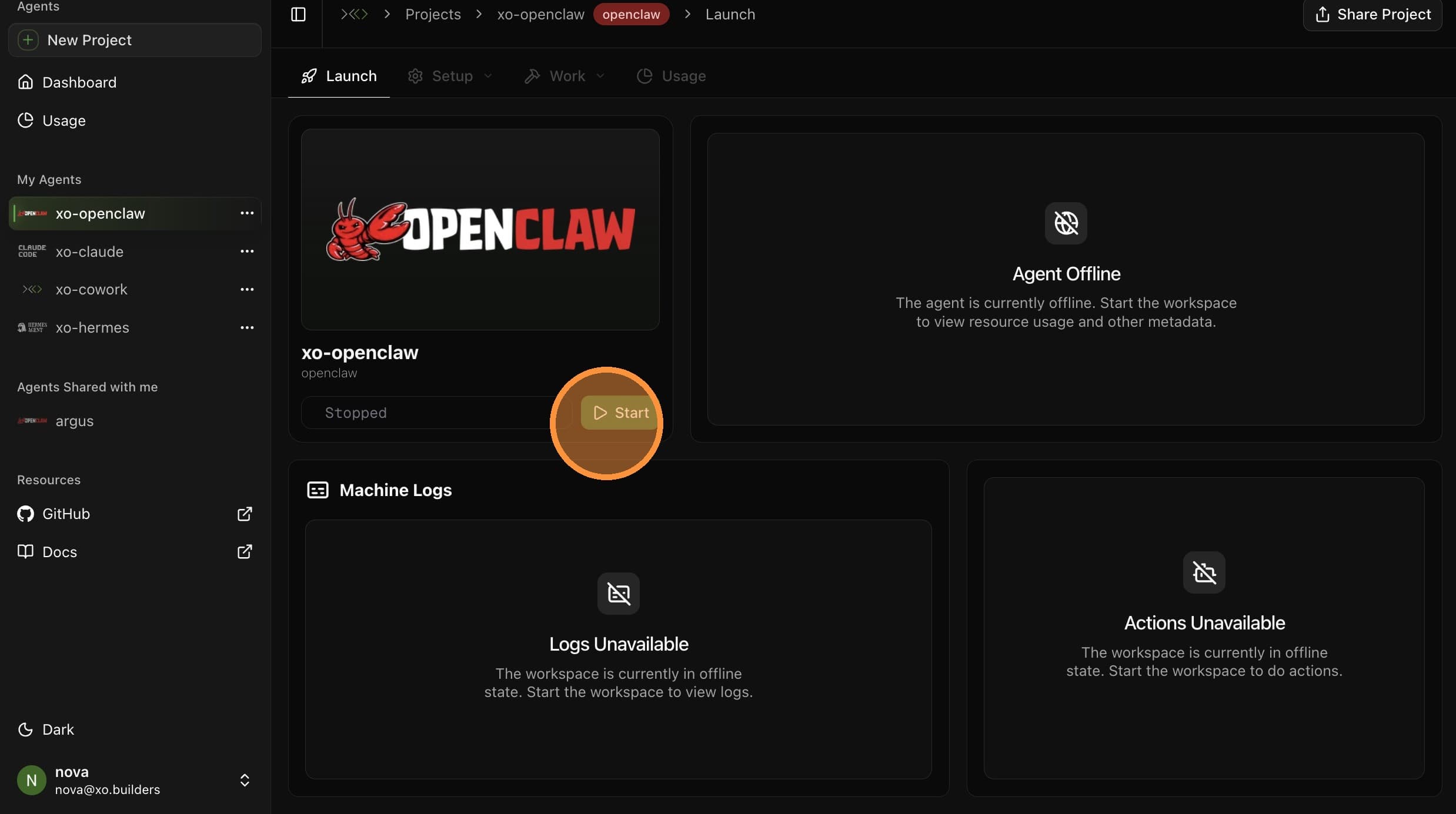
Wait for the agent status to transition to Ready.
Once the machine is running, the panel shows all your workspace controls and live stats.
Monitoring Resources
The panel displays real-time CPU and RAM usage for your workspace.

Service Status
The panel shows the status of your services. When everything is ready, you'll see Up next to each service.
OpenClaw Gateway — When present, the gateway is running and ready to accept connections.
Cowork API — When present, the workspace backend is running.

Wait for the services required by your selected agent to show Up before opening its interface or IDE. Provisioning time varies by template.
Opening Your IDE
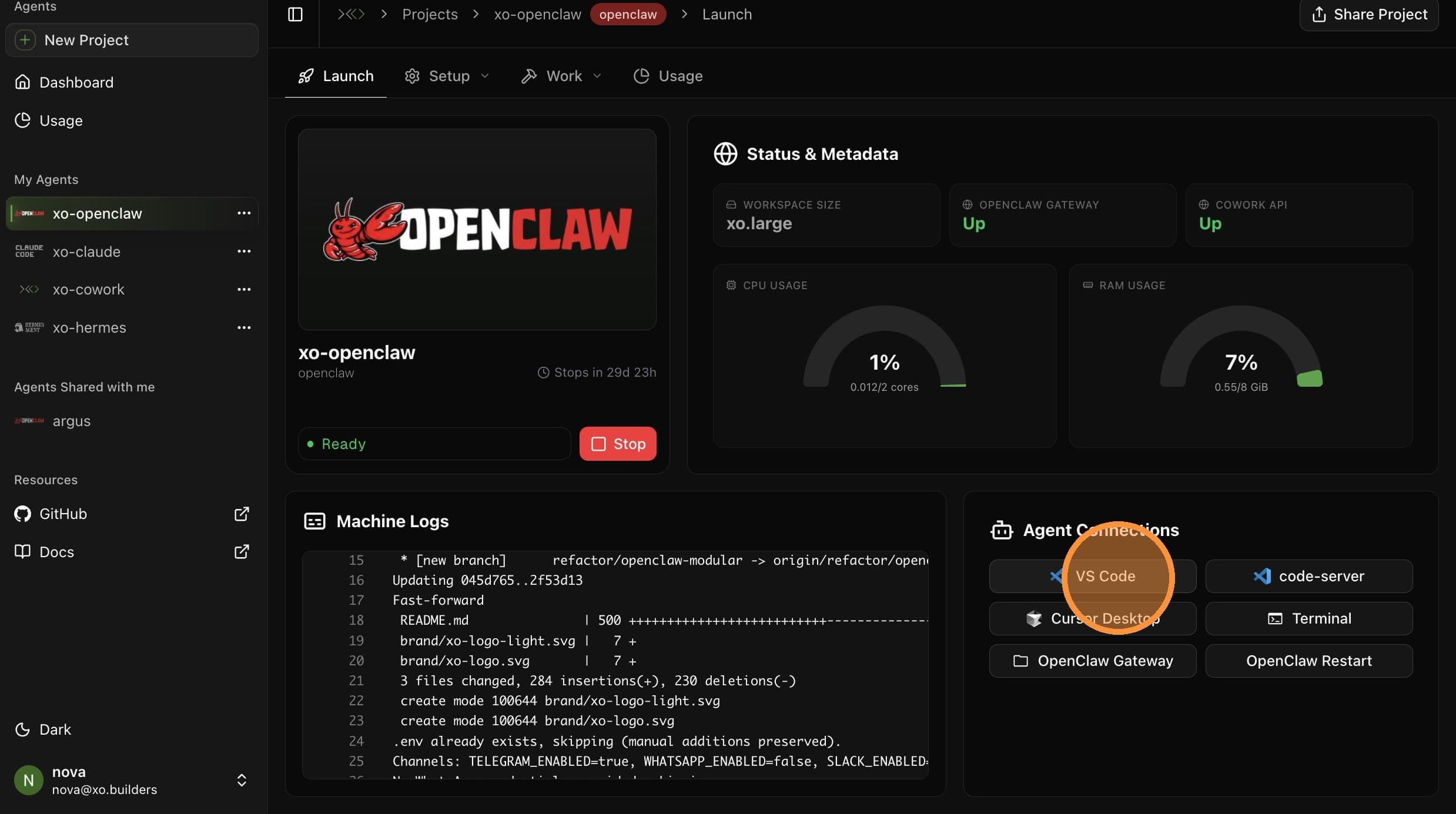
The Agent Connections panel lists all the ways you can connect to your workspace.
Desktop IDE (VS Code / Cursor) — Click VS Code to open the workspace in your desktop editor.
Browser IDE (Code-Server) — Click code-server to open a browser-based VS Code. No install needed.
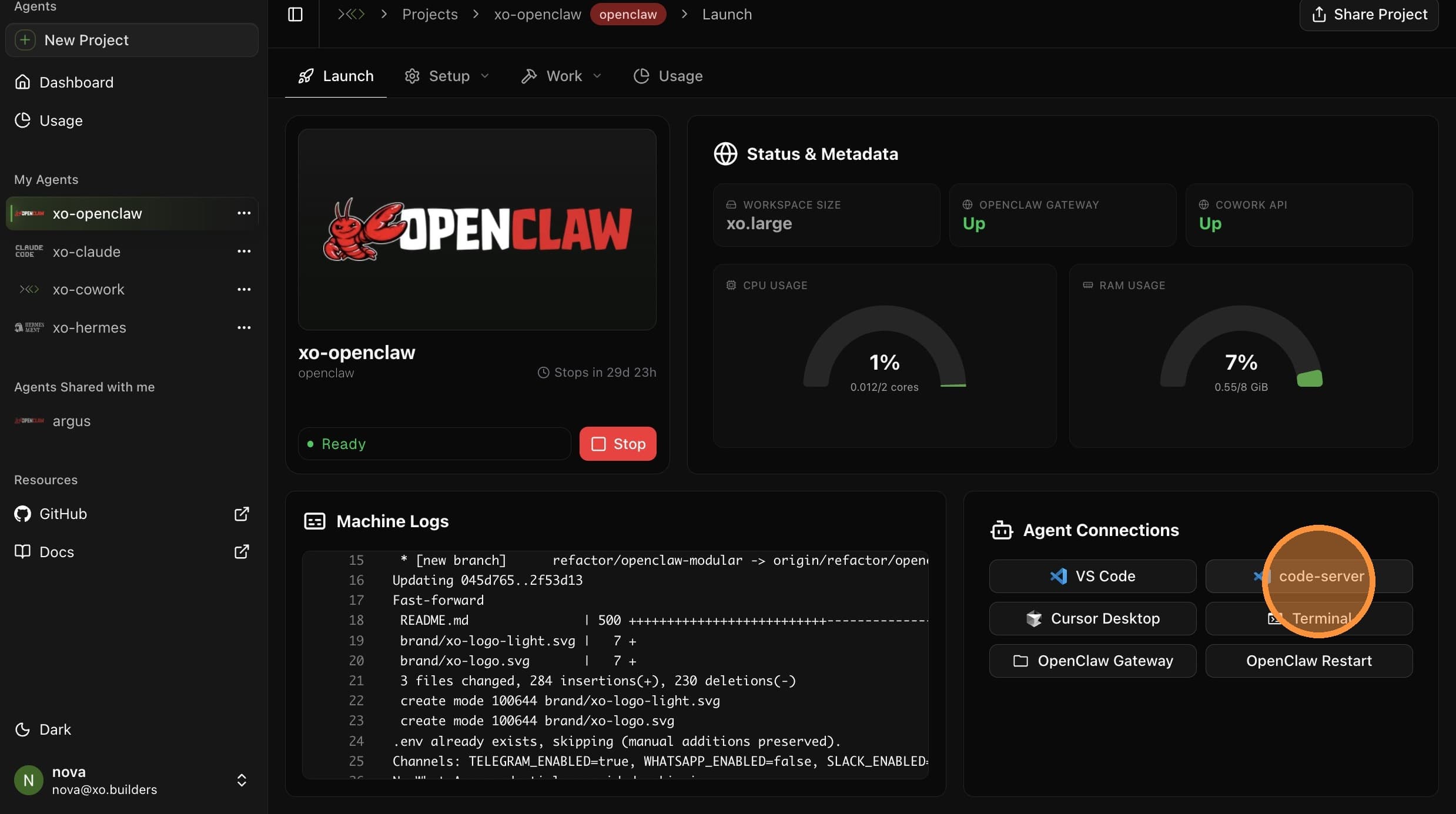
For detailed IDE setup, see the VS Code Server guide.
Opening the OpenClaw Gateway
Click OpenClaw Gateway to open the dashboard.
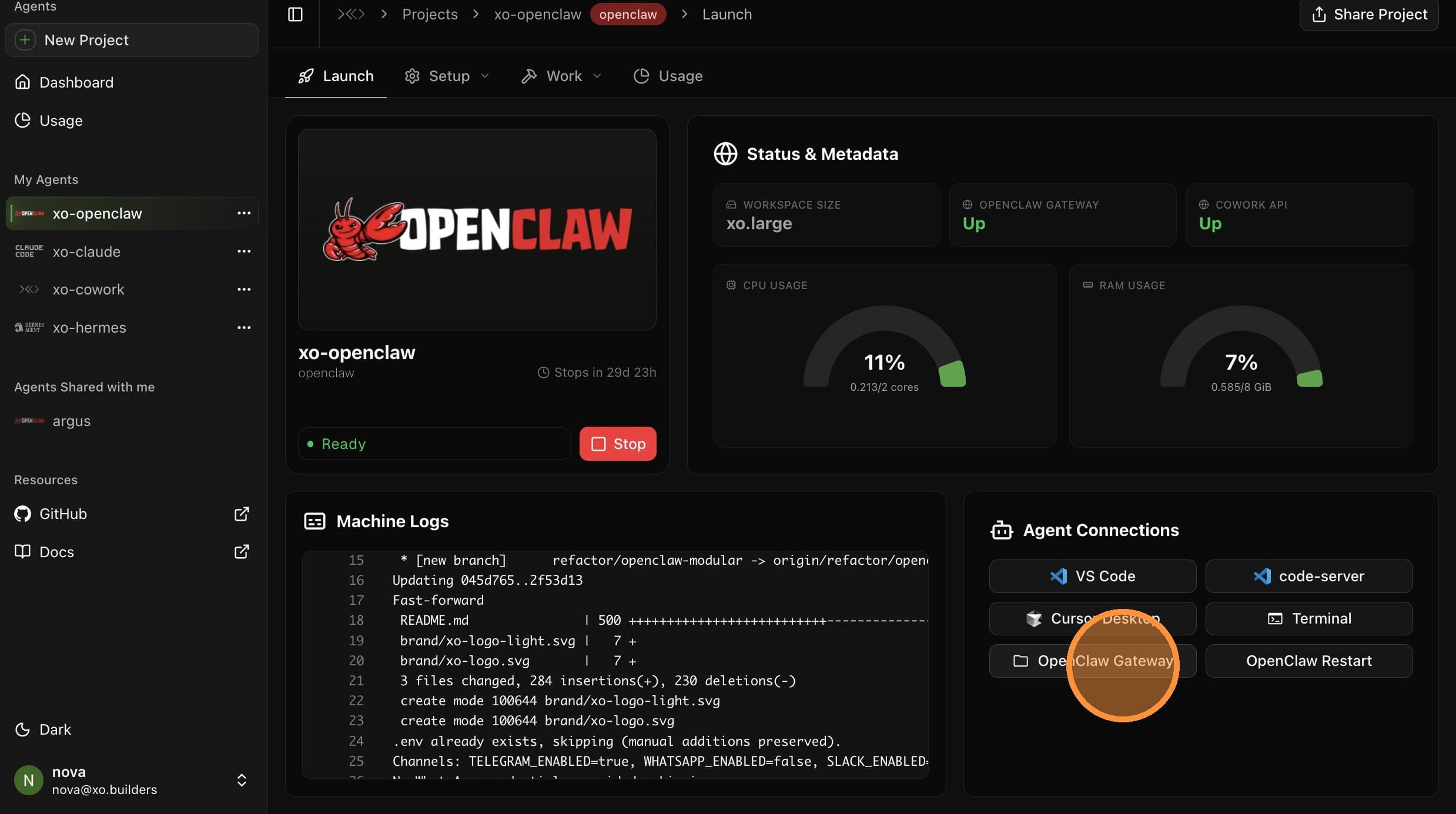
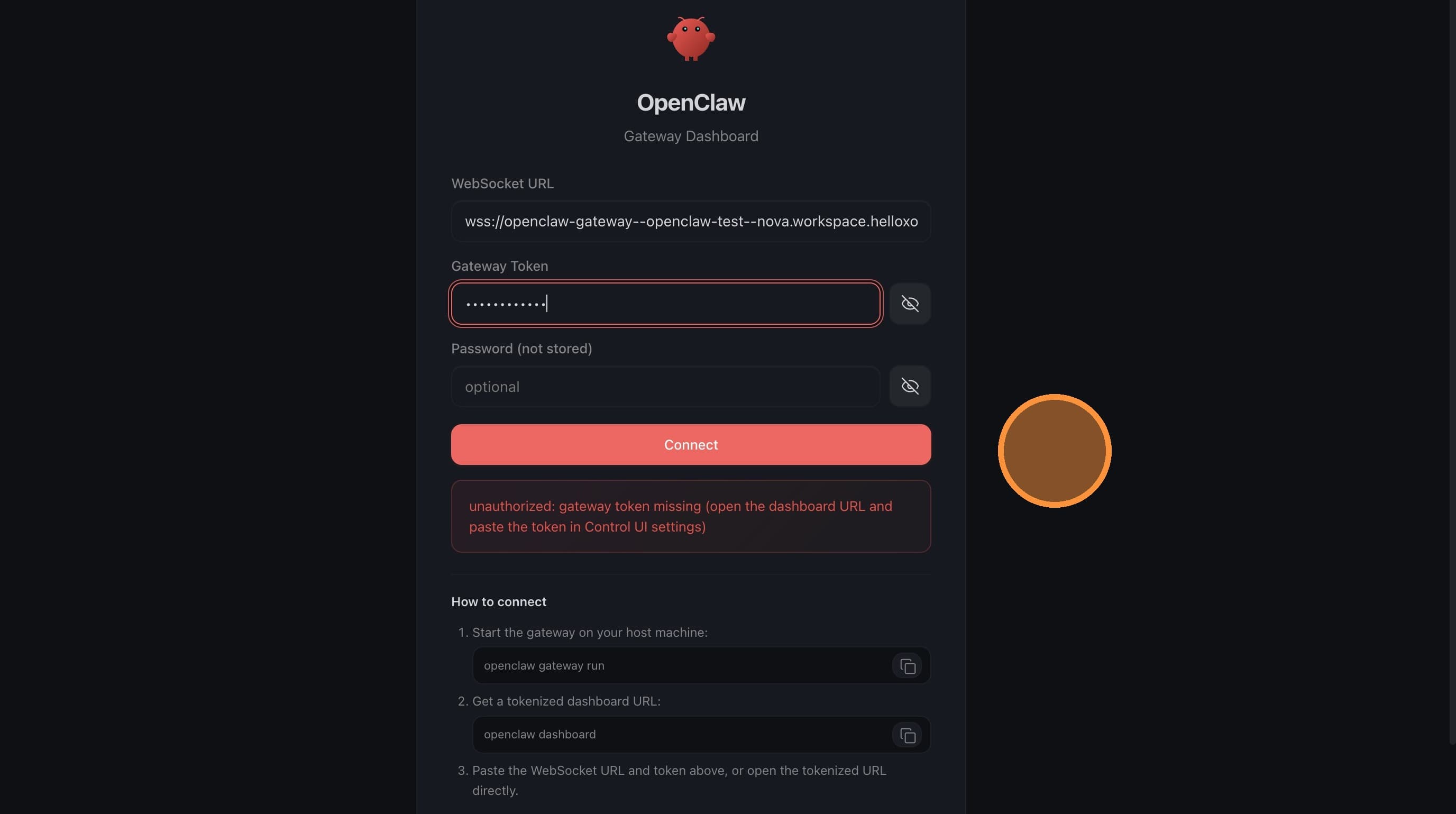
Enter your project name in the Gateway Token field.
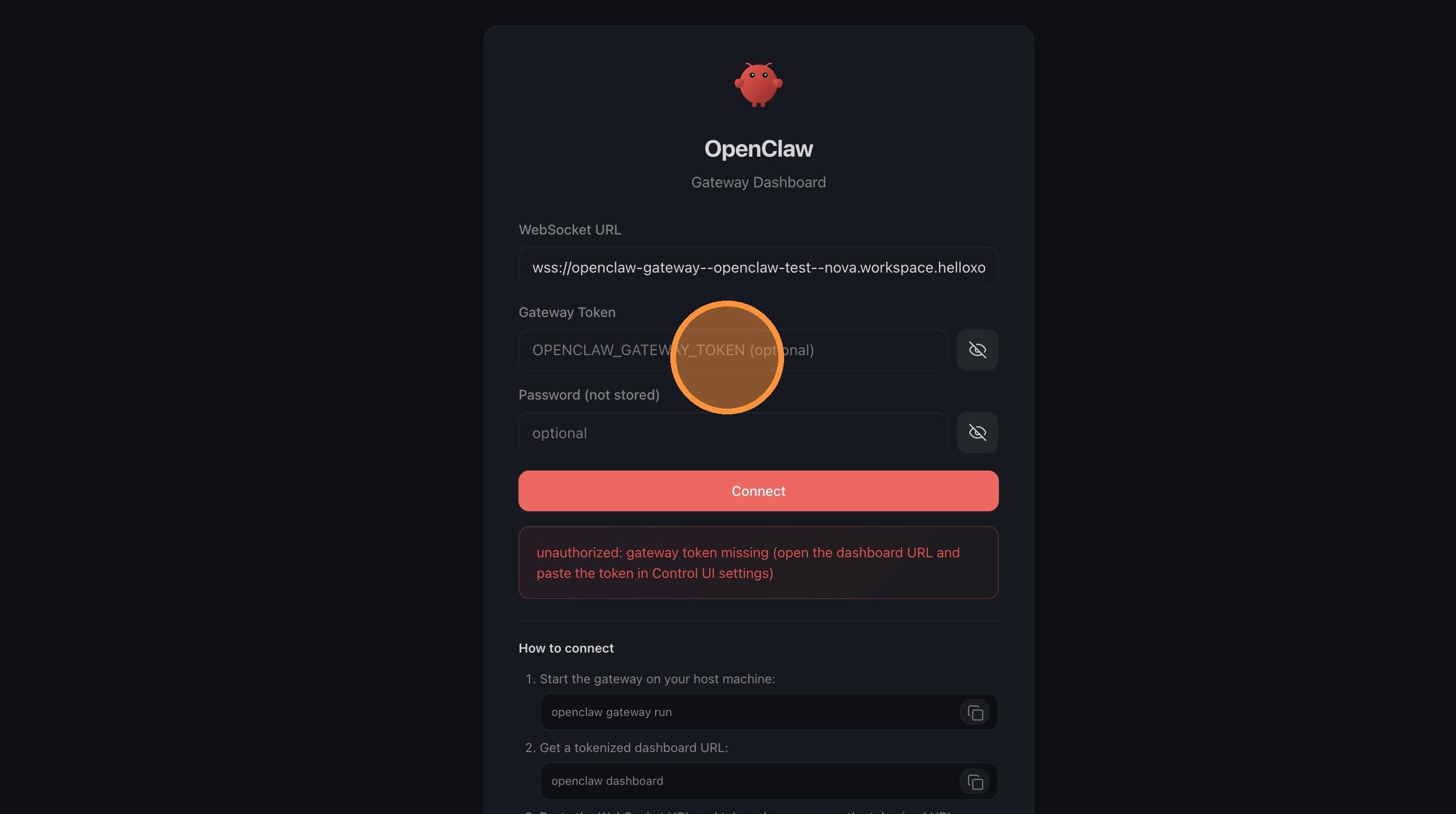
If you see "unauthorized: gateway token missing", enter the correct token — it's your exact project name (case-sensitive).
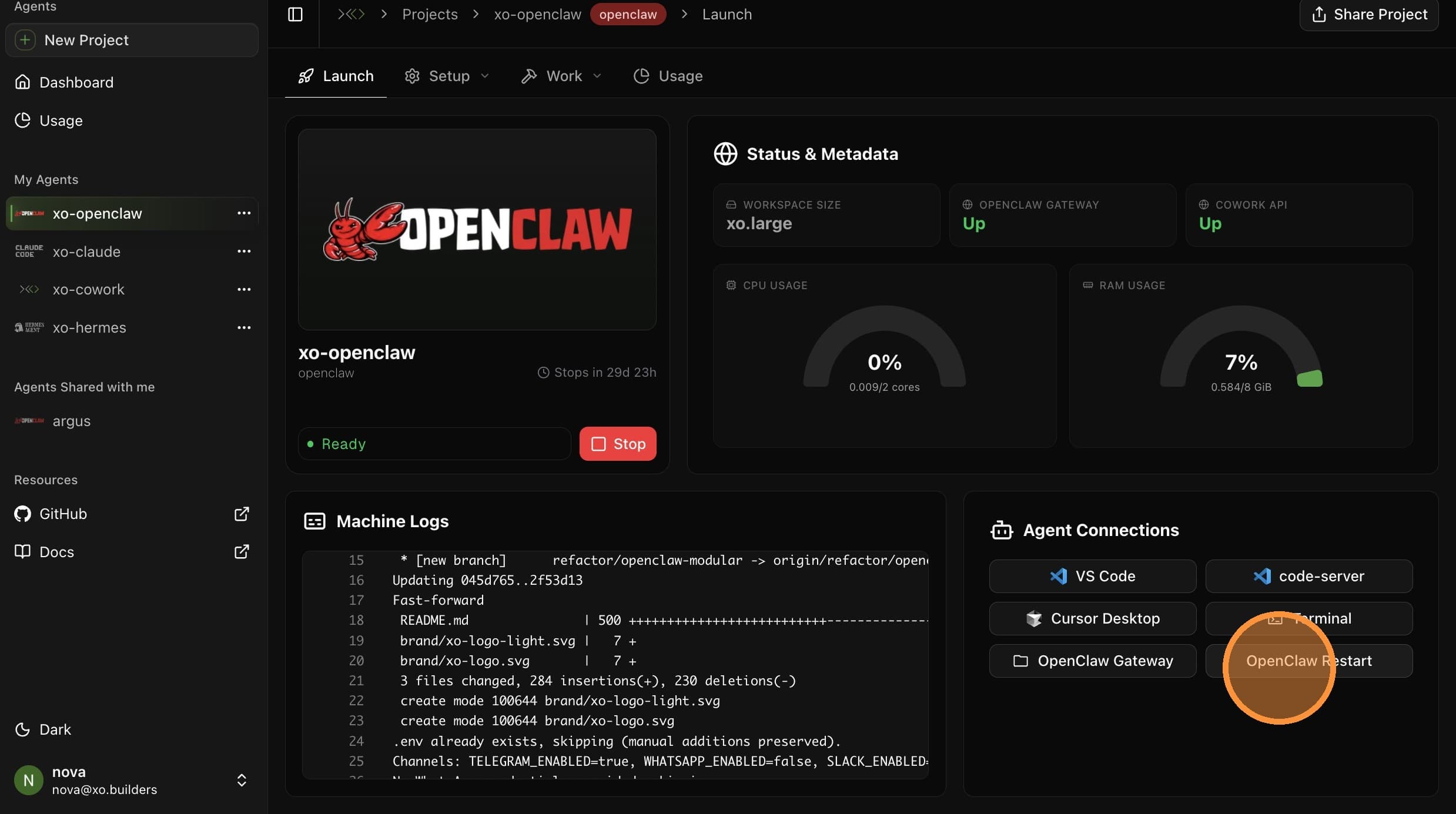
Restarting the OpenClaw Gateway
Click OpenClaw Restart to restart the gateway service.
Wait for the OpenClaw gateway restarted confirmation.
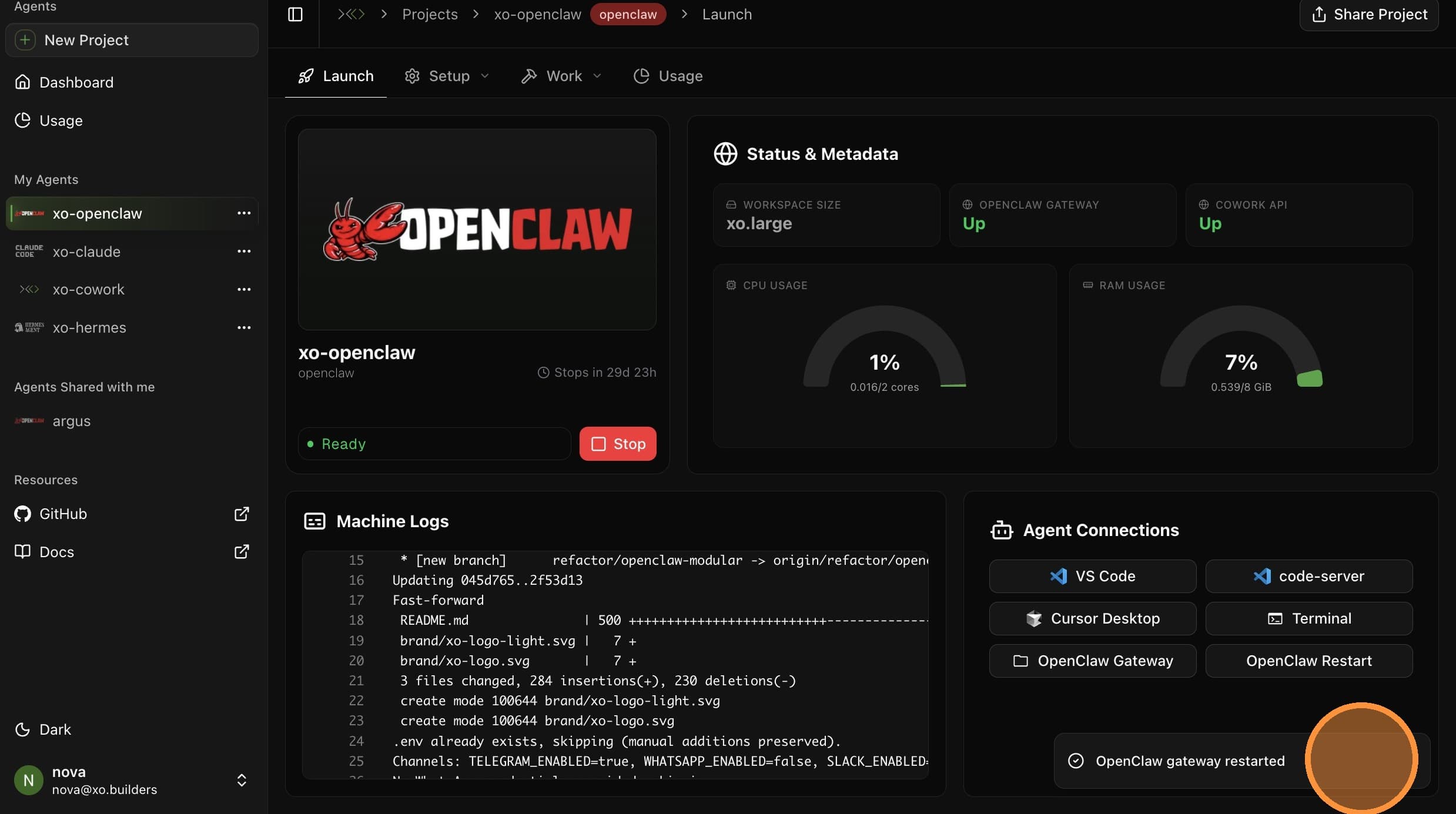
Give it a minute before opening the gateway again. For the terminal restart method (with logs), see the Restart Gateway guide.
Restart Your Machine
If your IDE isn't loading or your environment feels stuck, do a stop-and-restart cycle.
Stop the Machine
Click Stop to shut down the workspace machine. Click Refresh to confirm the status reads stopped.
Start the Machine
Click Start to boot the machine back up.
Wait for the status to change from starting to running.
Verify Services Are Up
Check that both OpenClaw Gateway and Cowork API show Up before opening the gateway or IDE.
If the machine stays in a starting state for more than a couple of minutes, try stopping and starting it again.