
Access Your Machine via VS Code Server
Open a browser-based VS Code IDE and start running commands in your workspace.
Code-Server gives you a full VS Code experience in your browser — no local installation required. This guide walks you through first-time setup, including trusting the workspace and opening a terminal.
What You'll Need
- An XO account with an active workspace
- A workspace machine in the running state (see Manage Your Machine)
Launch Code-Server
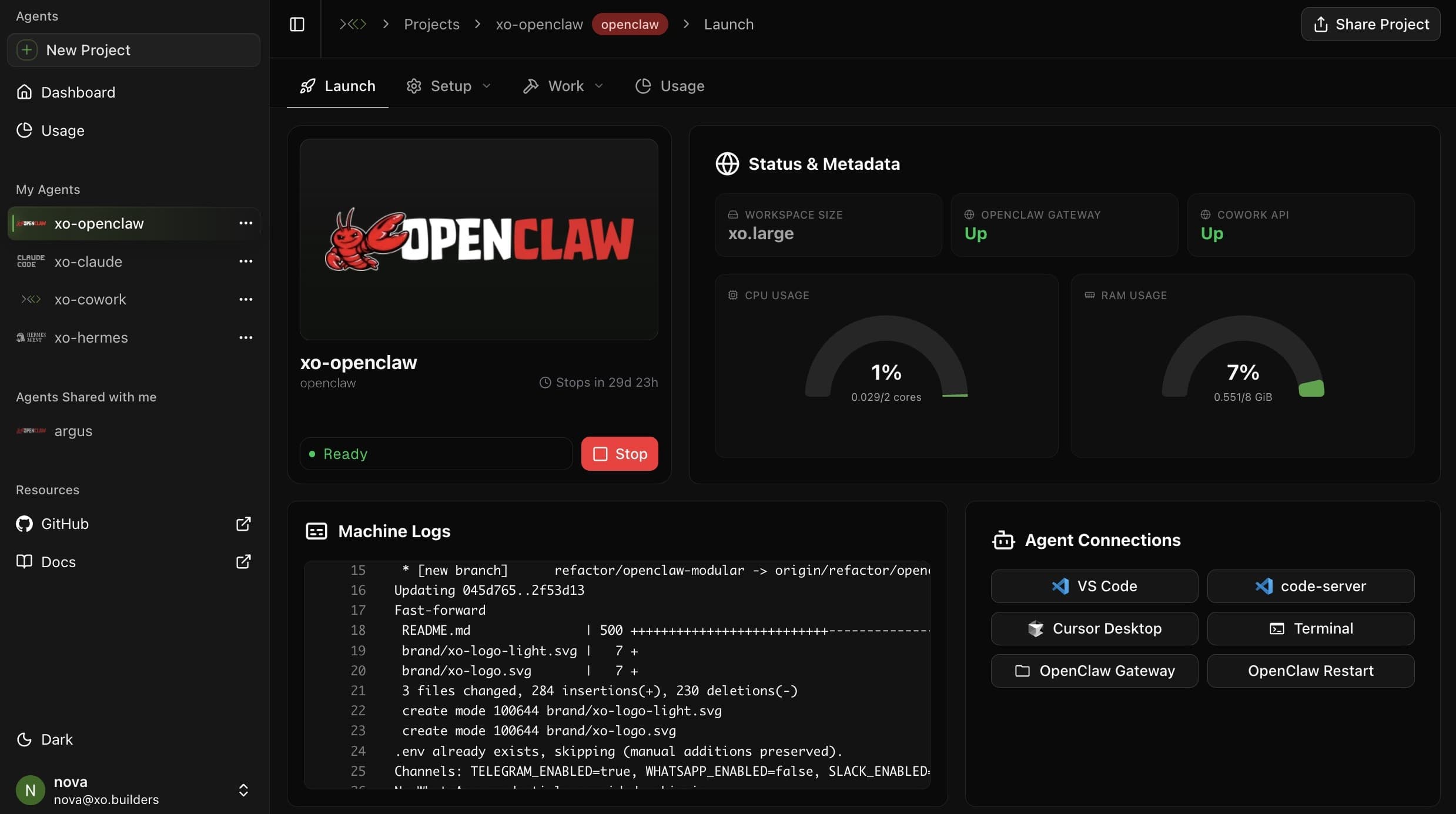
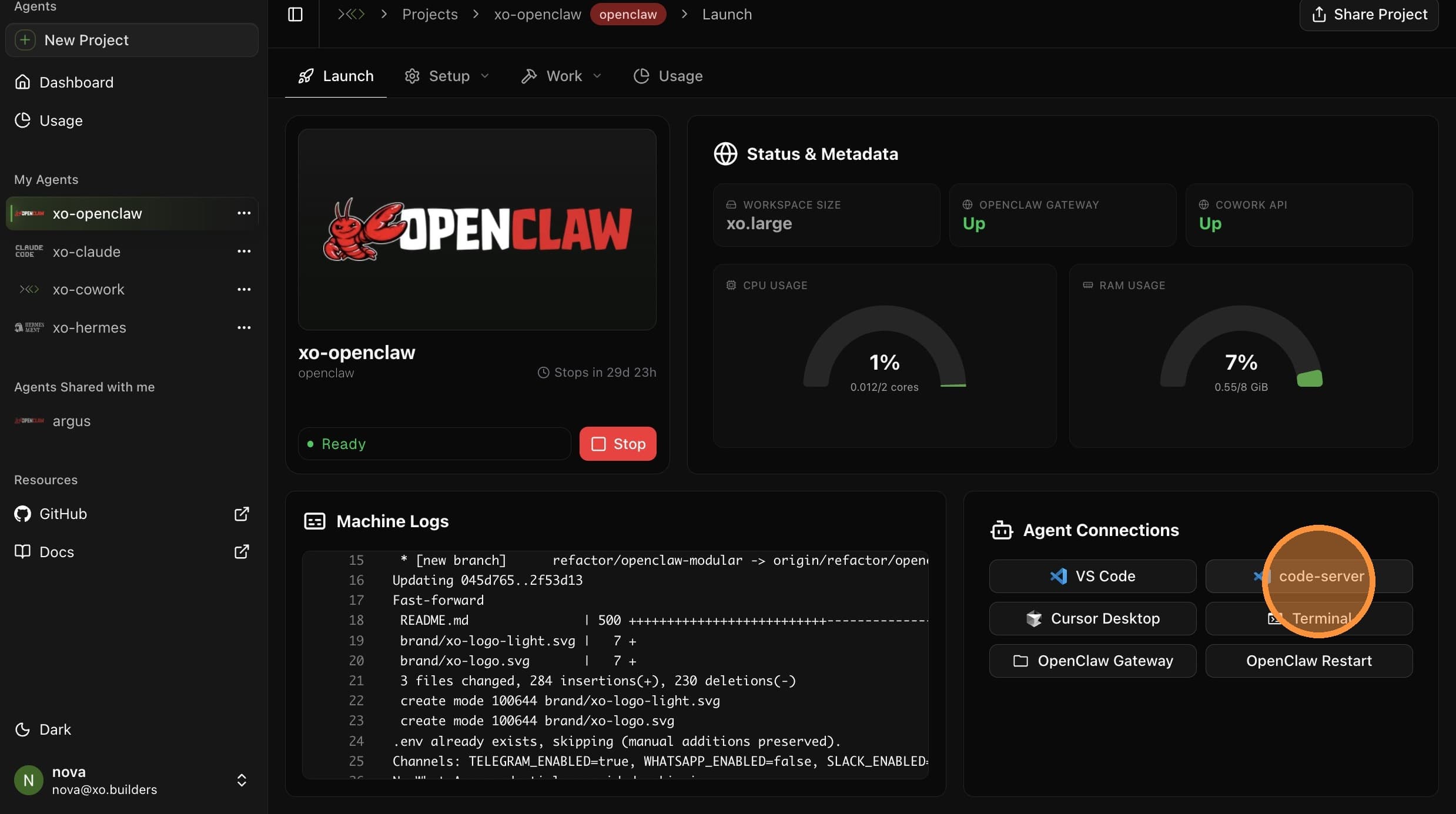
Click code-server
Under Agent Connections, click code-server. A new browser tab opens with the editor.
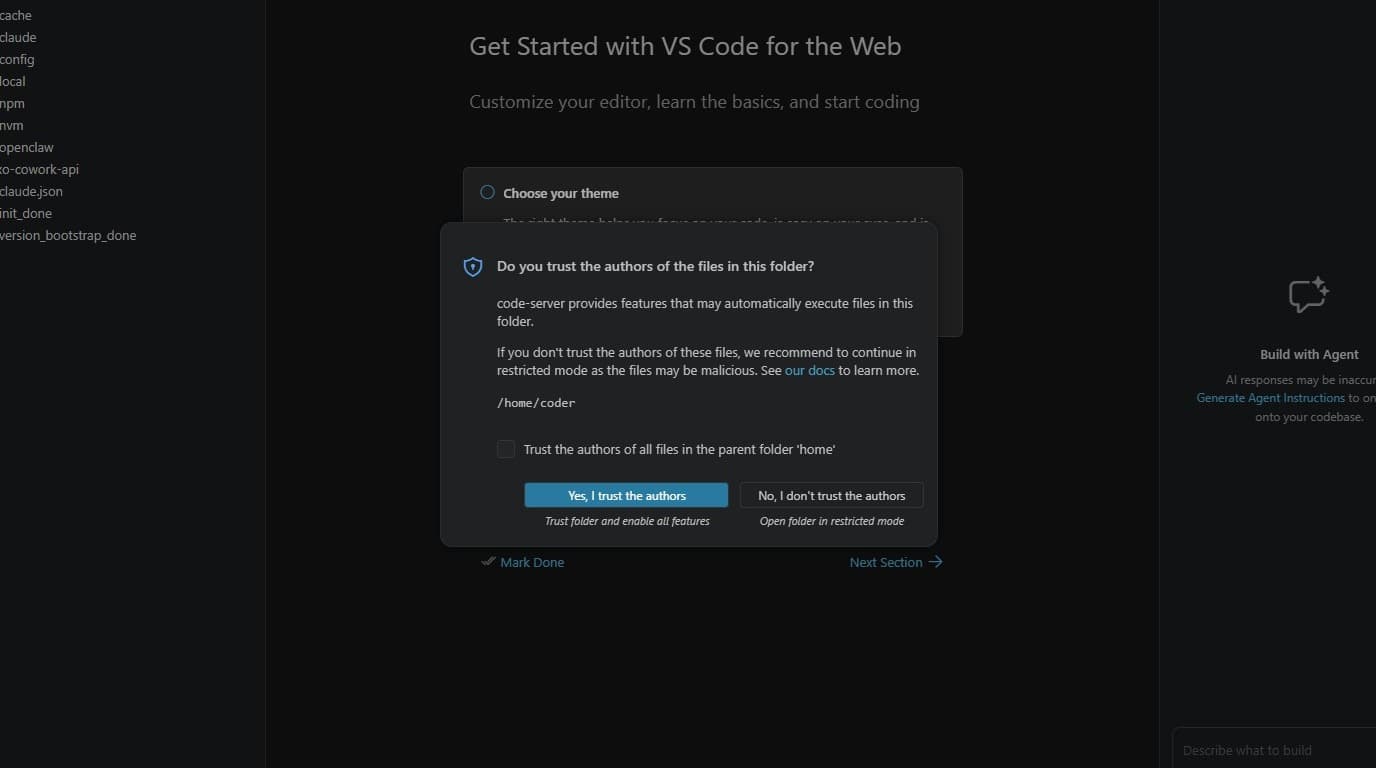
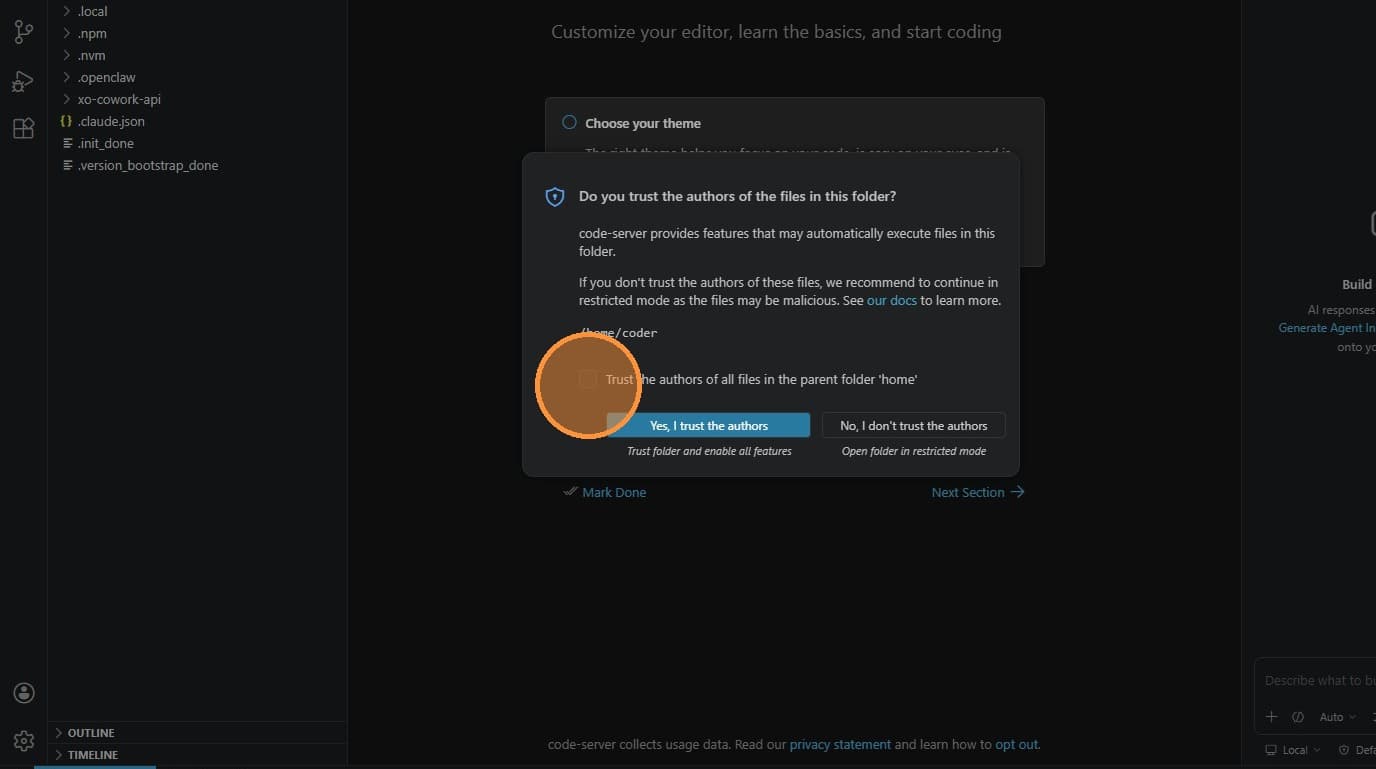
Trust the Workspace
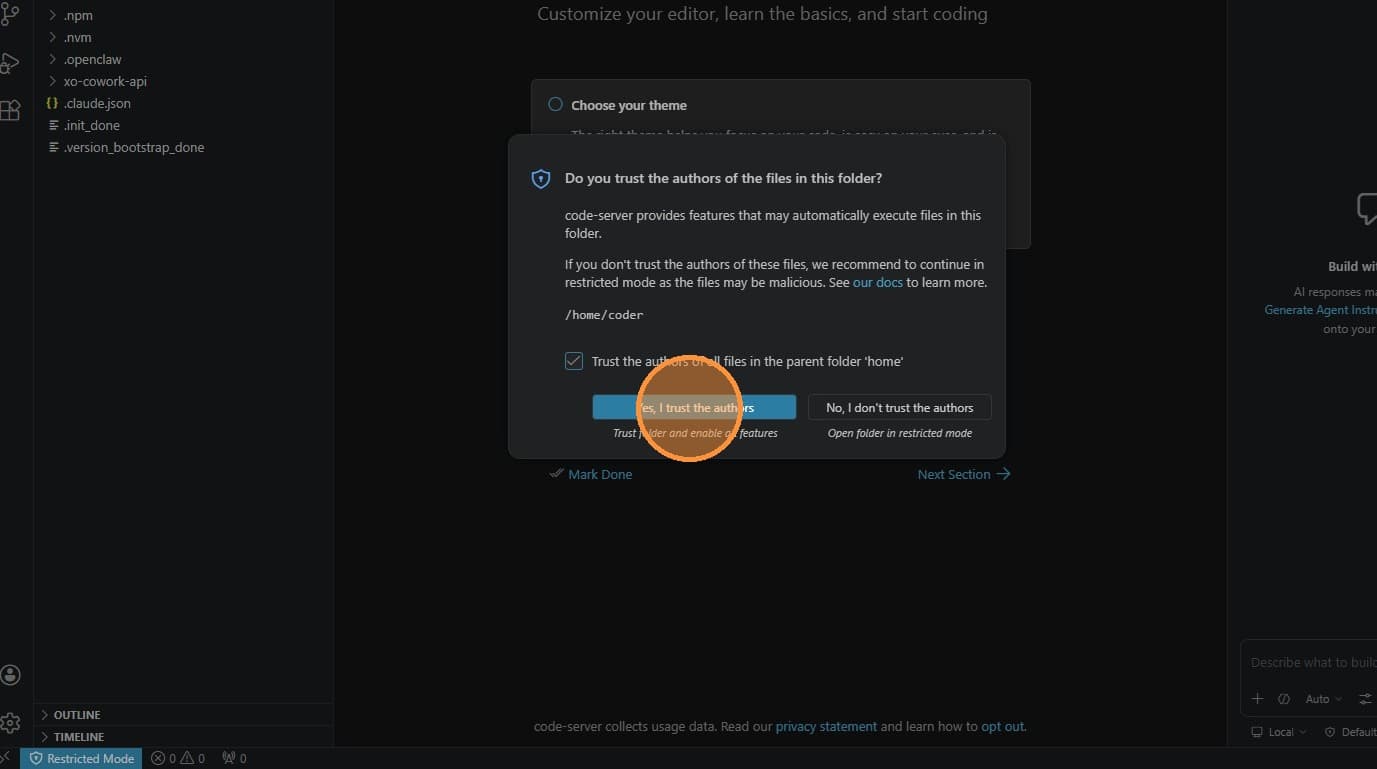
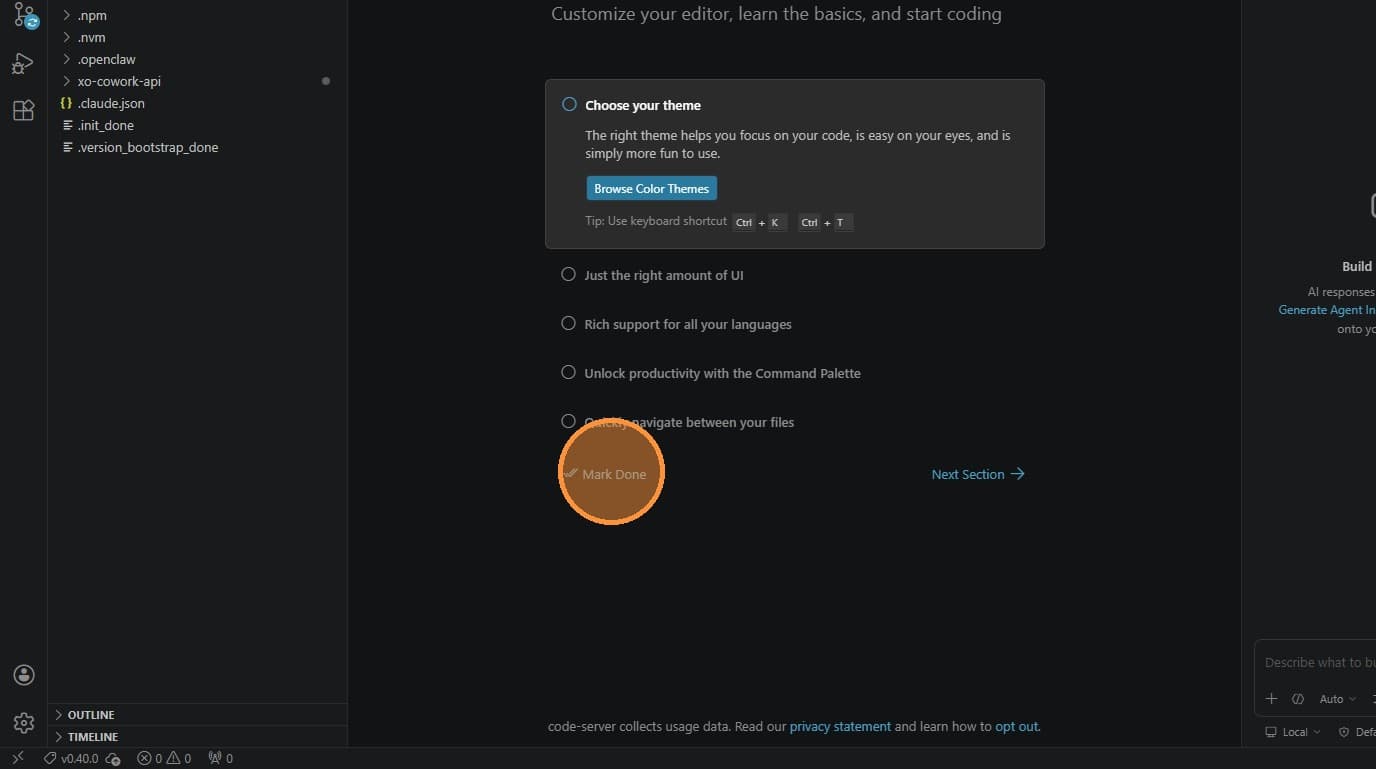
A dialog asks if you trust the files in this folder. Check Trust the authors of all files in the parent folder 'home'.
Open a Terminal
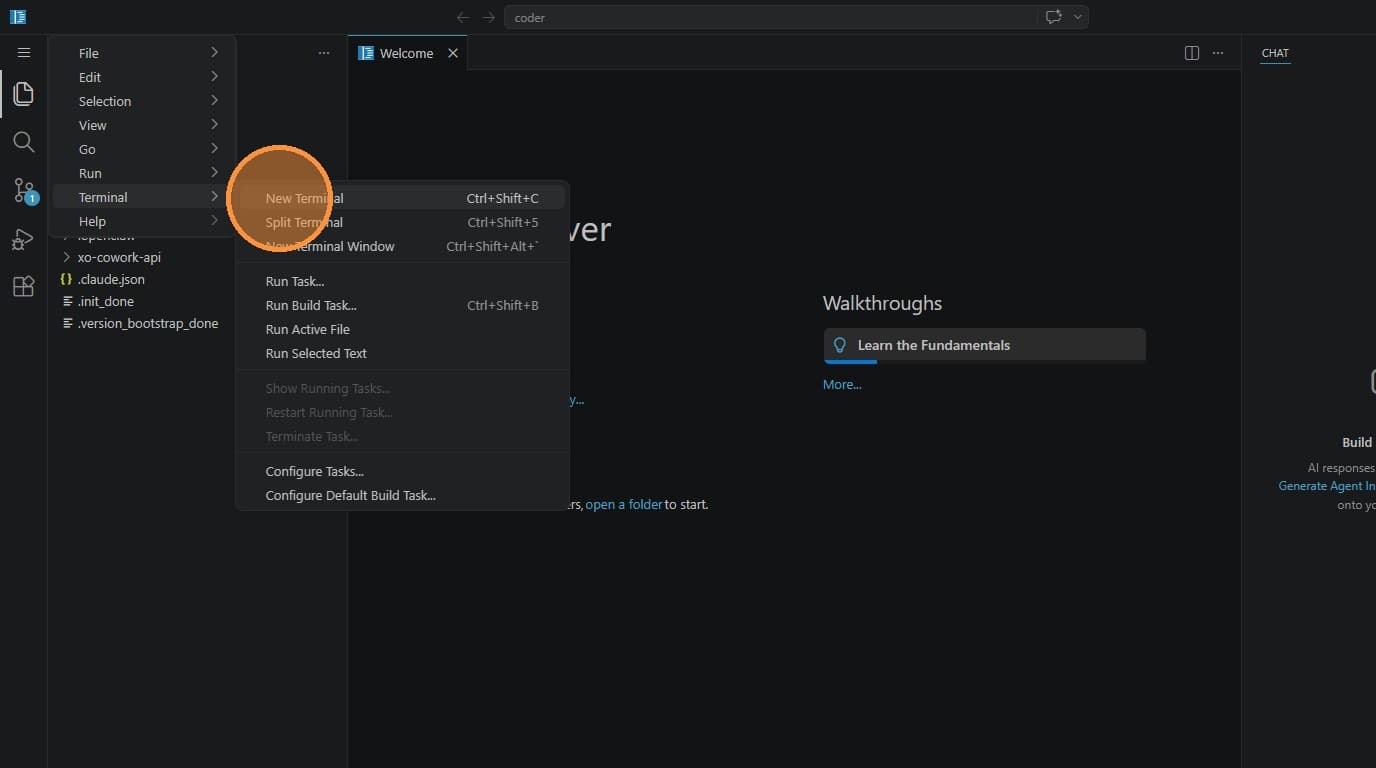
You need a terminal to run workspace commands like openclaw config, openclaw start, and others.
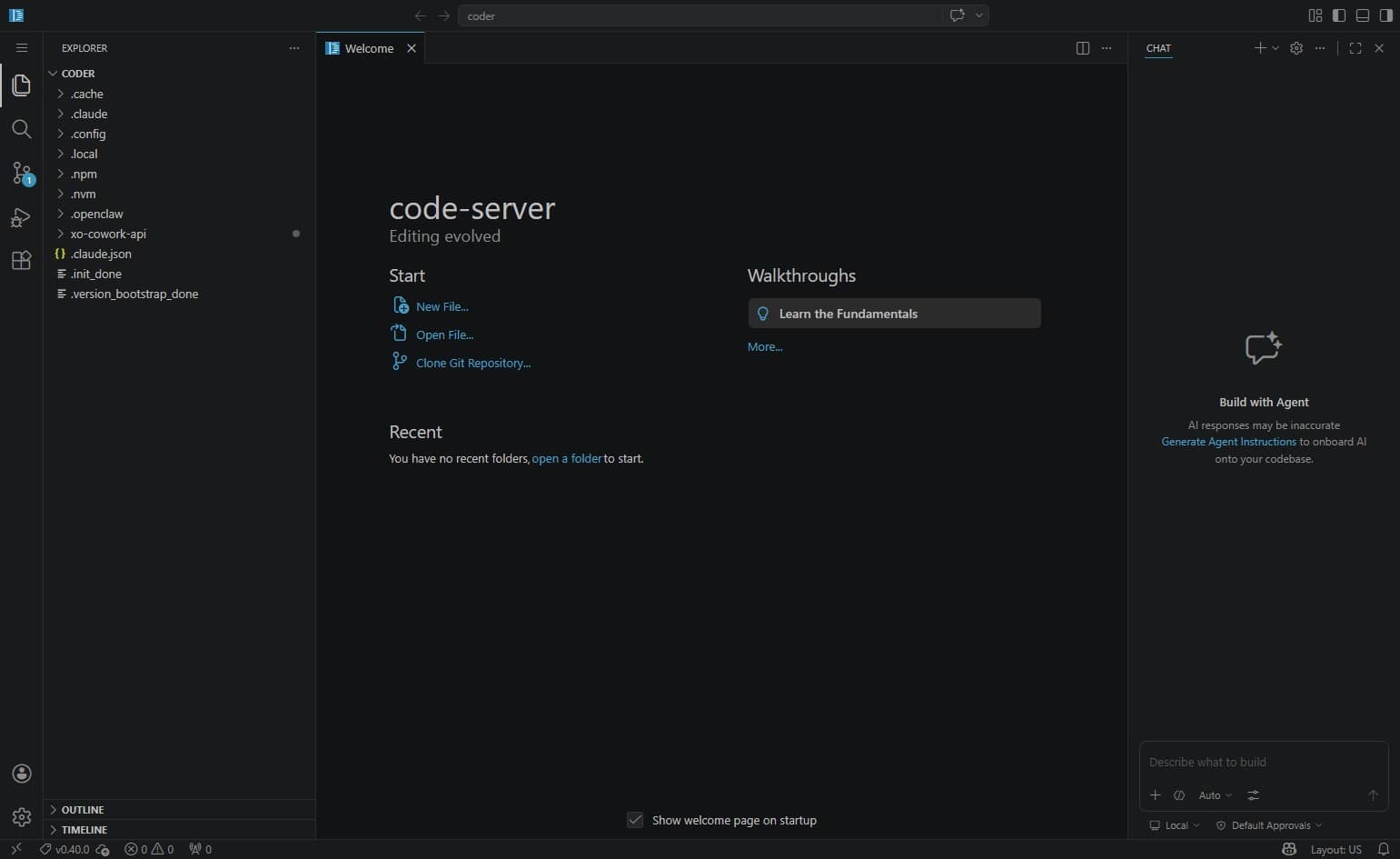
Alternatively, use the menu:
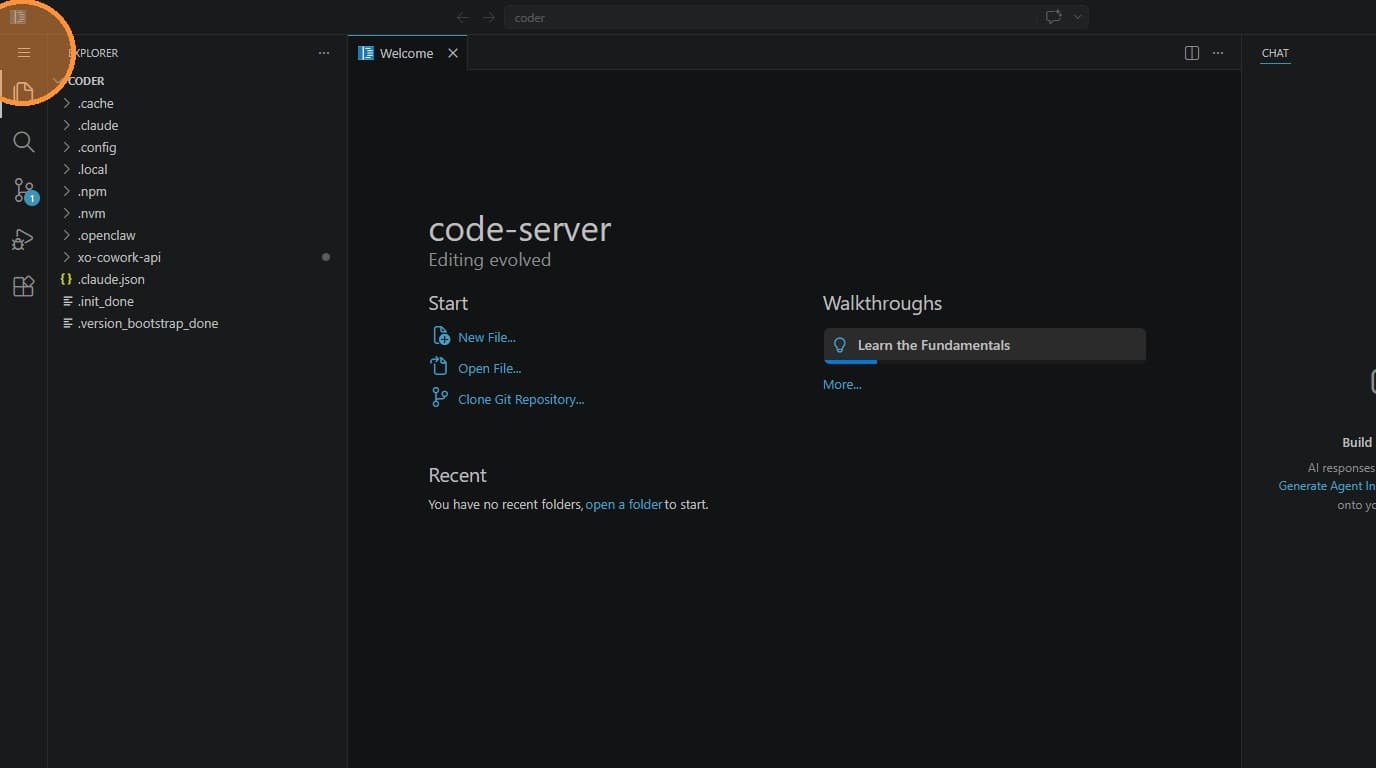
Open the Application Menu
Click the hamburger menu icon (three horizontal lines) in the top-left corner.
Start Typing Commands
The terminal panel appears at the bottom. Click inside it and start running commands.
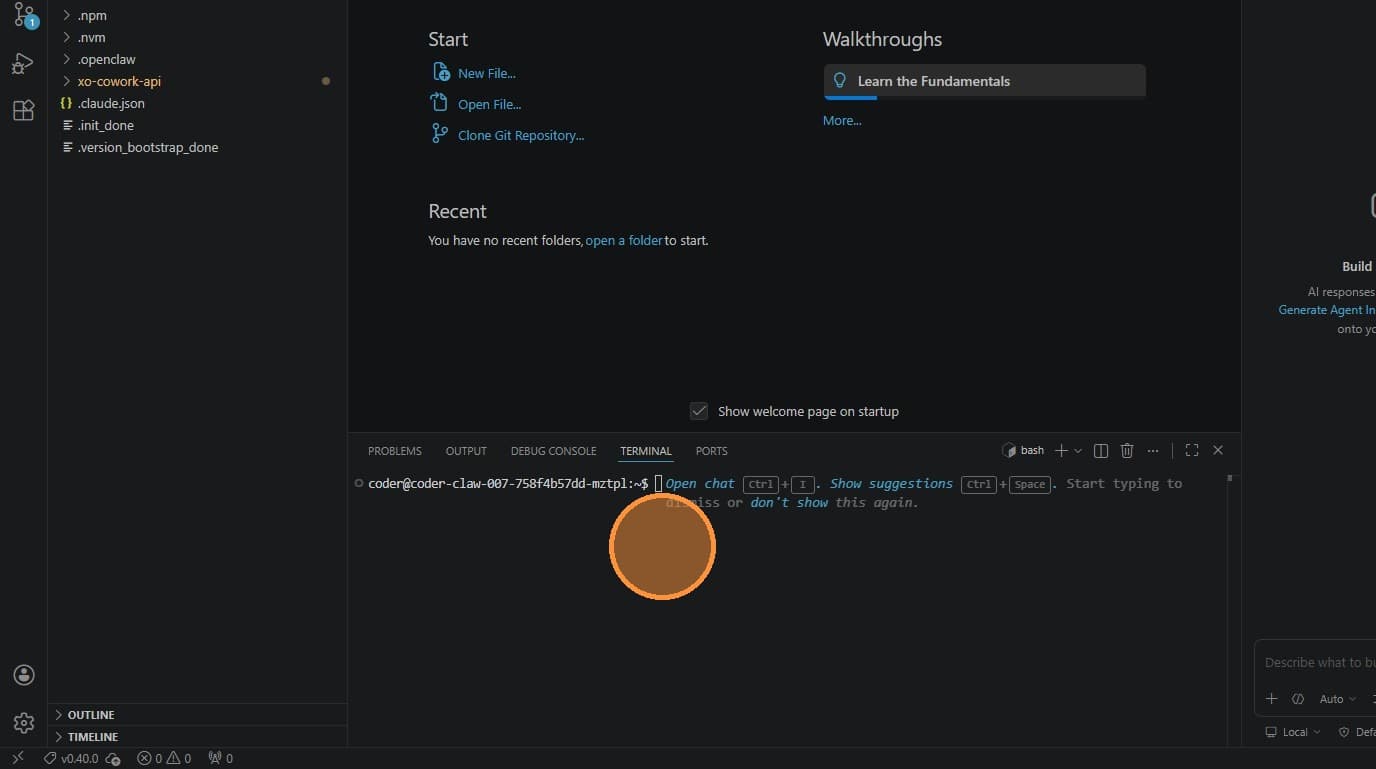
The terminal opens in your workspace's home directory by default. All your project files and configs live here.