
Getting Started
Share Your Project
Grant and revoke collaborator access to your workspace by email.
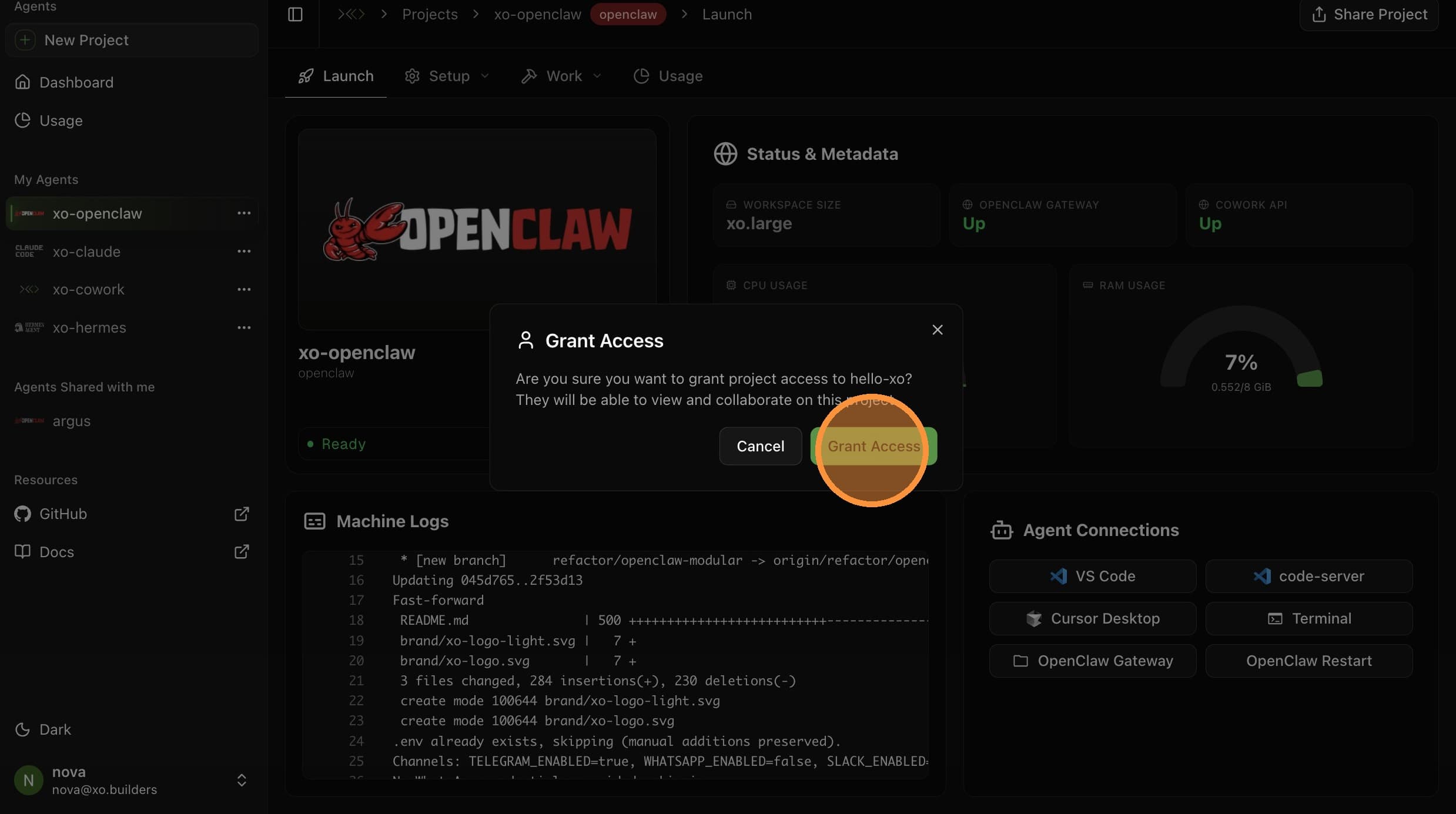
Invite team members to collaborate on your workspace by granting them access through their email address. You can also revoke access at any time.
What You'll Need
- An XO account with an active workspace
- The exact email address of the person you want to invite
Grant Access
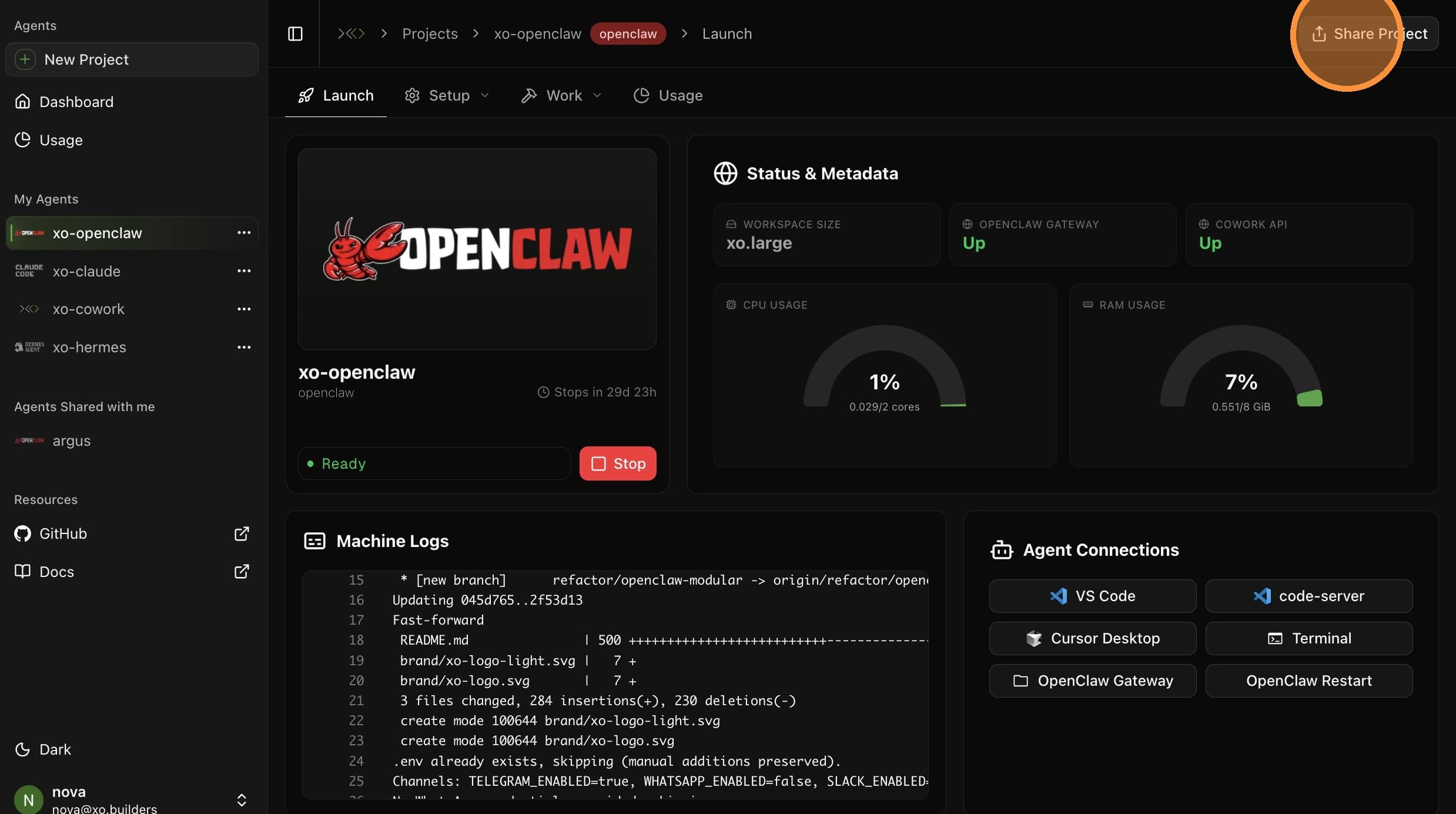
Search by Email
Type the collaborator's exact email address in the search field.
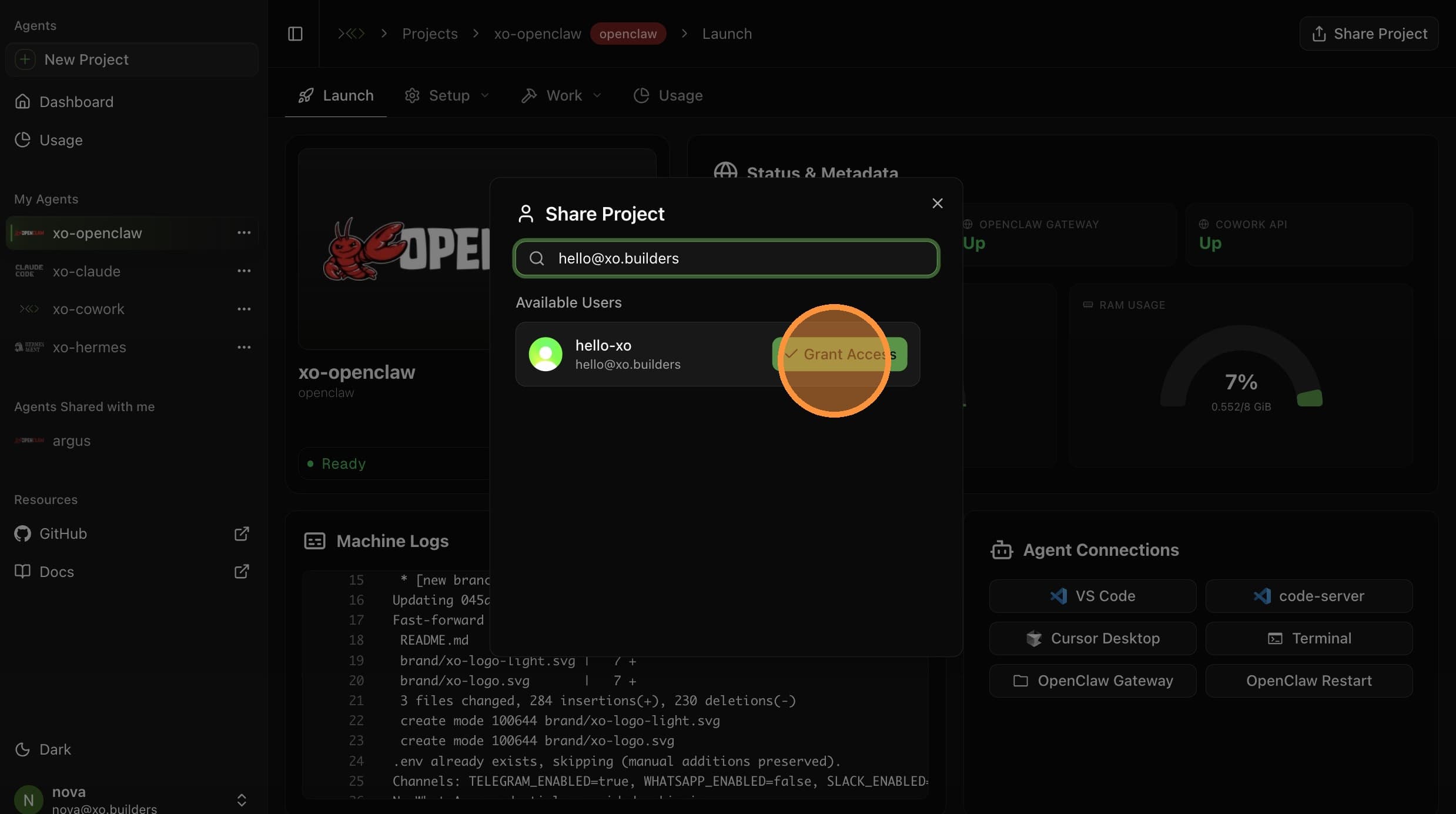
The email must match exactly. Partial matches or usernames won't work — use the full email address the collaborator registered with.
Revoke Access
Find the Collaborator
In the same share dialog, locate the collaborator you want to remove and click Revoke.
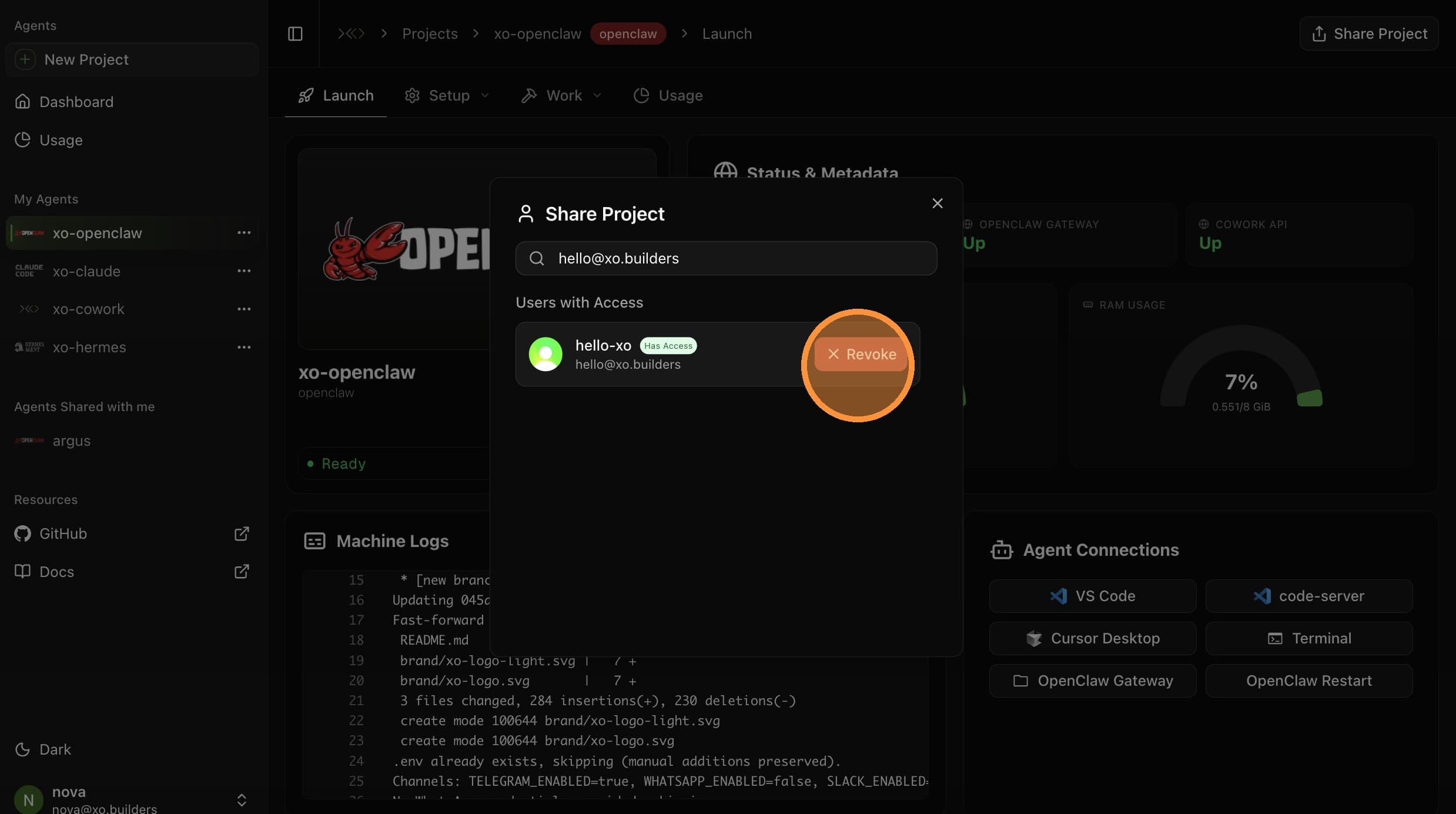
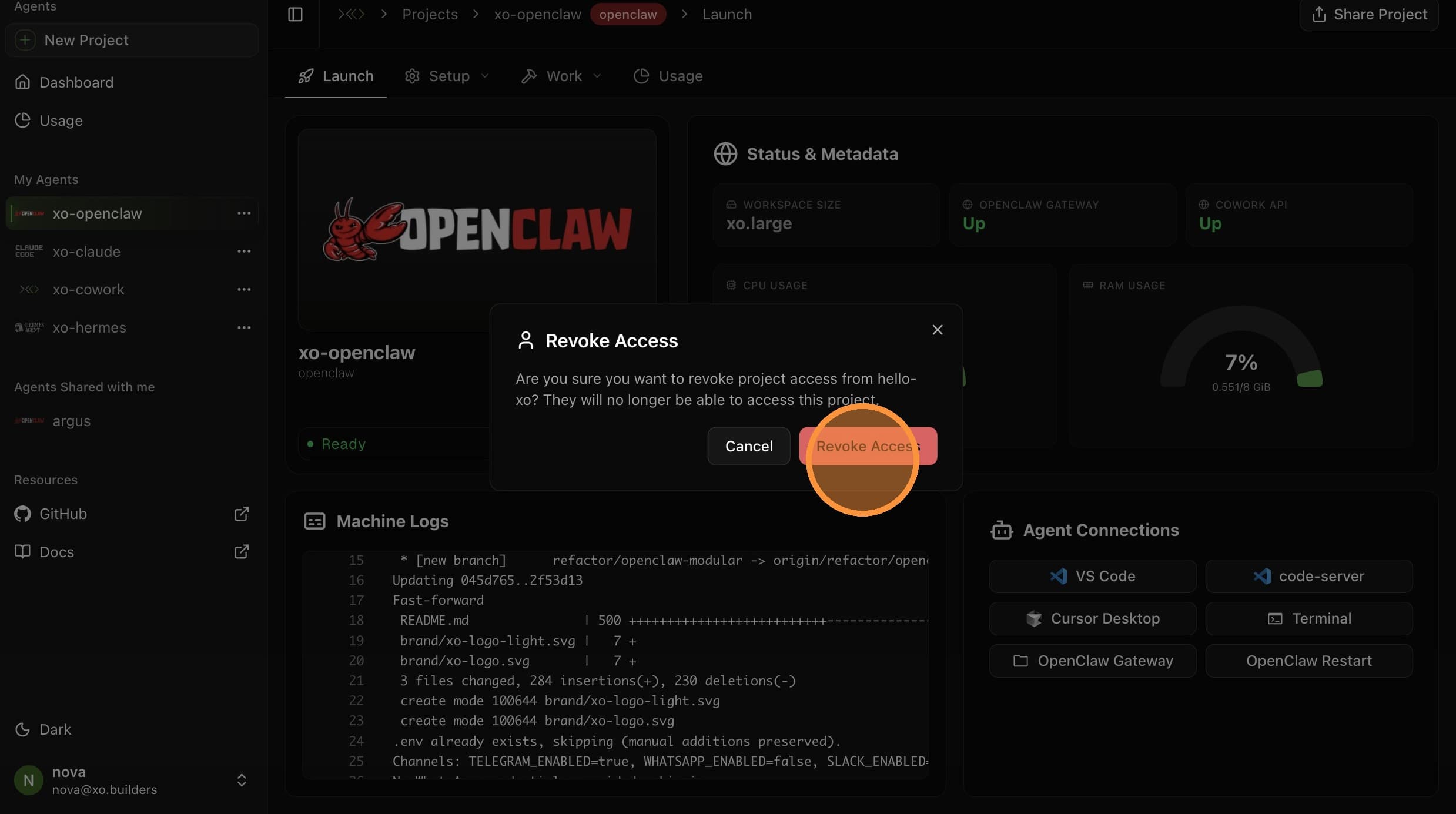
Revoking access is instant. The collaborator won't be able to open the workspace or its IDE after removal.