
Claude Subscription No Longer Covers OpenClaw
Fix the "LLM request rejected" error by switching your model provider or auth method.
What Happened
Anthropic changed how Claude subscriptions work. Claude Pro and Team plans no longer cover API usage in third-party tools like OpenClaw. Your agent didn't break — it needs a new auth method to keep running.
If your agent replied with this on Telegram, WhatsApp, or any other channel:
LLM request rejected: Third-party apps now draw from your extra usage, not your plan limits. We've added a $x credit to get you started. Claim it at claude.ai/settings/usage and keep going.
Fix it by reconfiguring your model provider inside your workspace. The whole process takes under 5 minutes.
Fix It
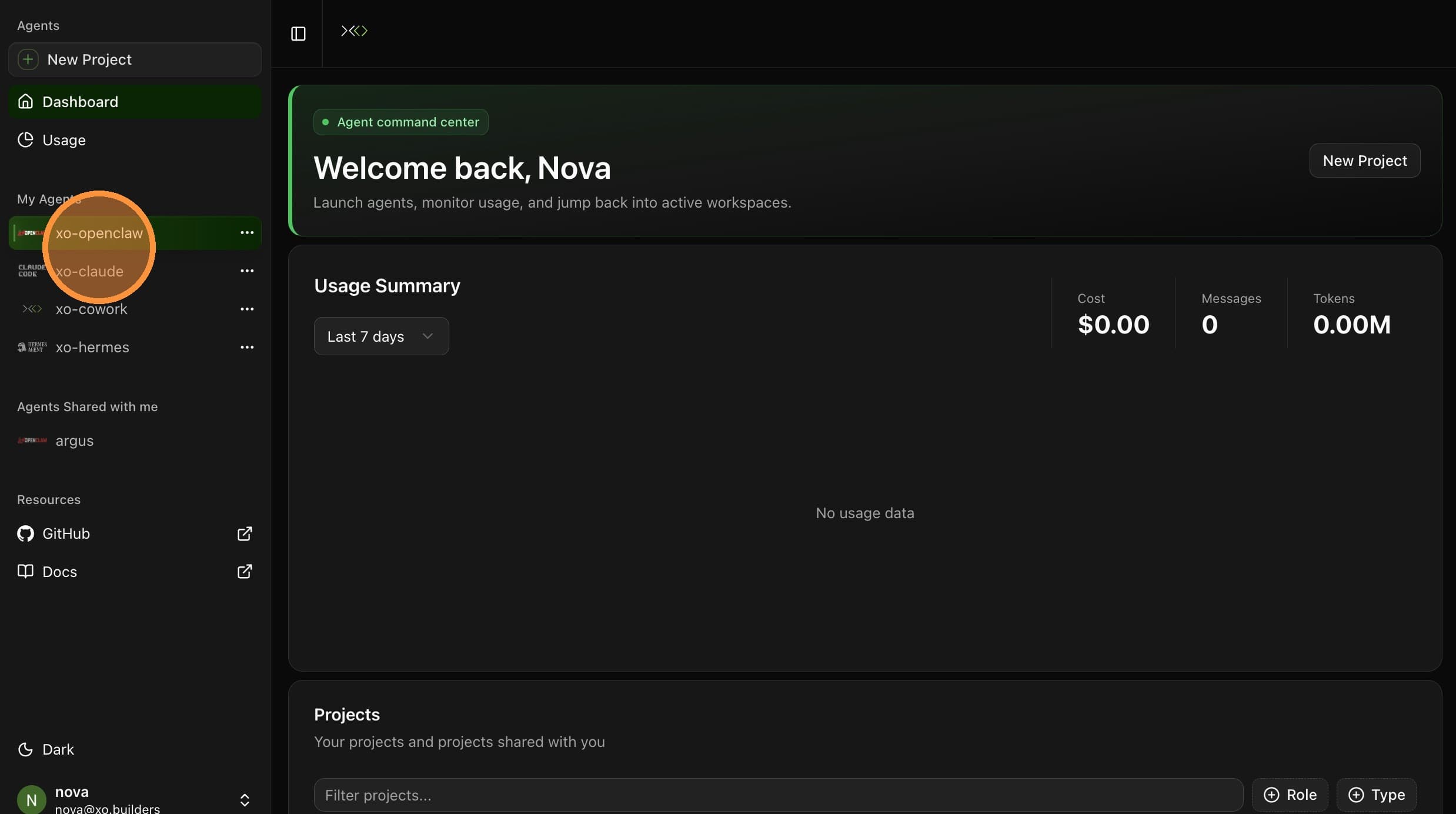
Open your workspace IDE
Click Open Workspace and choose your IDE — VS Code, Cursor, or Code Server (browser-based VS Code). All three work the same way for this.
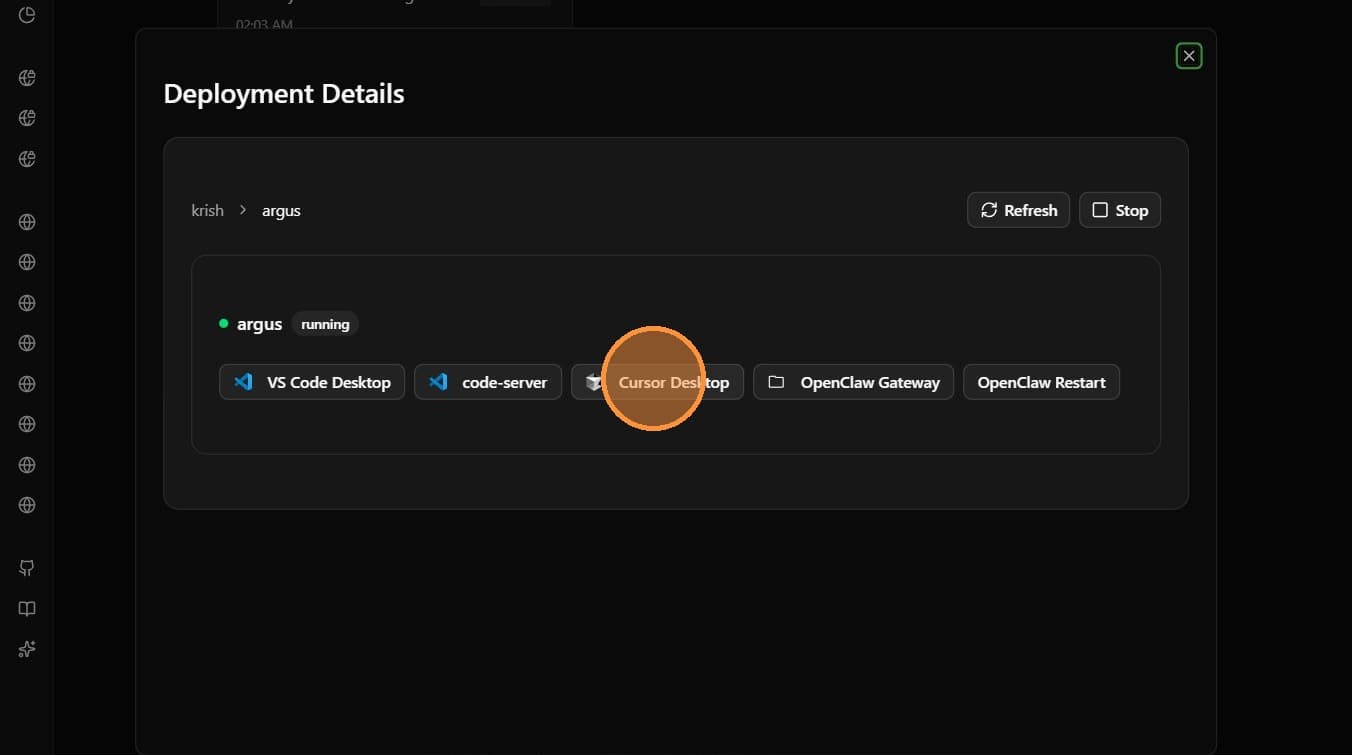
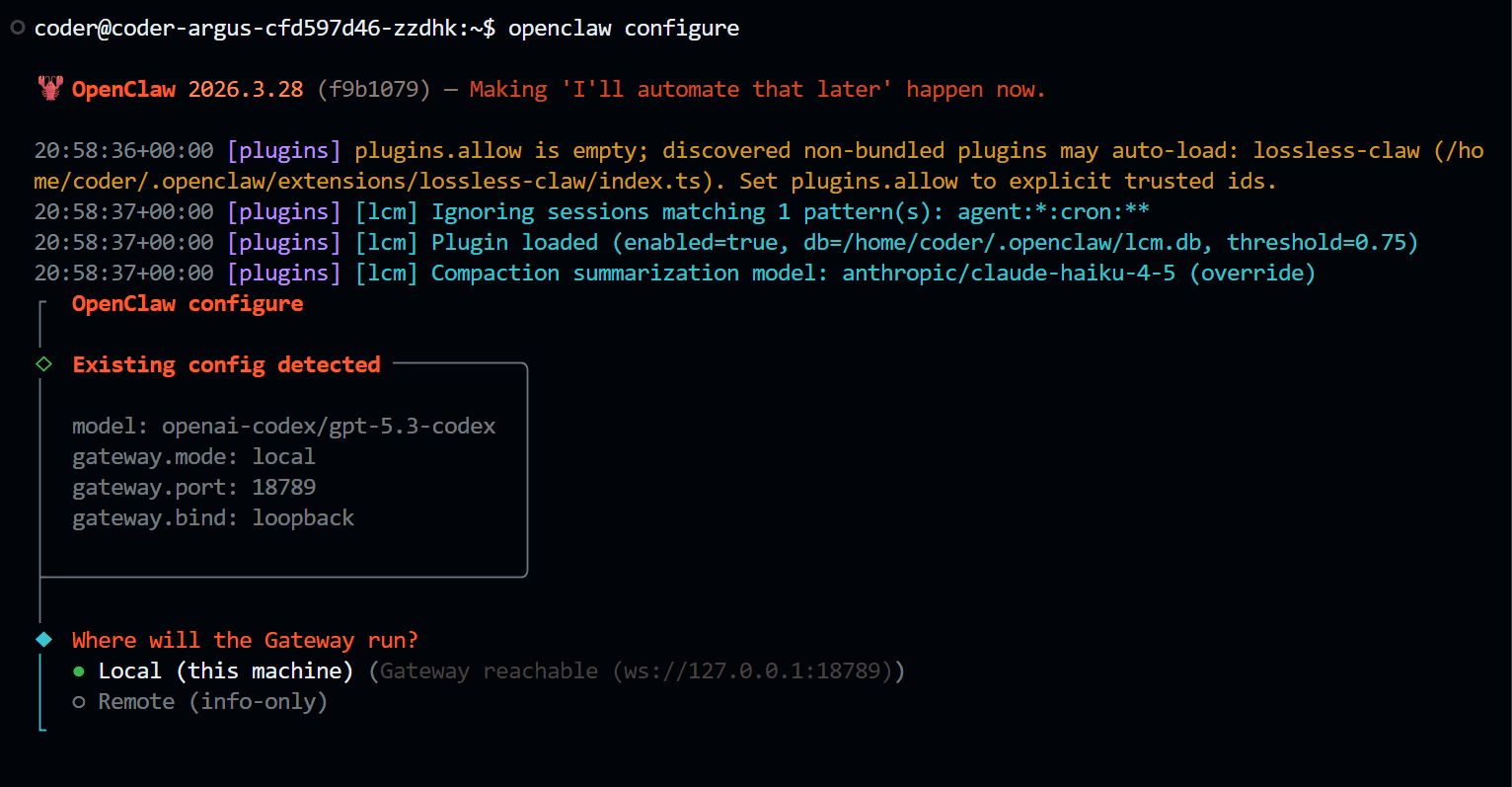
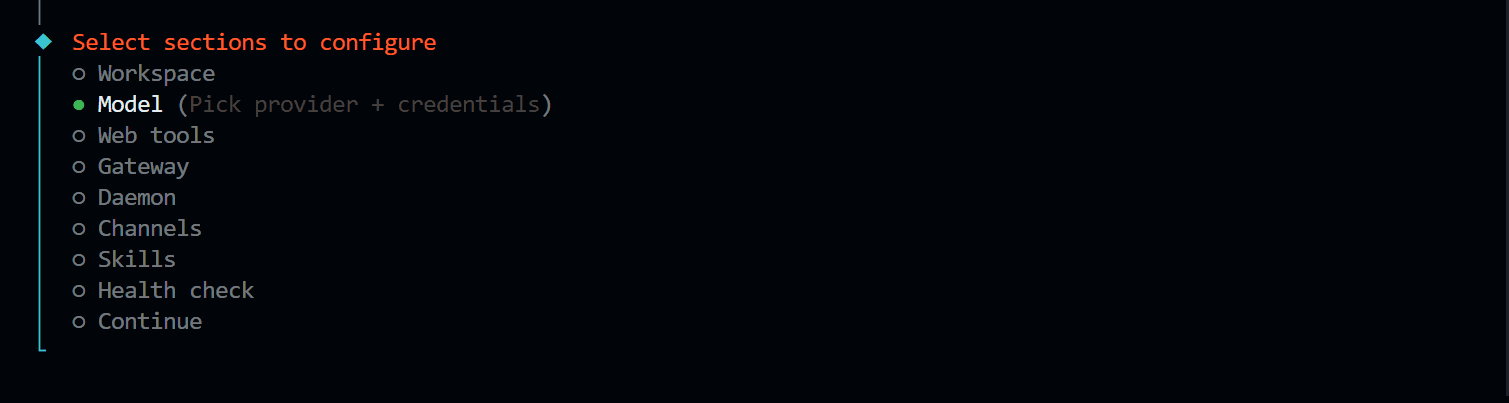
Choose your provider and enter credentials
Pick the provider you want to use. Full instructions for each option are below.
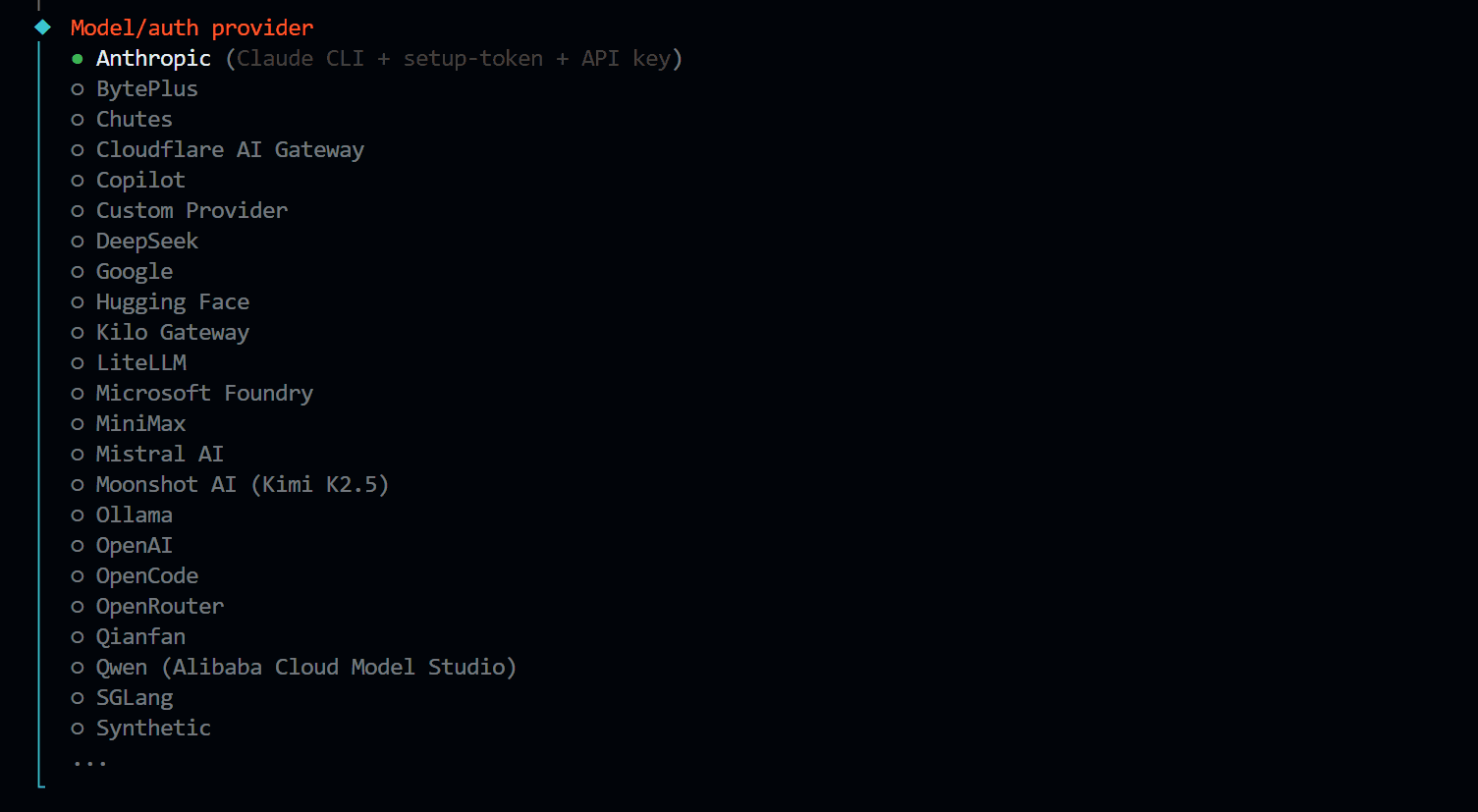
Select Anthropic from the provider list, then select Anthropic API key and hit Enter.

If prompted about an existing key, select No to enter a new one.

Paste your API key and hit Enter. Get one at console.anthropic.com if you don't have one yet.

Newer versions of OpenClaw may show a slightly different auth menu, but the Anthropic API key option will always be present.
Select any provider from the list — OpenAI, Google, DeepSeek, Mistral, and others are all supported. After selecting your provider, the terminal walks you through entering your credentials for that provider.
The steps are the same pattern: select provider → select auth method (if applicable) → paste your API key.
Get your API key from your chosen provider's developer console before starting.
Switching to Codex requires a few additional steps. Follow the Switch to Codex guide.
Restart the gateway
Once config is saved, restart OpenClaw to apply the changes. Open the Launch tab and click OpenClaw Restart, or run this in the terminal:
./xo-cowork-api/openclaw.sh restartWait a minute, then send a message to your agent to confirm it's responding again.