Switch to OpenAI Codex
Change your OpenClaw agent's model to OpenAI Codex with ChatGPT OAuth.
What You'll Need
- A deployed OpenClaw agent
- An OpenAI account (email, Google, or Apple login)
Change the Model
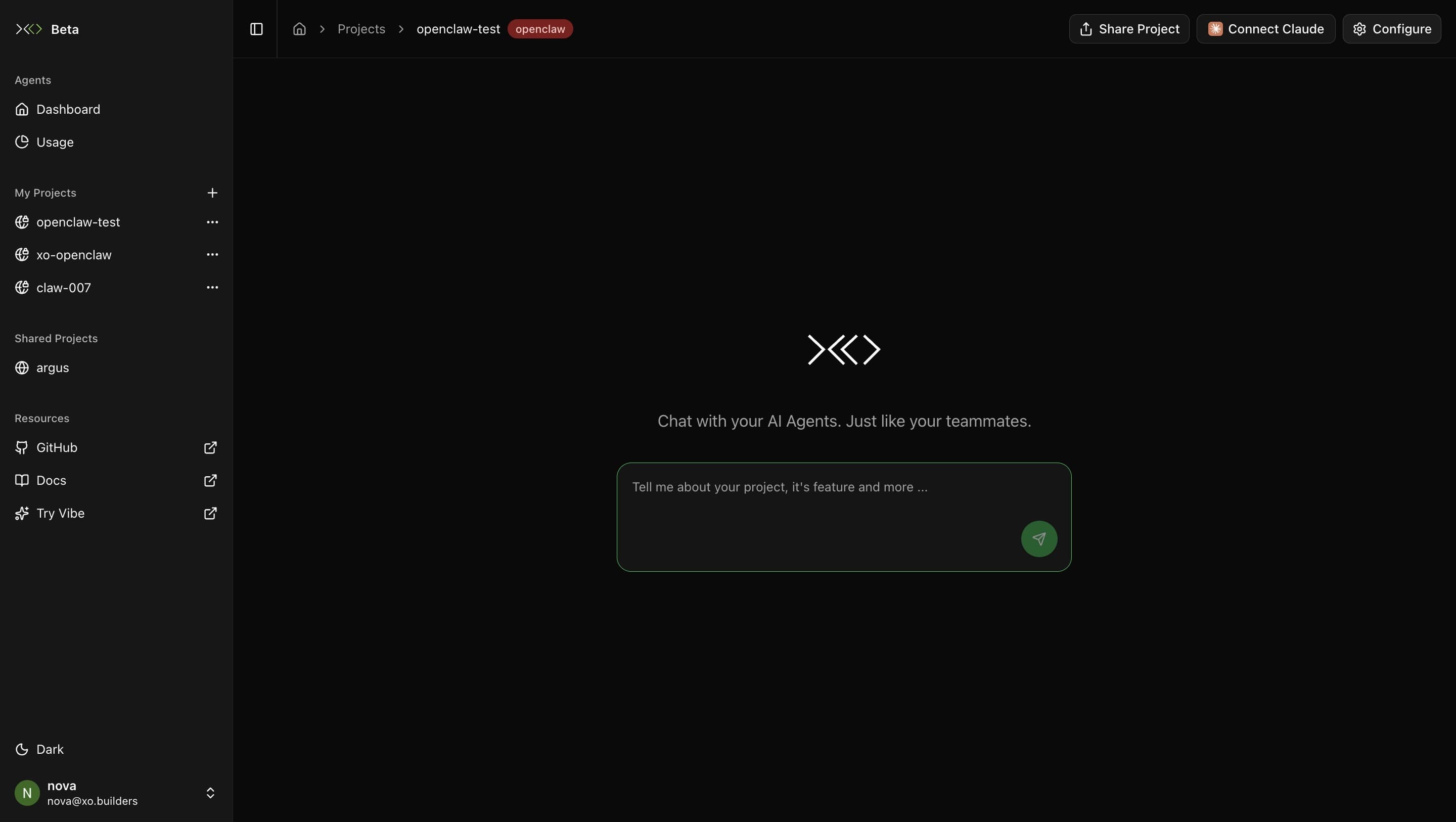
Open Your Workspace
Open your workspace IDE (Launch → Agent Connections → code-server), then open a terminal and run:
openclaw config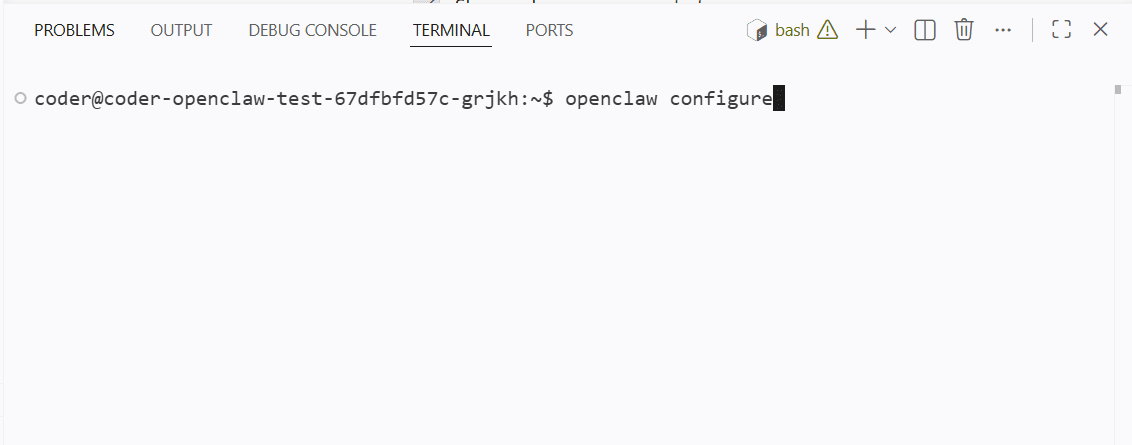
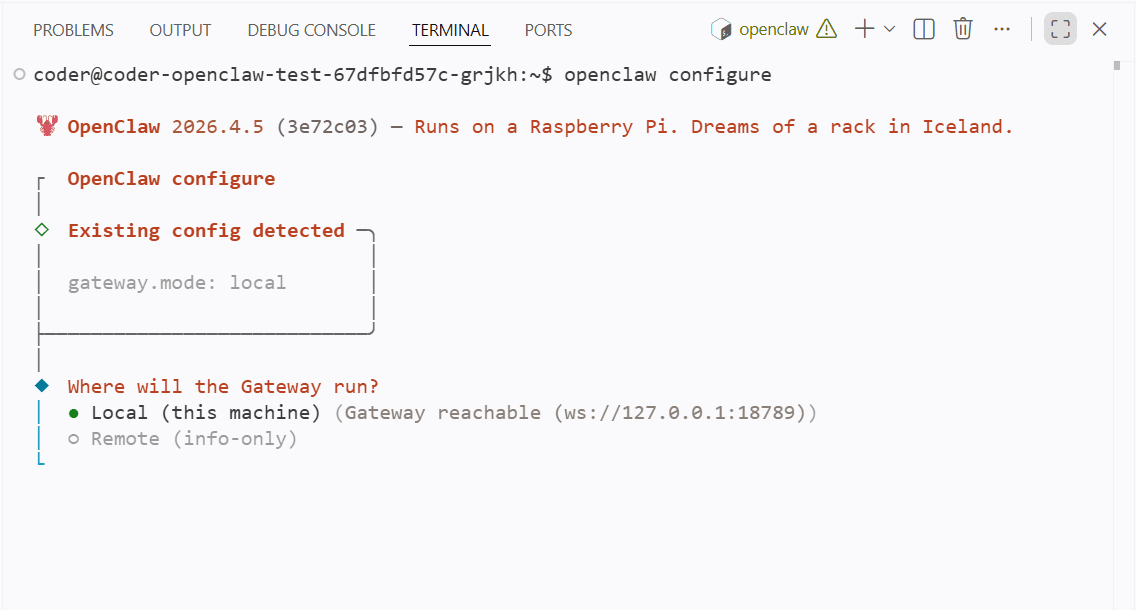
Select Gateway Location
When prompted with "Where will the Gateway run?", select Local (this machine).
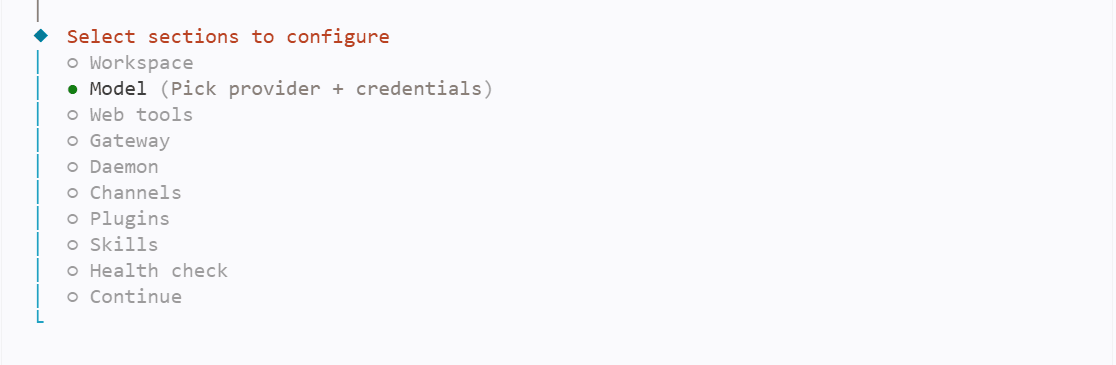
Pick the Model Section
The wizard asks which sections to configure. Use arrow keys and spacebar to select:
- Model (pick provider + credentials)
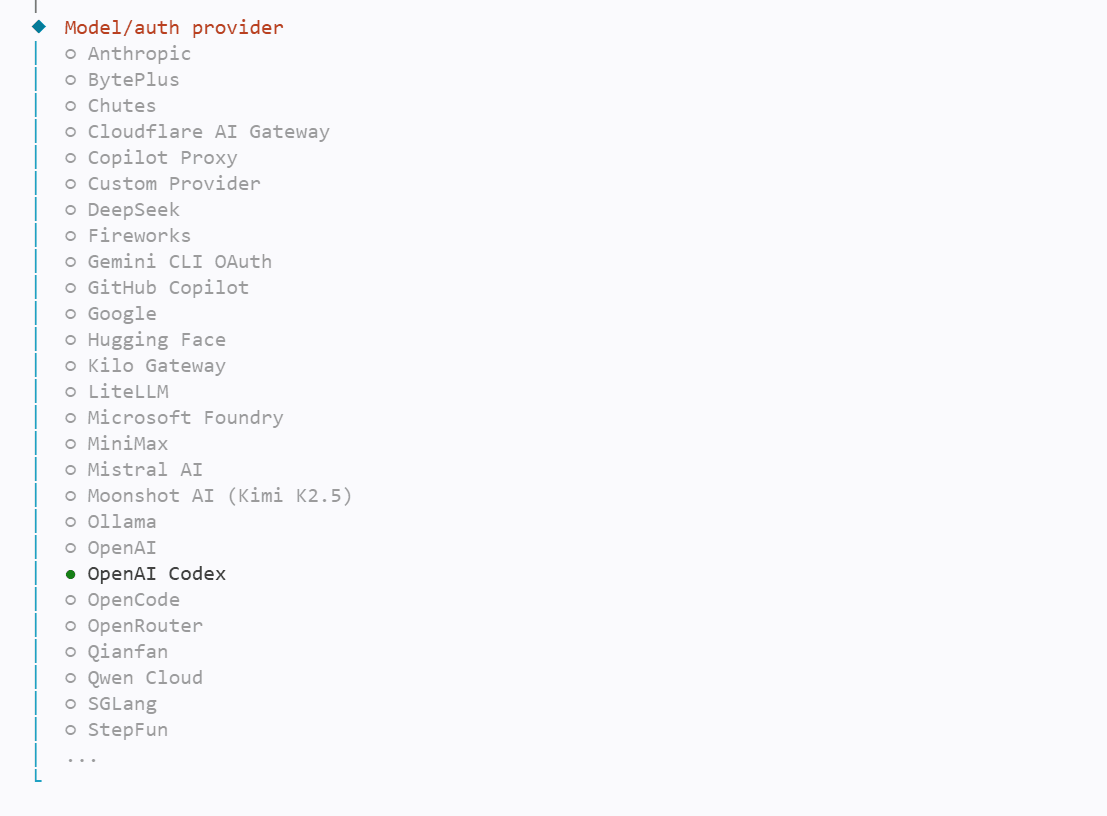
Authenticate with OpenAI
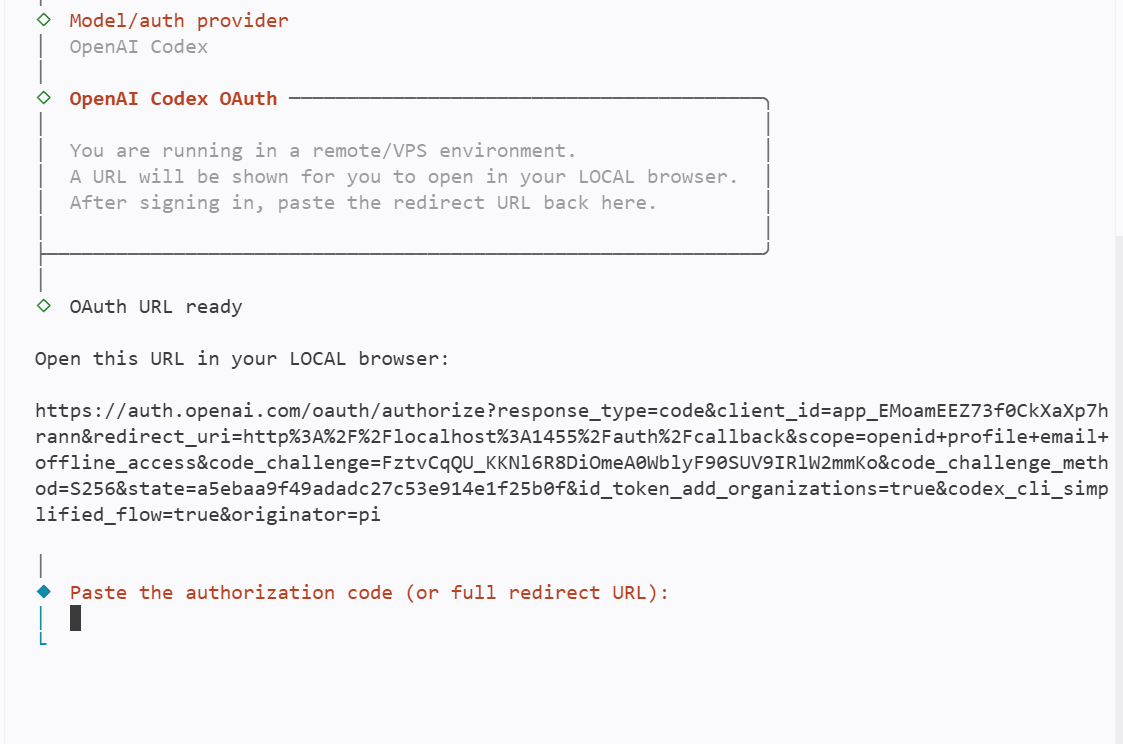
The terminal generates a unique OAuth URL and waits for a redirect URI. Copy the URL and open it in your local browser.
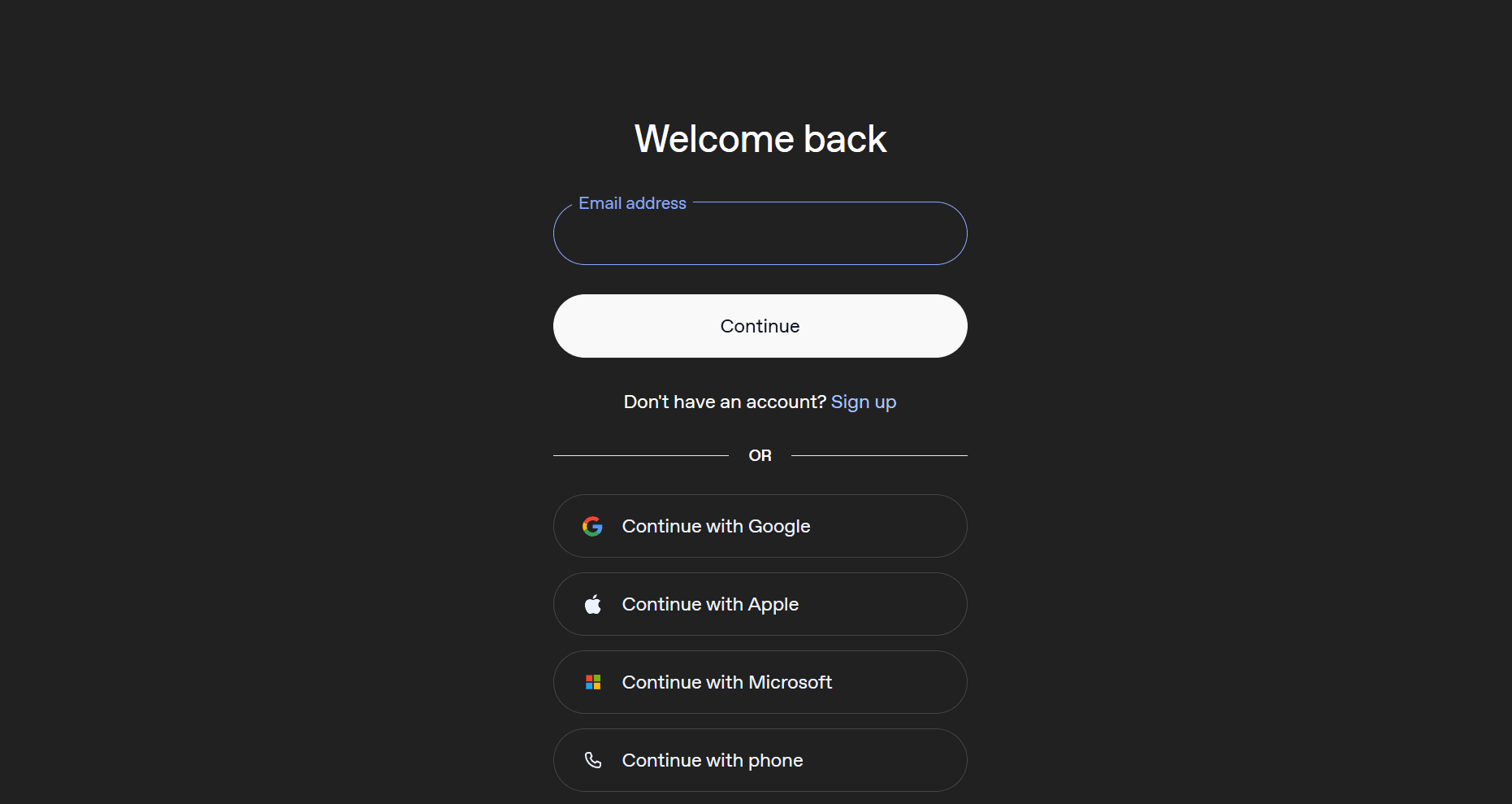
Sign in to OpenAI with your email, Google, Apple, or Microsoft account.
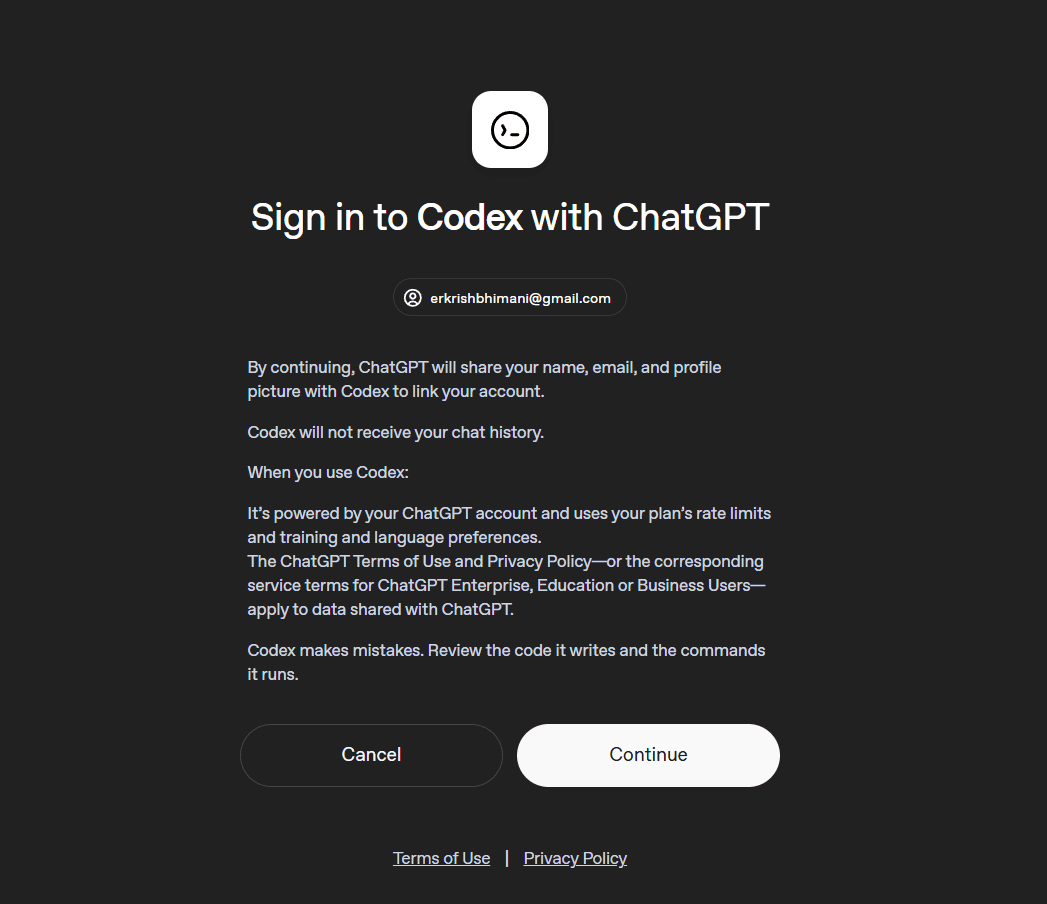
Review the "Sign in to Codex with ChatGPT" permissions screen and click Continue.
Complete the Connection
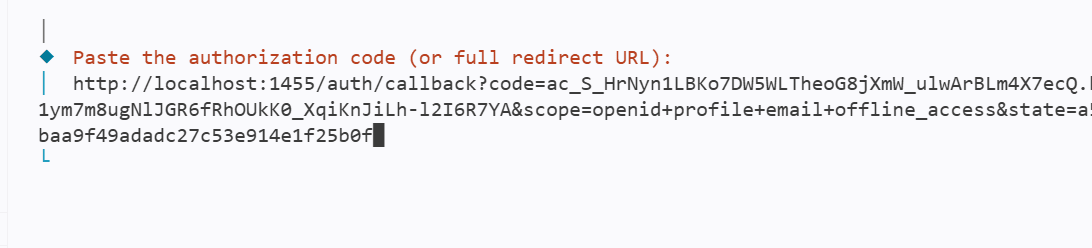
After authentication, the browser redirects to a localhost URL. The page itself won't load — that's expected. Copy the full URL from the address bar.

Switch back to your terminal and paste the redirect URI when prompted.
Select Models
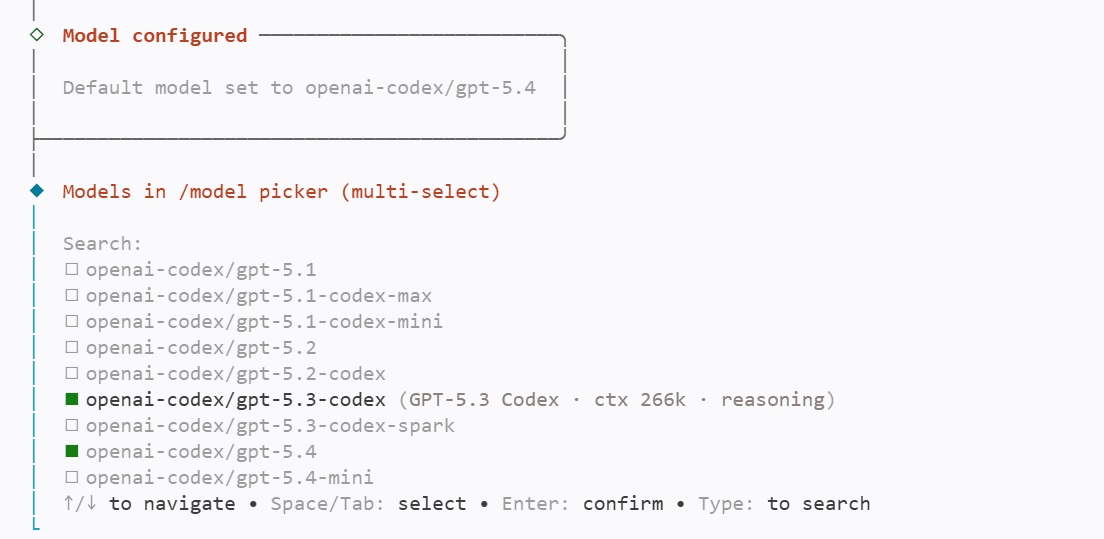
The wizard shows the available Codex models. Use arrow keys and spacebar to pick the models you want in the /model picker (e.g., gpt-5.3-codex, gpt-5.4).
Finish the Wizard
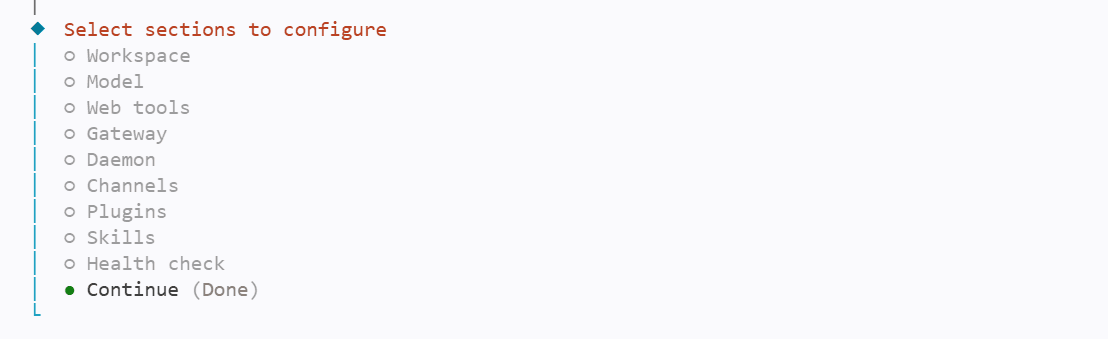
Back at the section menu, scroll to Continue (Done) and press Enter. The config wizard finalizes and your agent now uses OpenAI Codex.
Verify the Config
Run openclaw models list in your terminal to confirm the available models, or open openclaw.json in your workspace. The agents.defaults section reflects the new model:
"agents": {
  "defaults": {
    "model": {
      "primary": "openai-codex/gpt-5.3-codex"
    },
    "models": {
      "openai-codex/gpt-5.3-codex": {},
      "openai-codex/gpt-5-2-codex": {},
      "anthropic/claude-opus-4-5": {}
    },
    "maxConcurrent": 4,
    "subagents": {
      "maxConcurrent": 8
    }
  }
}