API Key
Connect Anthropic, OpenAI, or OpenRouter to your XO project via an API key.
Paste an API key from any supported provider — OpenRouter, Anthropic, or OpenAI. Credentials live in your project's workspace, not on the XO platform.
Prefer subscription auth? See OAuth to connect with your Claude or ChatGPT account instead.
What You'll Need
- An XO project that has finished provisioning
- An API key from your model provider:
- OpenRouter — openrouter.ai/keys (single key for 100+ models — Anthropic, OpenAI, Google, DeepSeek, and more)
- Anthropic — console.anthropic.com
- OpenAI — platform.openai.com/api-keys
Connect via API Key
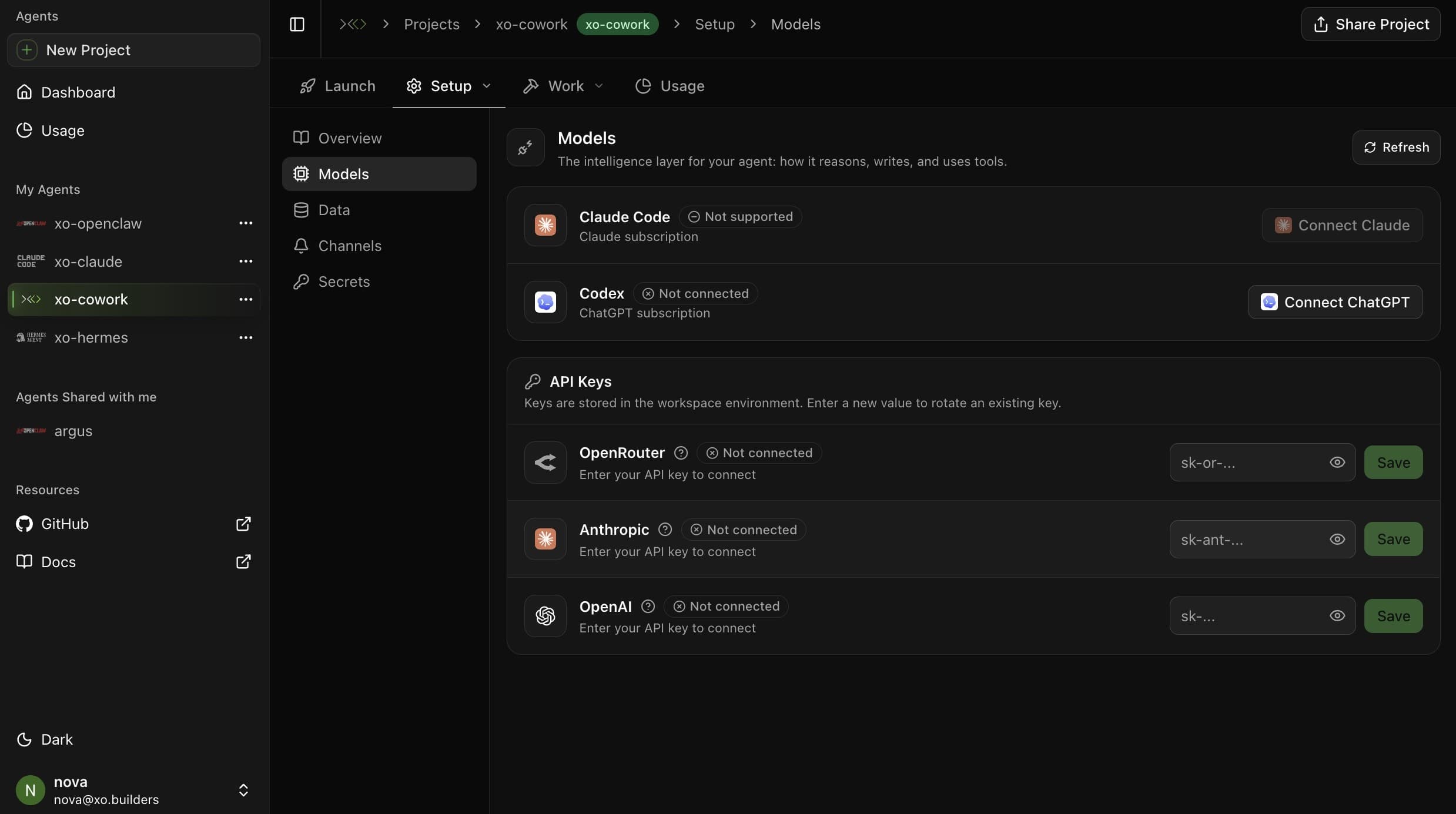
Save Your API Key
Scroll to the API Keys section. Paste your key into the relevant provider's field (e.g. Anthropic API Key) and click Save.

Restart the OpenClaw Gateway
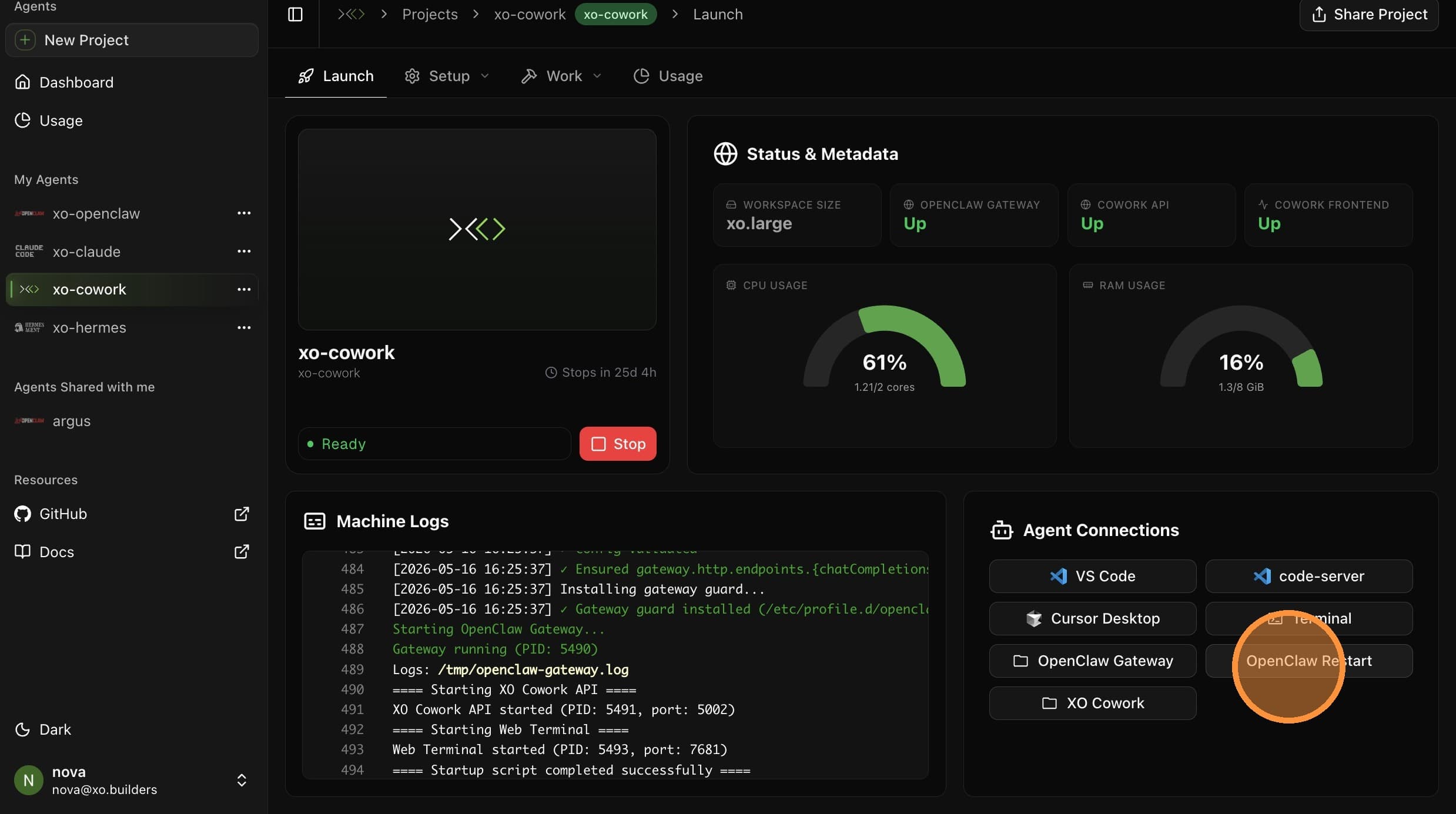
Model changes only take effect after the Gateway restarts. Open the Launch tab.
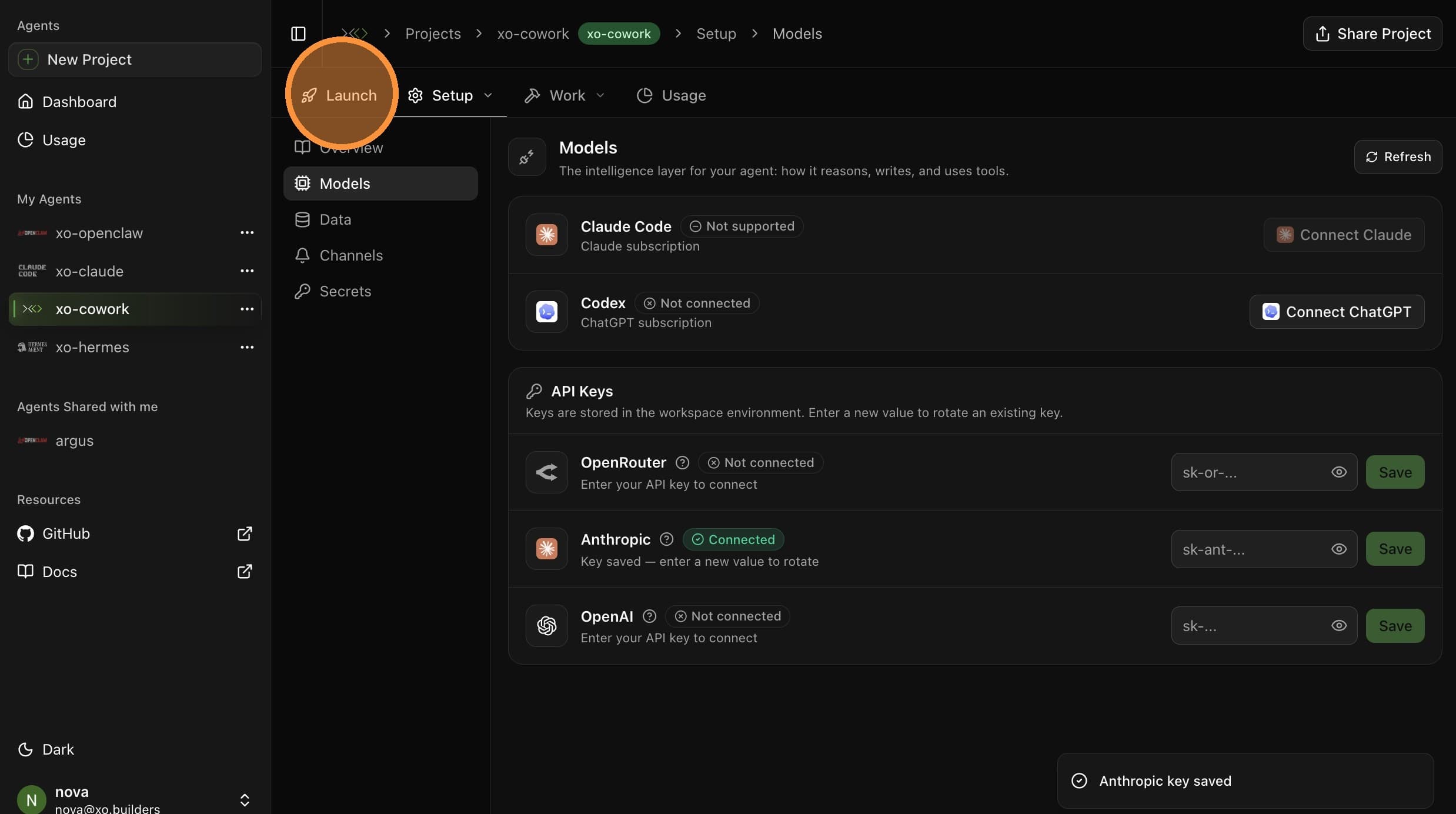
Click OpenClaw Restart to apply the new model.
Your model is now connected. Send a test message to your agent to confirm it's responding with the new provider.