
Channels
Bring your agent to Telegram or Slack — the messaging apps your team already uses.
Channels connect your agent to messaging apps so your team can interact with it from the tools they already use. XO supports Telegram and Slack today.
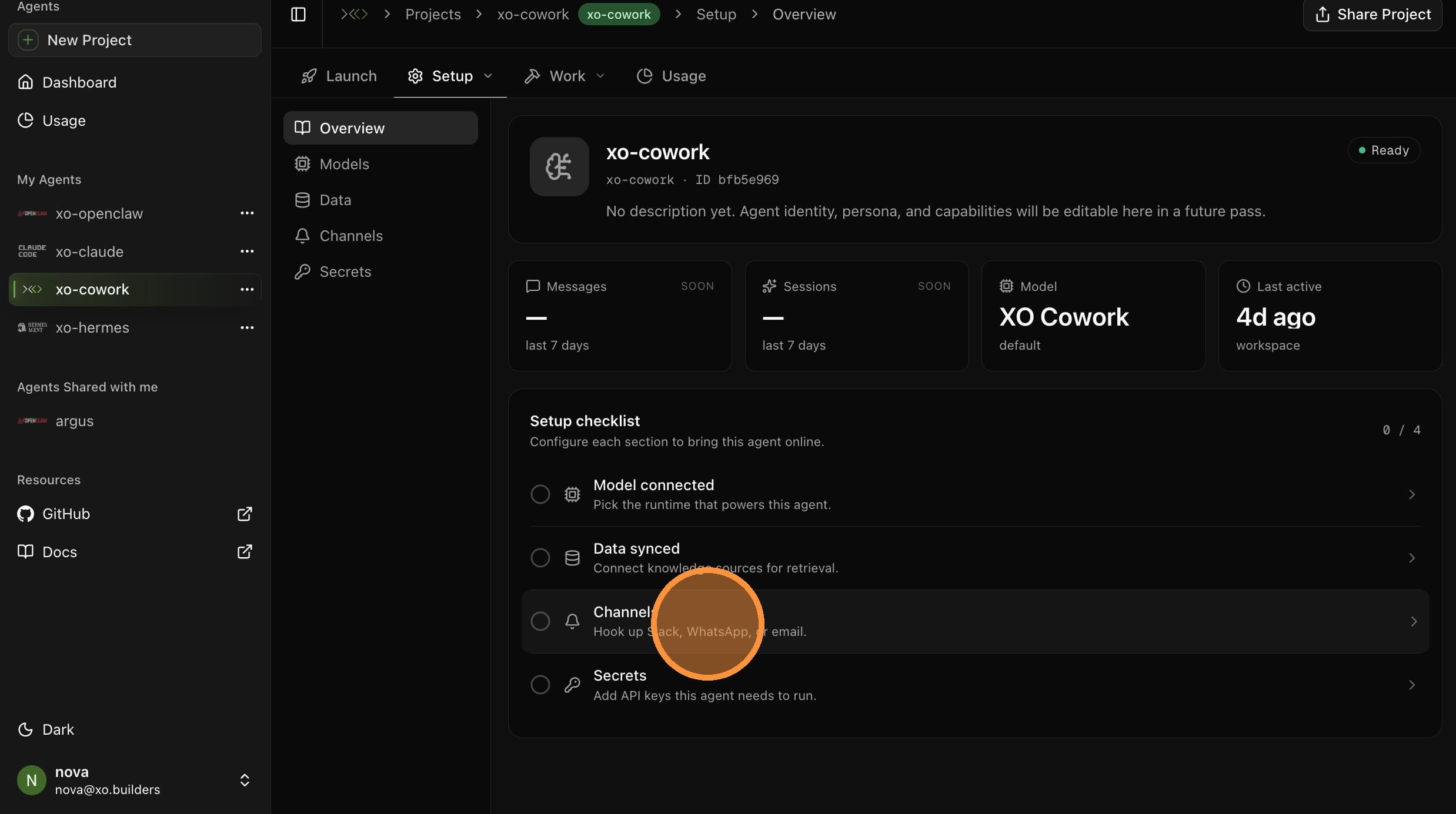
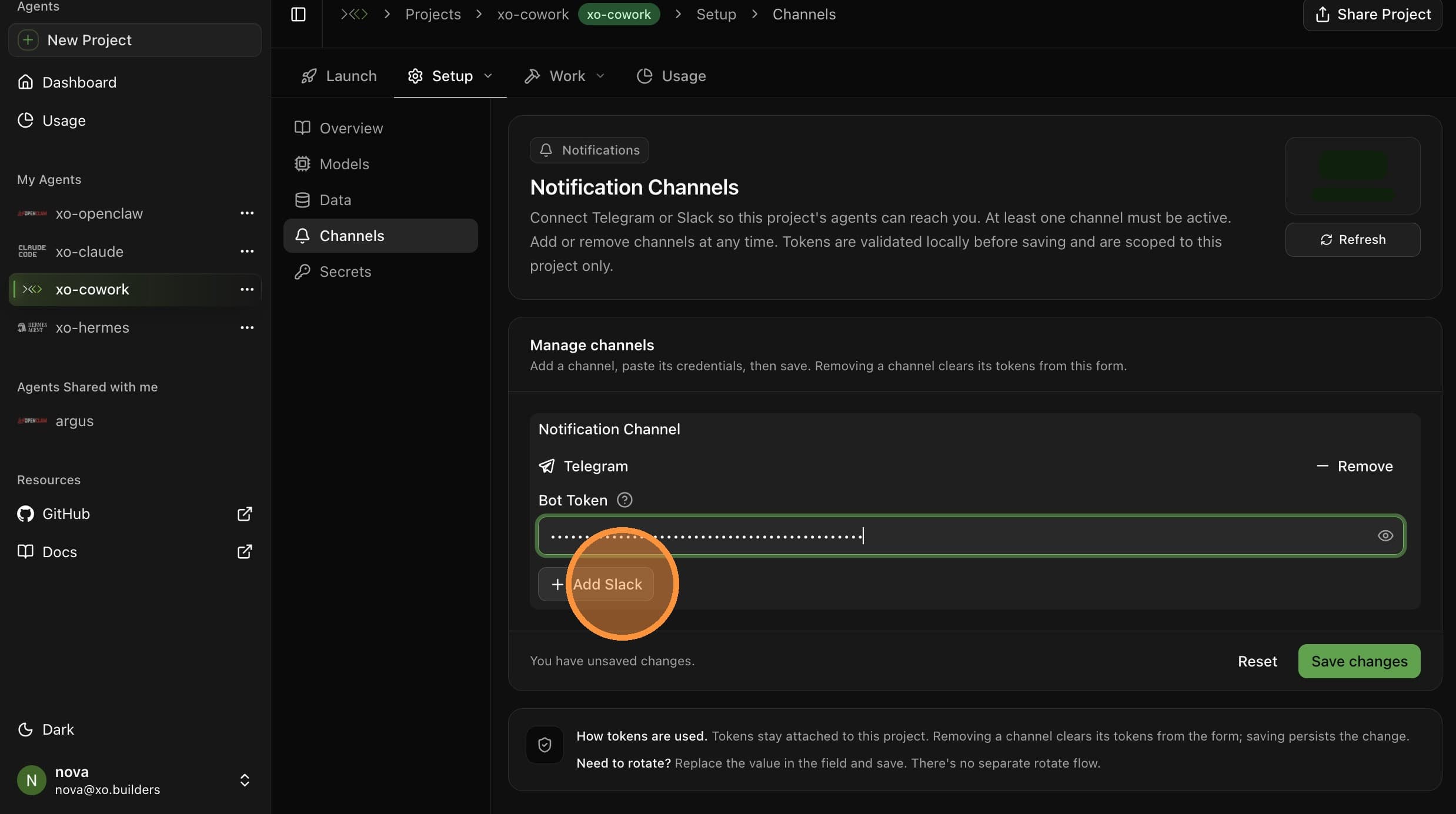
The flow is the same for both — open Setup → Channels, add the channel, paste your token(s), save, and restart the OpenClaw Gateway.
What You'll Need
- An XO project that has finished provisioning
- For Telegram: a bot token from @BotFather
- For Slack: a Slack app with a Bot User OAuth Token (
xoxb-...) and an App-Level Token (xapp-...). See the Slack app deep-dive for creating the app and finding the tokens.
Connect a Channel
Paste Your Token(s)
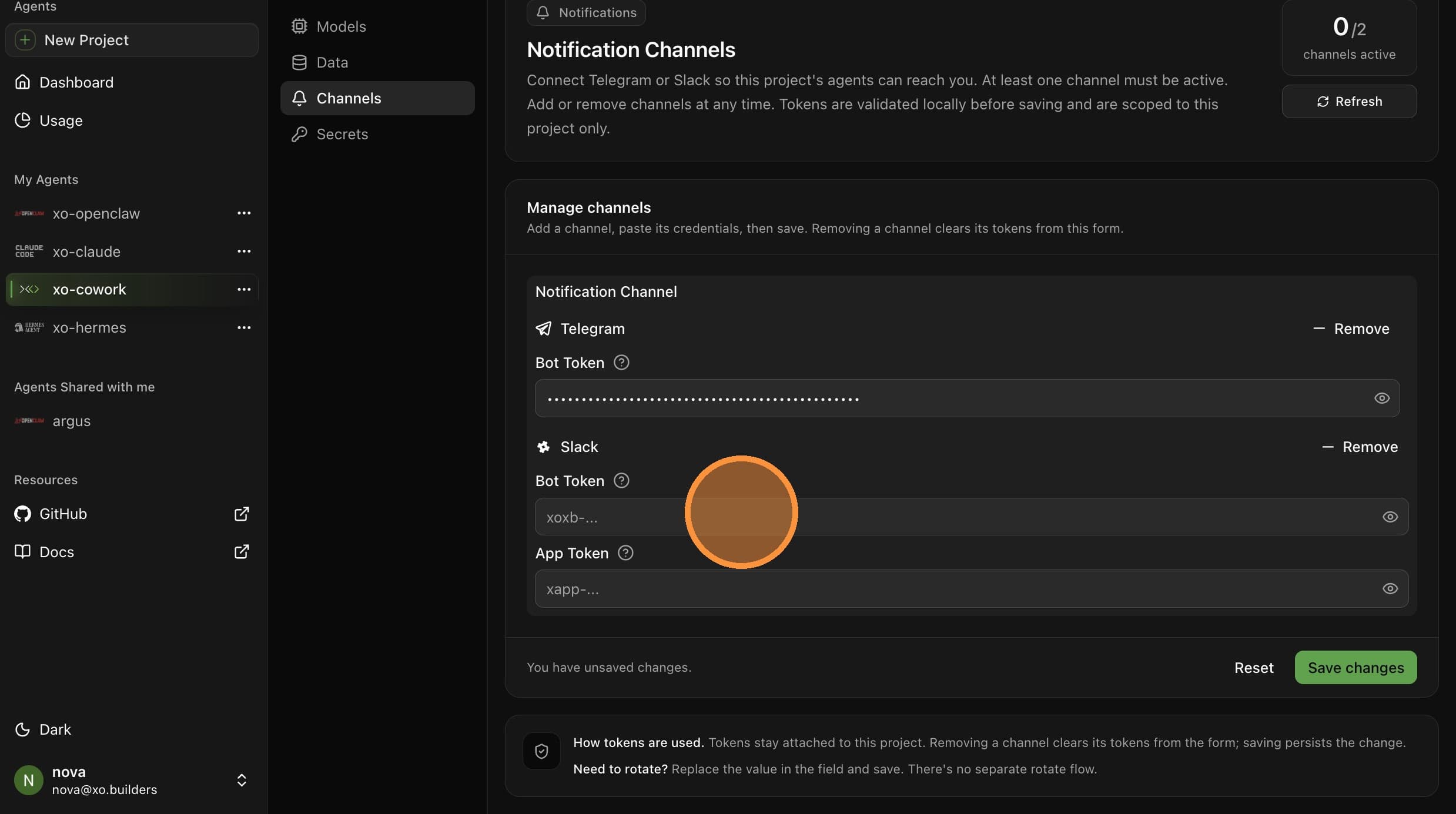
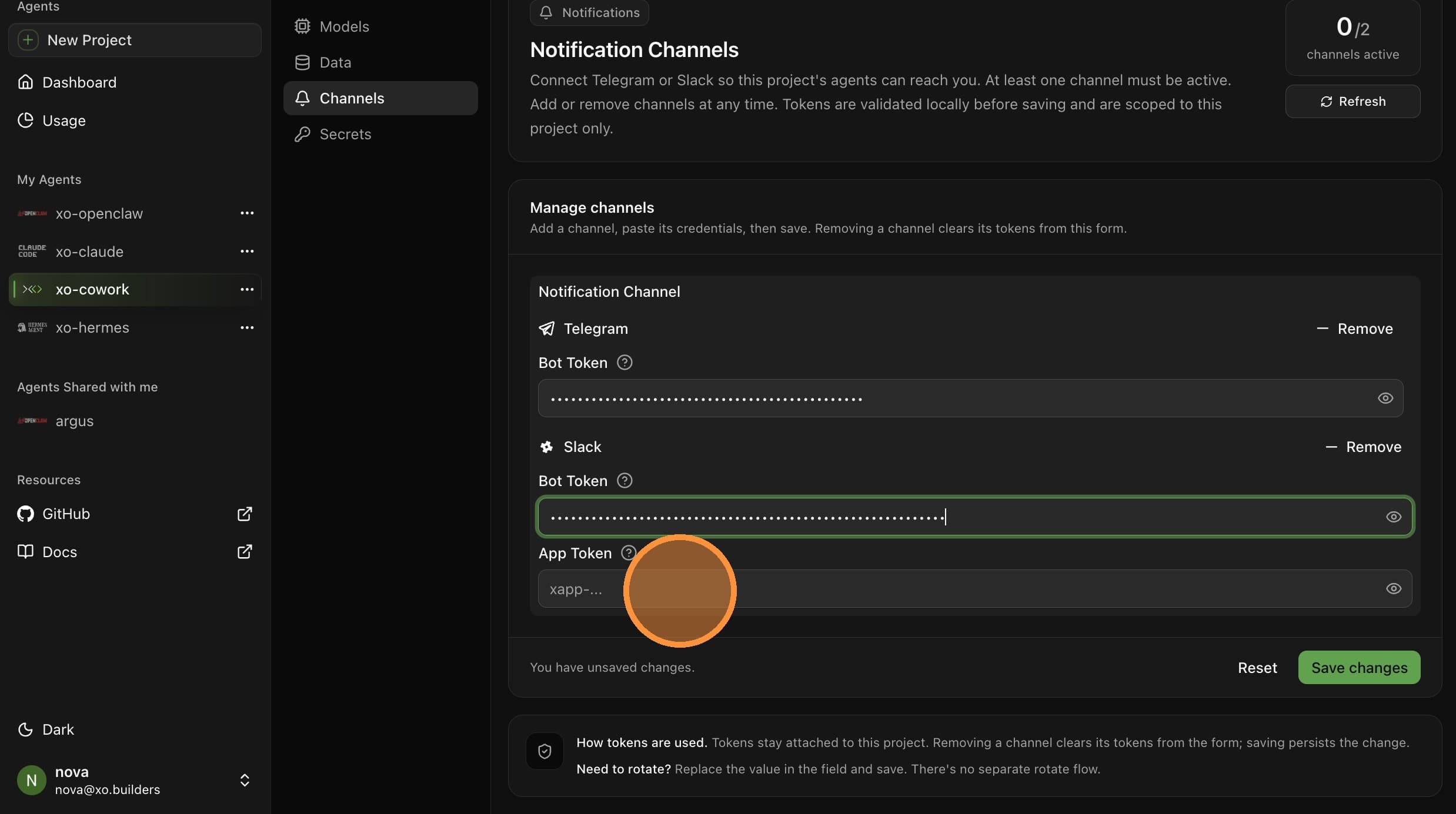
Paste the credentials for the channel you picked:
- Telegram: one bot token from @BotFather.
- Slack: two tokens — a Bot User OAuth Token (
xoxb-...) and an App-Level Token (xapp-...).
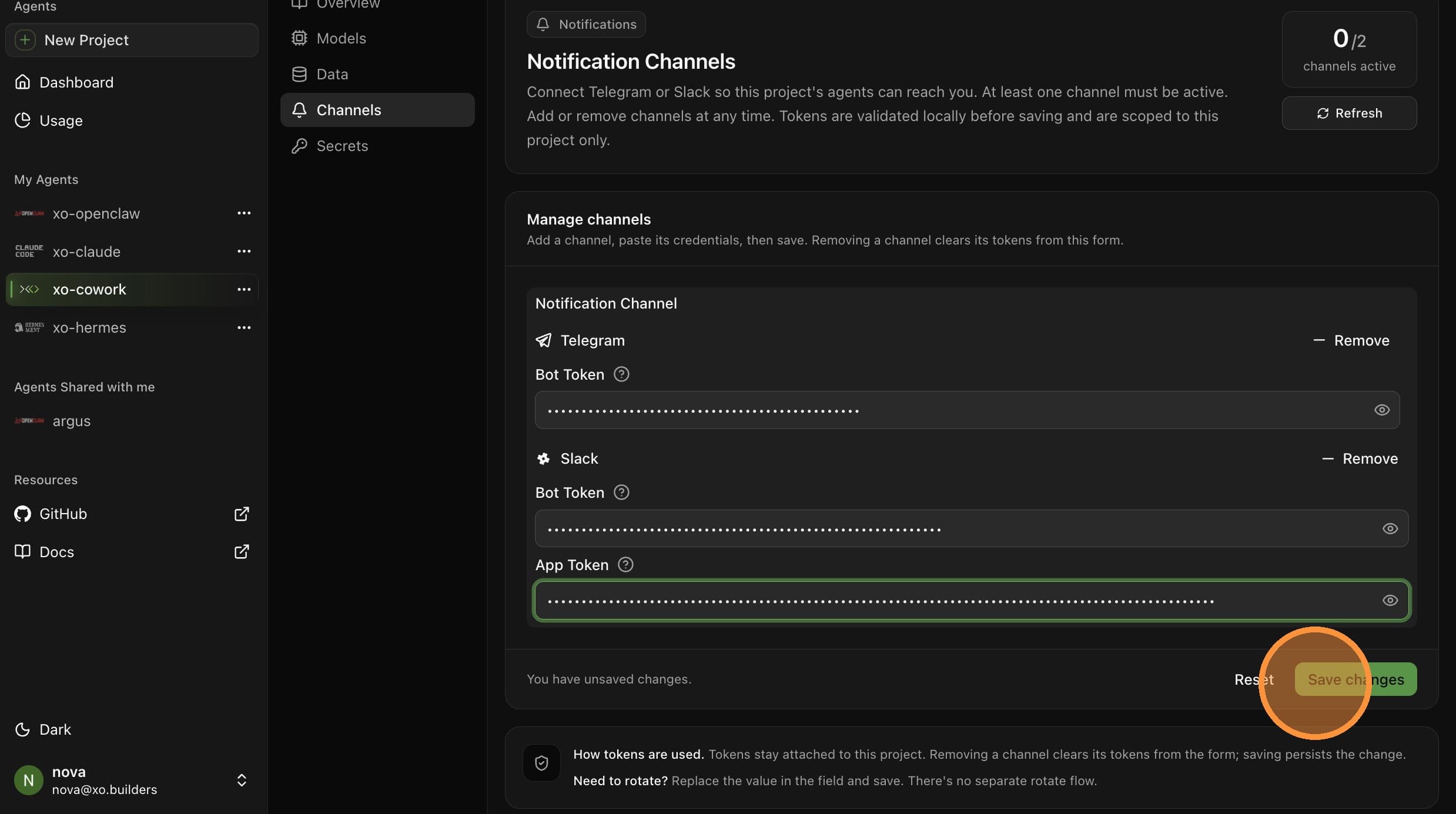
Restart the OpenClaw Gateway
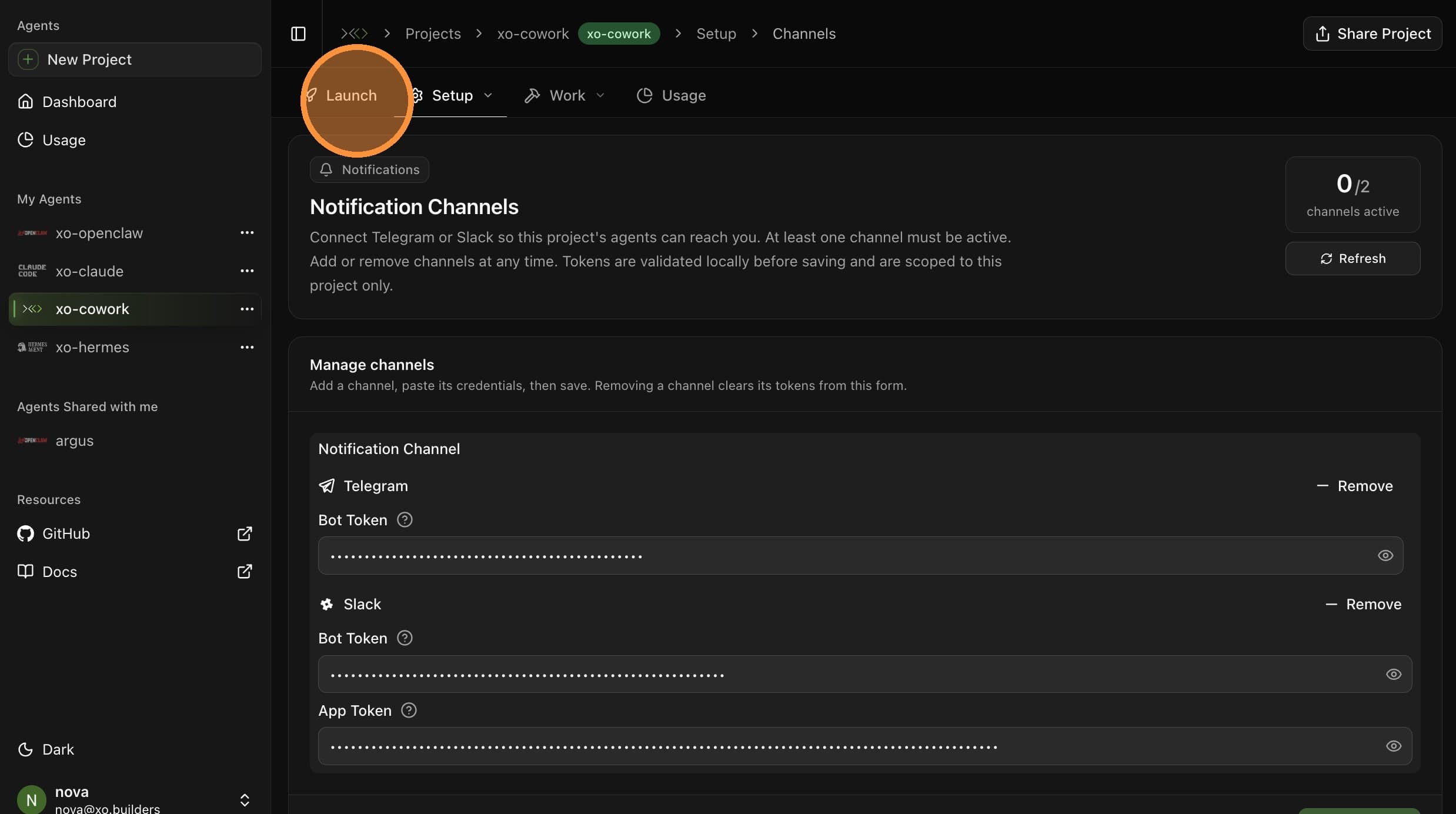
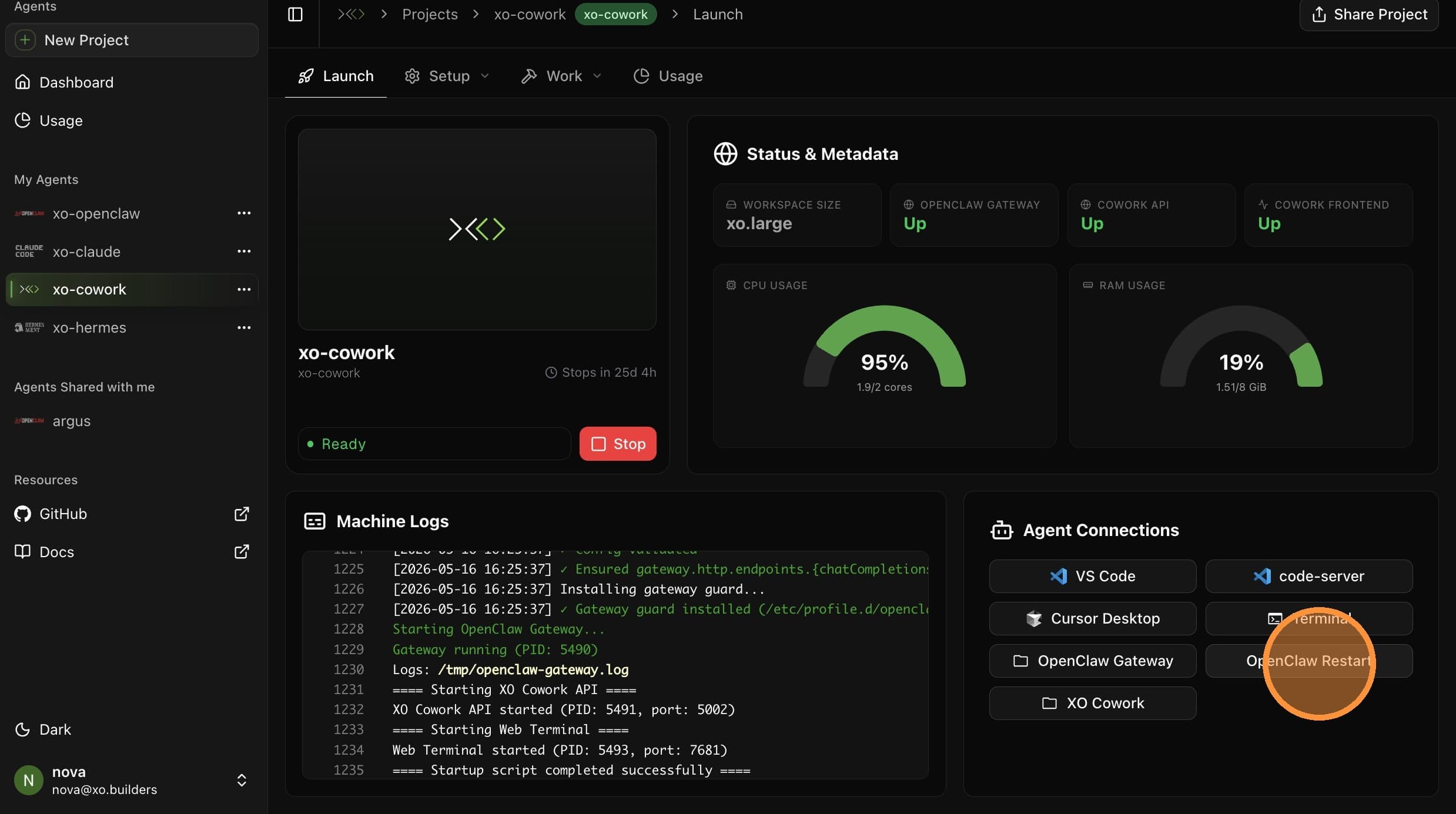
Channel changes only take effect after the Gateway restarts. Open the Launch tab.
Click OpenClaw Restart.
Verify the Connection
Back on Setup → Channels, the Notifications widget shows how many channels are active. Right after saving (before the Gateway restart) you'll see 0/2:
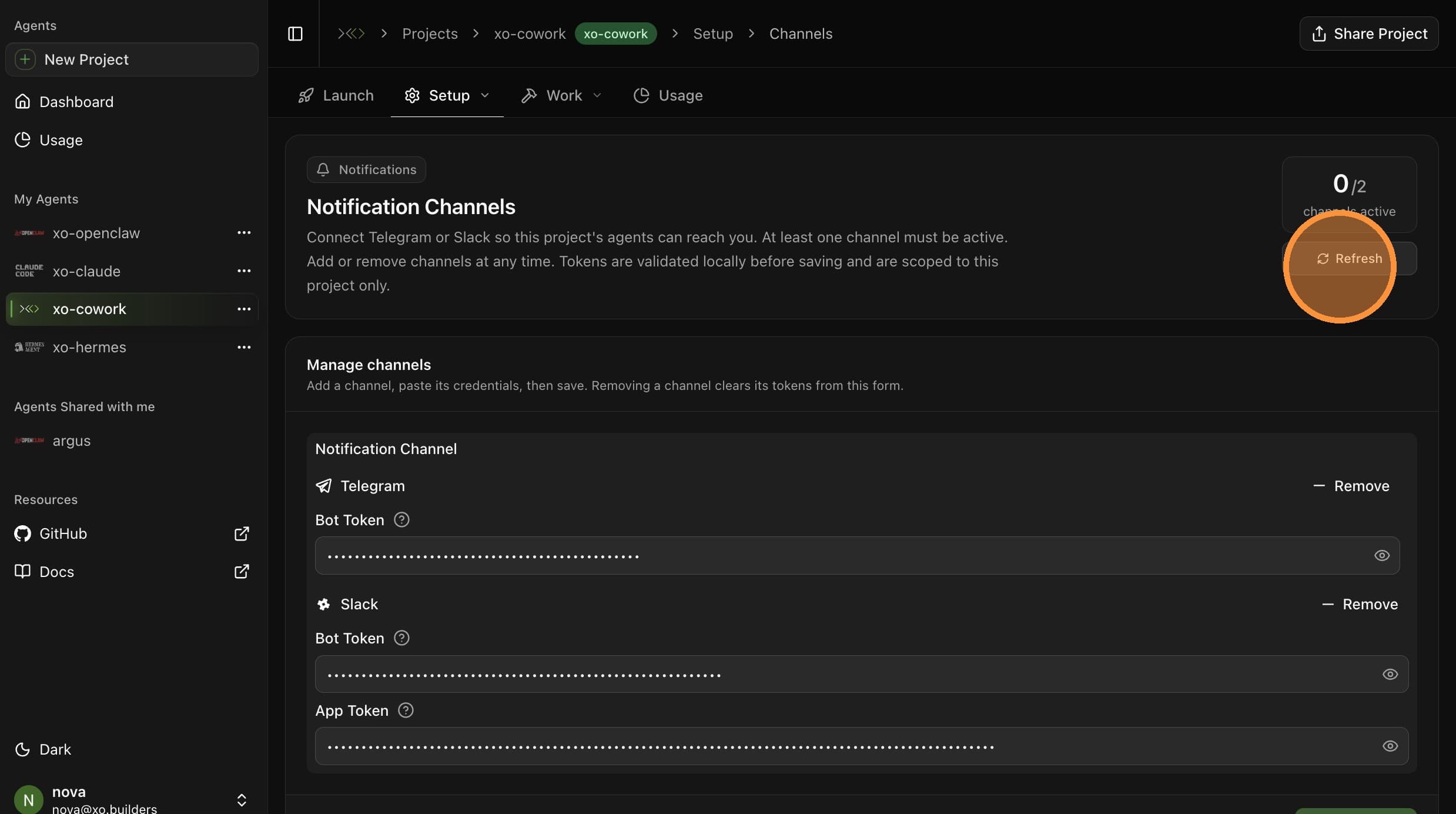
Click Refresh once the Gateway has restarted. The widget flips to 2/2 channels active (or however many you've configured):
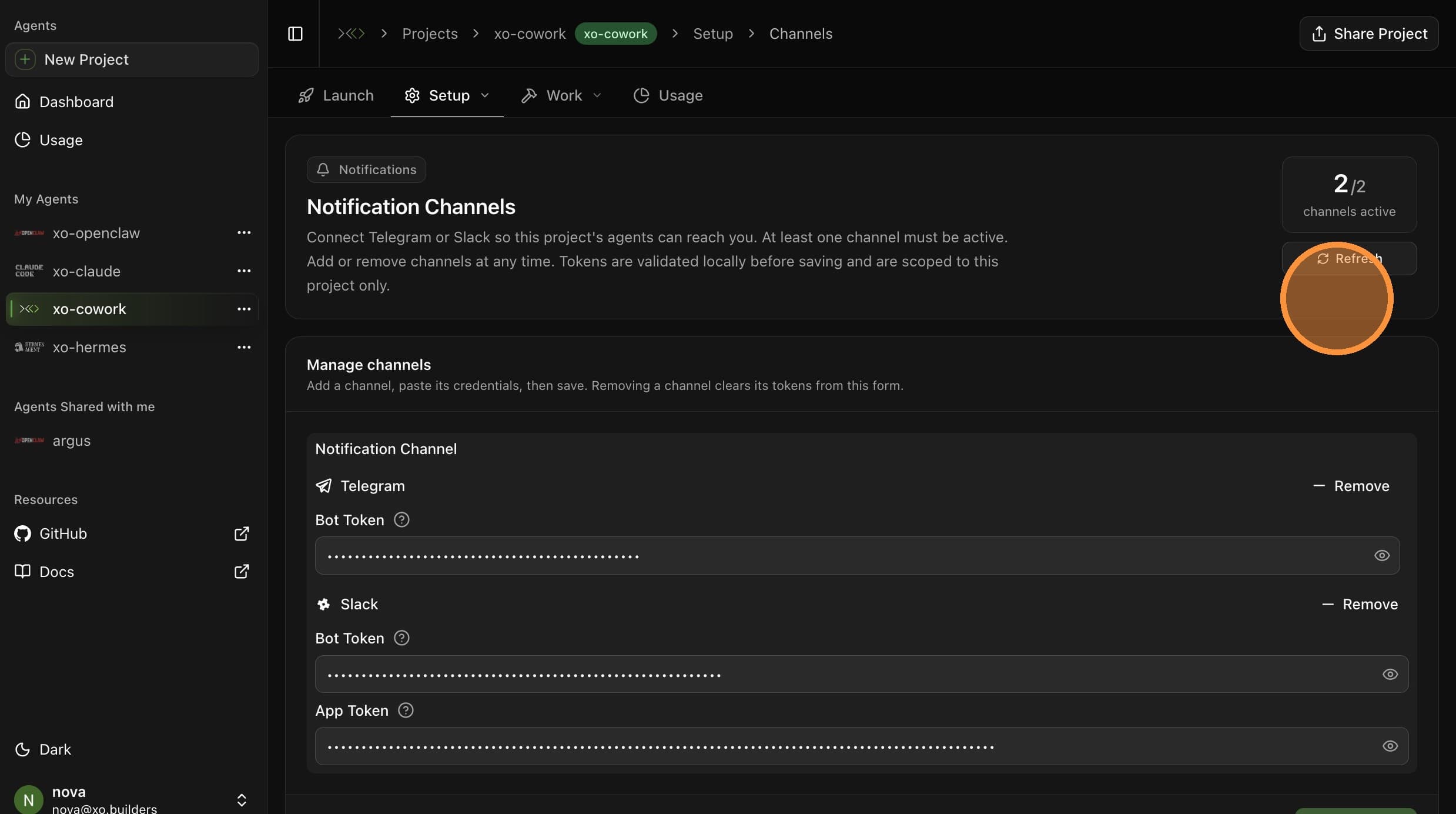
Send a test message to your agent on the channel you connected to confirm it responds.
If your agent isn't responding on a newly-connected channel, double-check that the Gateway has actually restarted from the Launch tab.