
Google Drive
Connect Google Drive so your agent can read your files, docs, and sheets.
Connect a Google account to your XO project so your agent can read documents, sheets, and folders from Google Drive. Credentials live in your project's workspace, not on the XO platform.
What You'll Need
- An XO project that has finished provisioning
- A Google account with access to the files you want your agent to read
Connect Google Drive
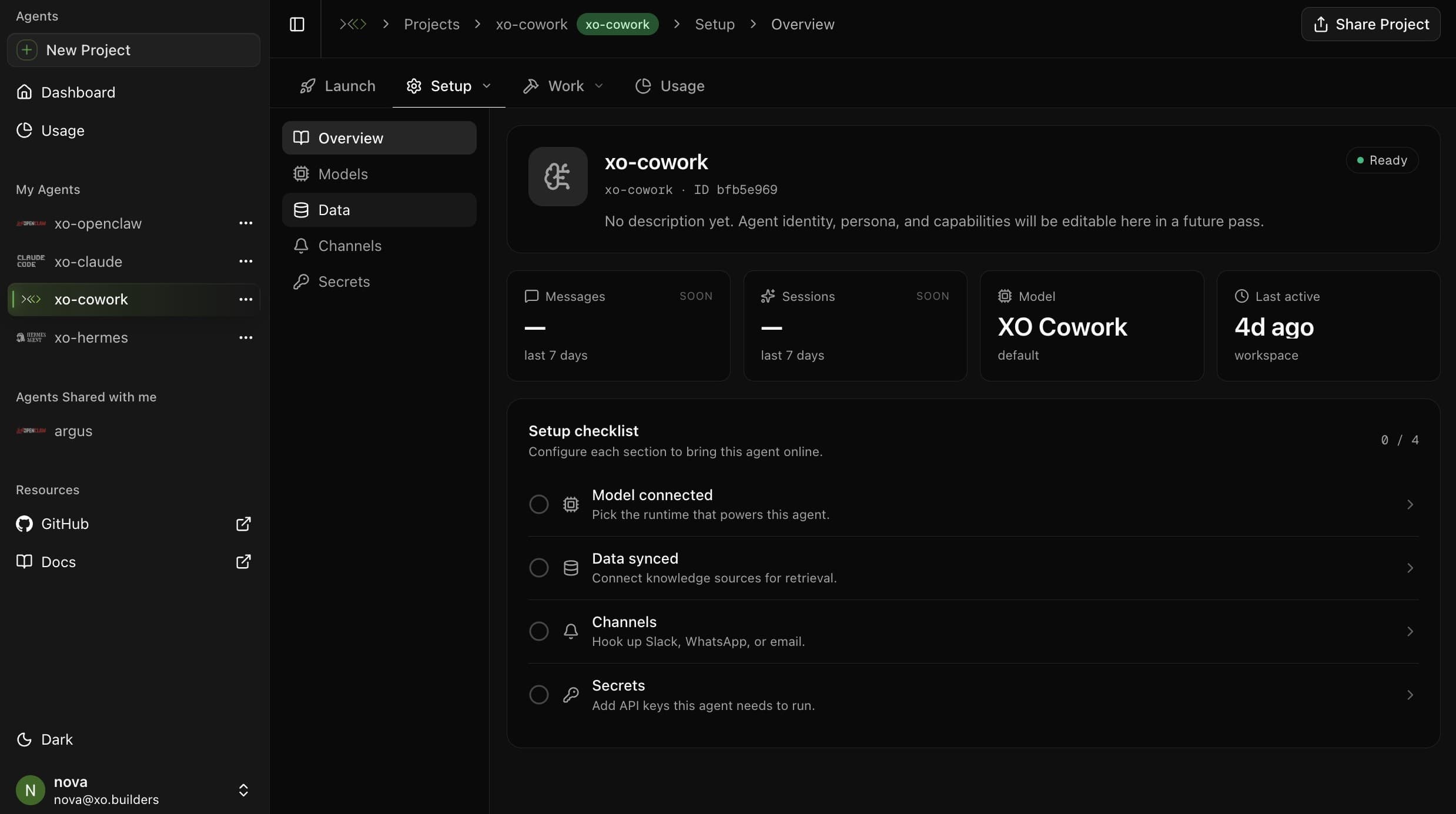
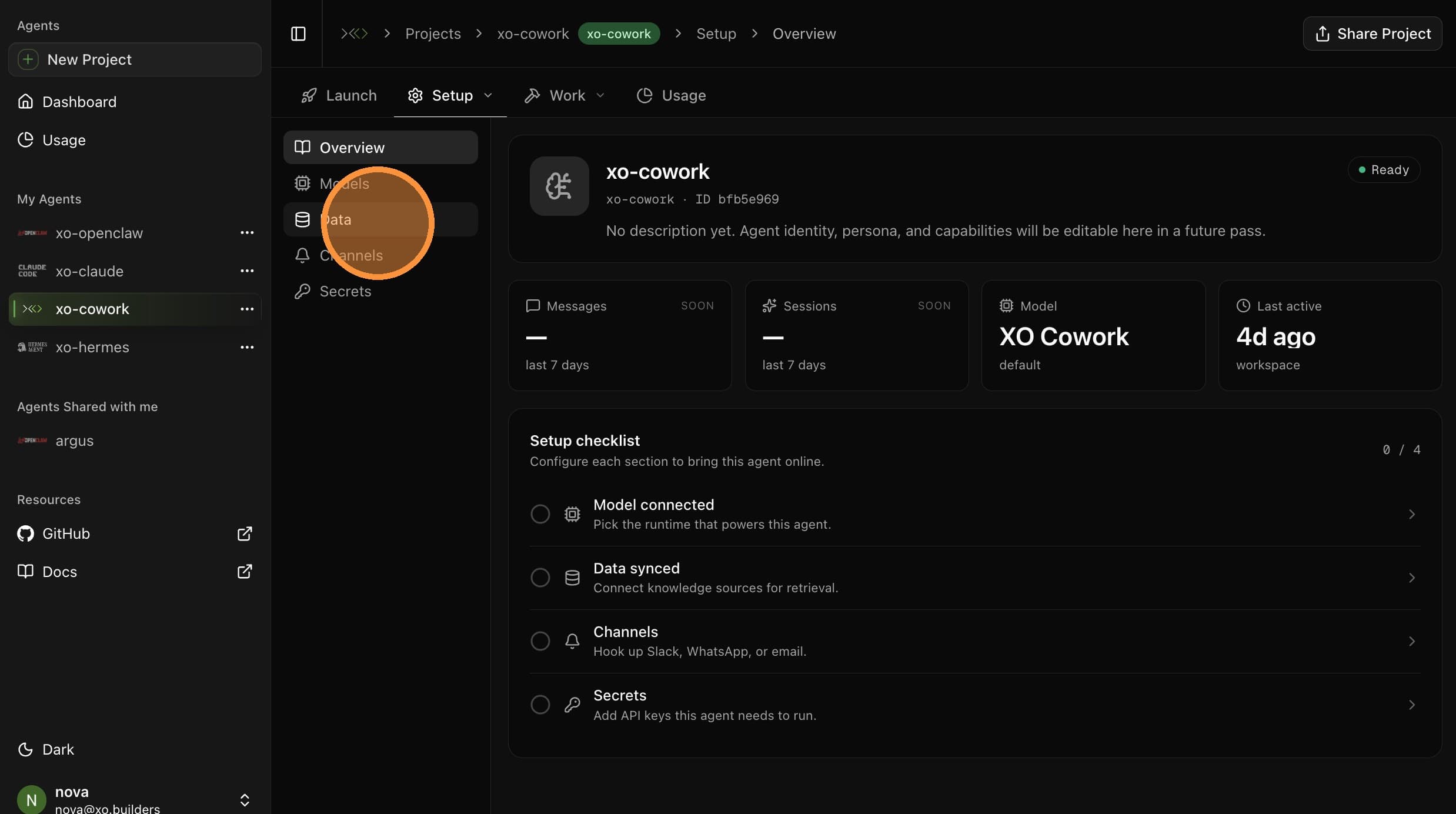
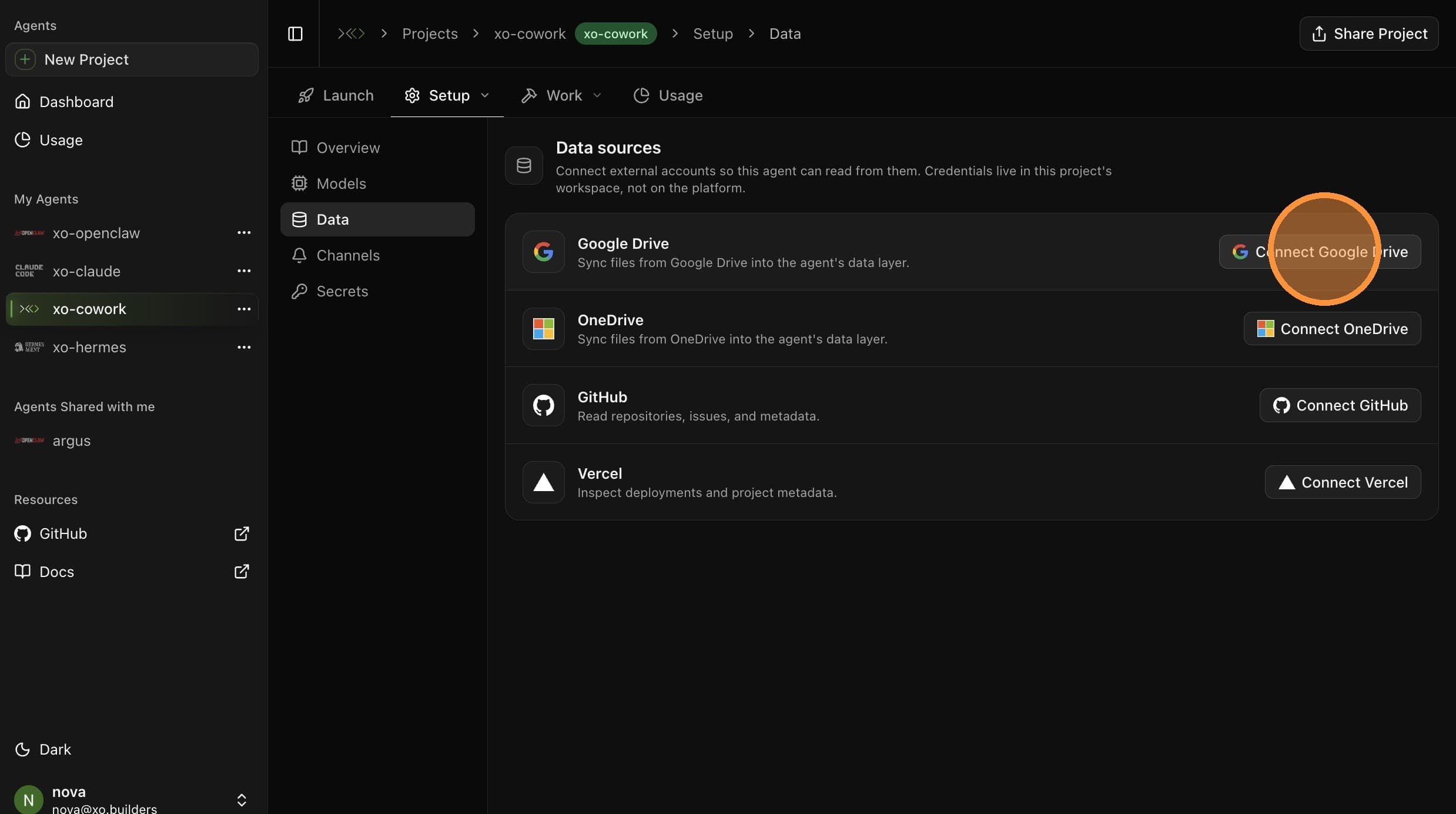
Name the Connection
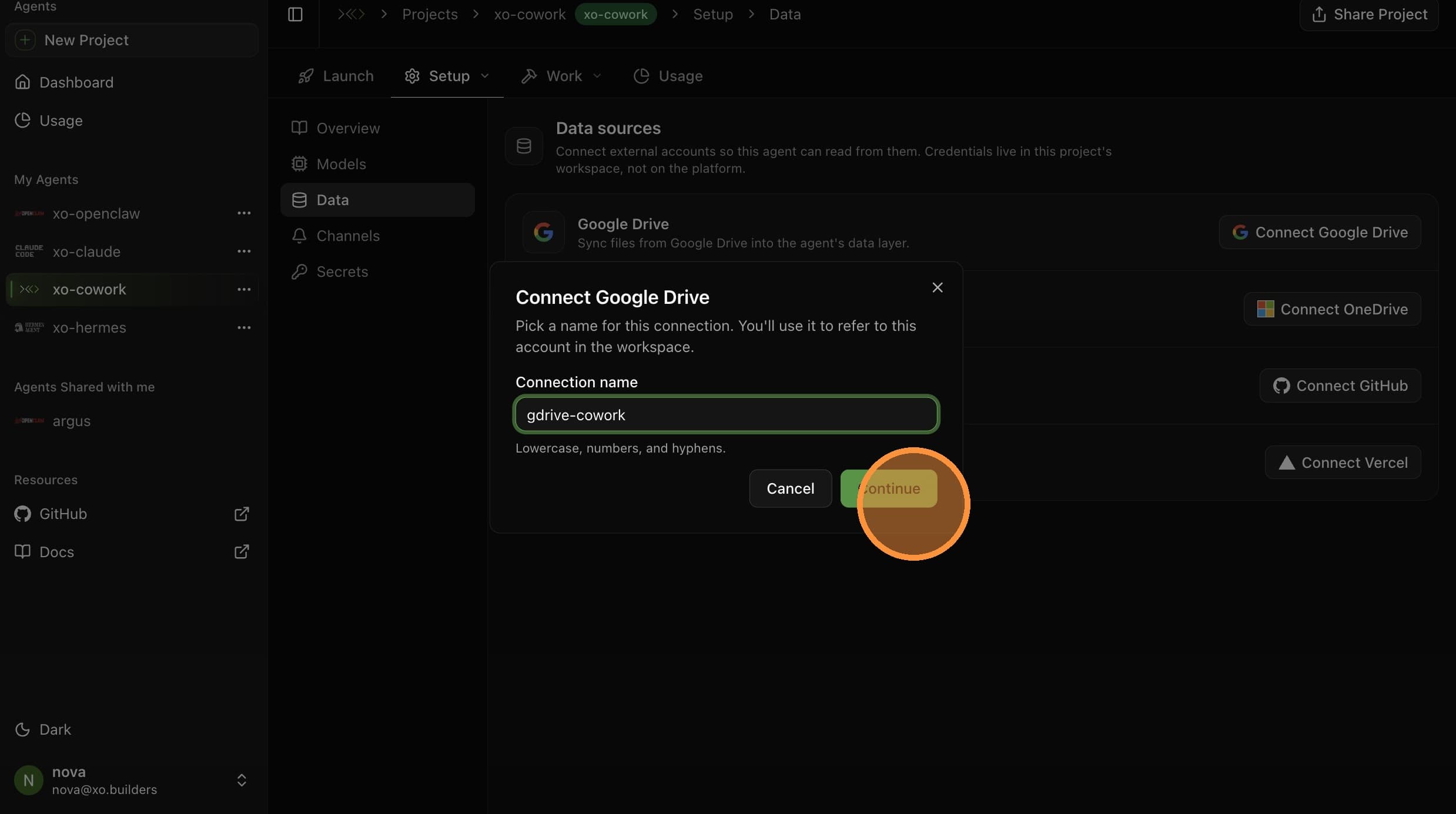
Enter a name for the connection — e.g. gdrive-cowork — and click Continue. This is how the connection appears in your project.
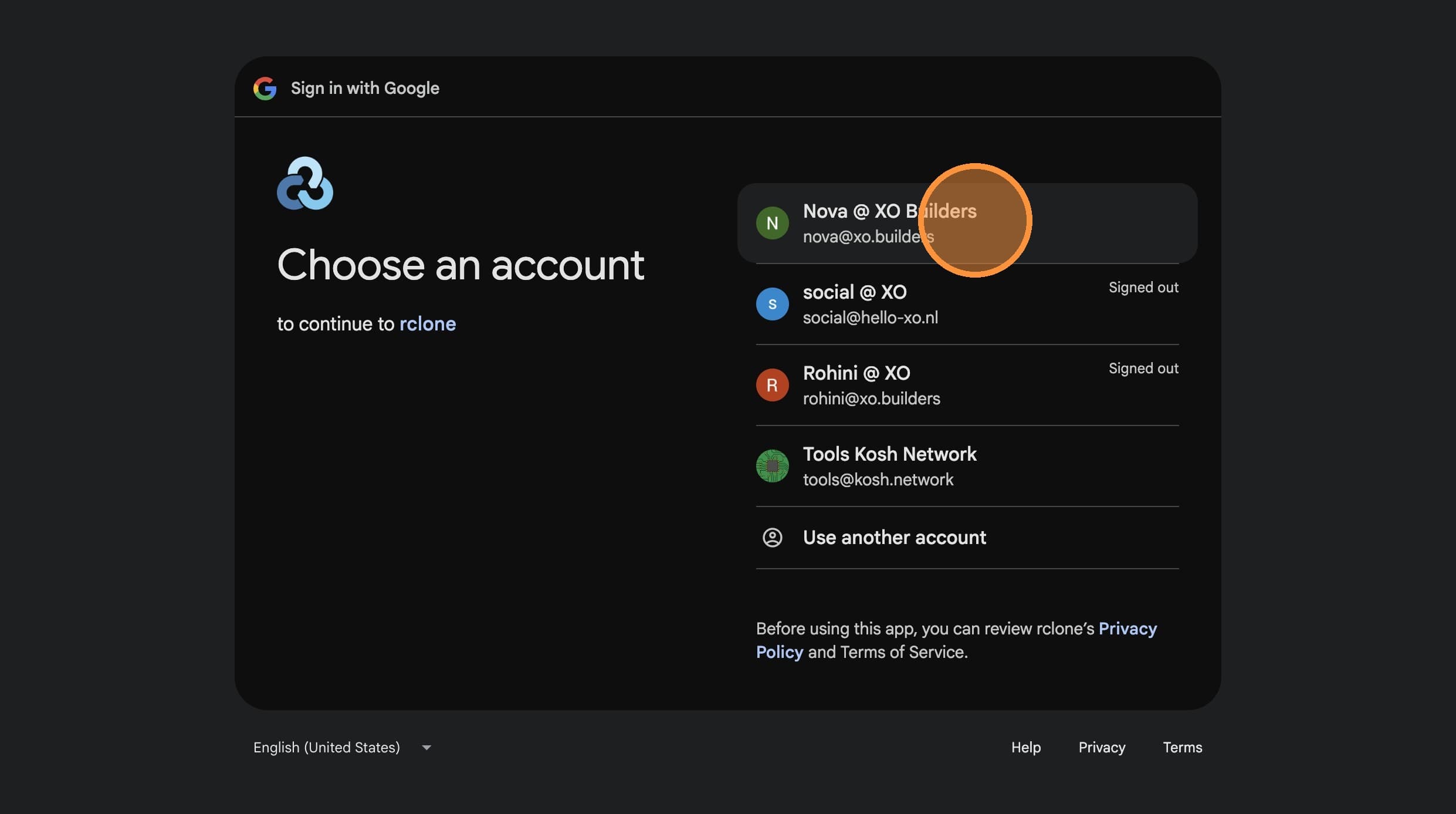
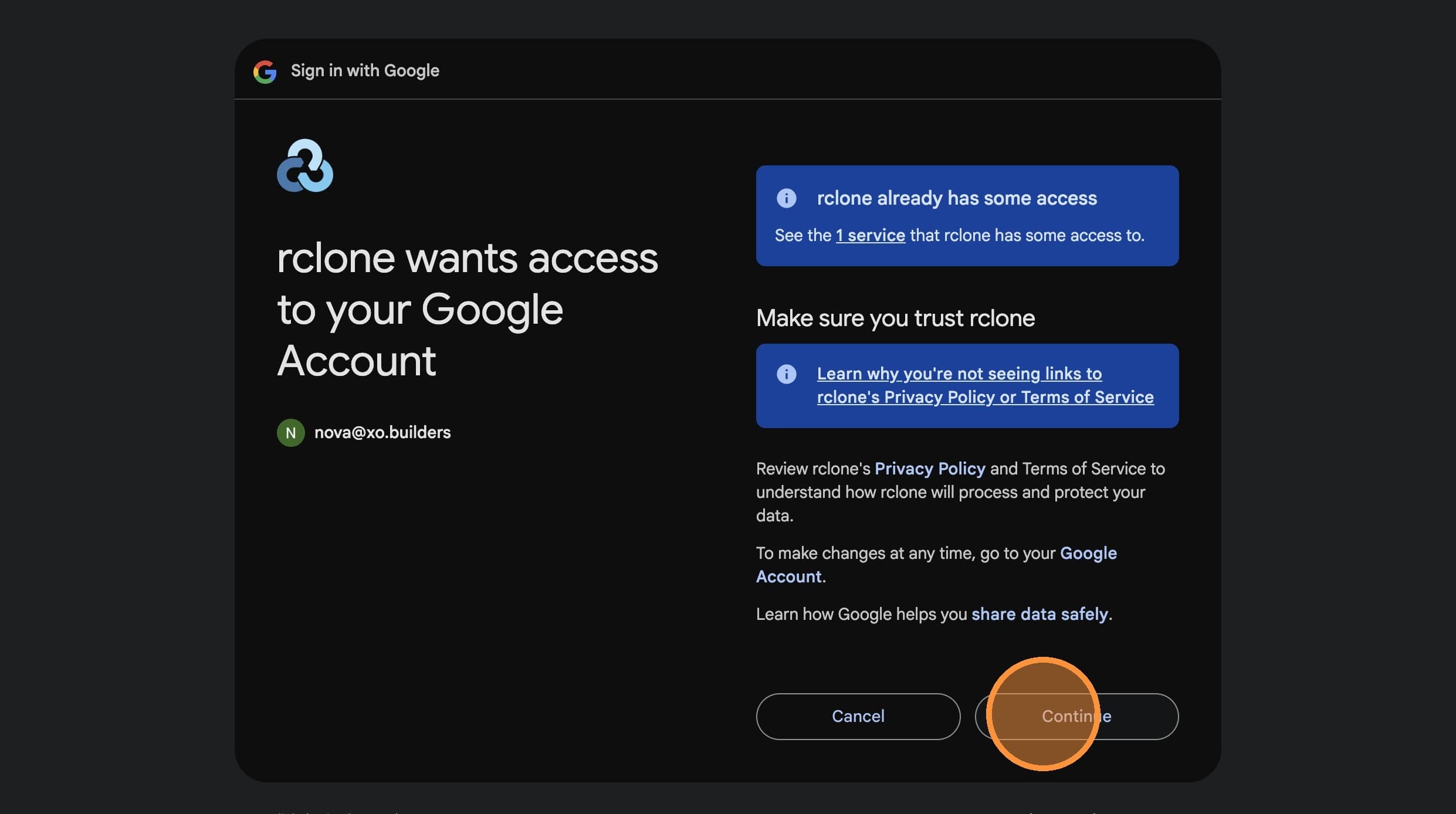
Paste the Verification Code
After granting permissions, Google redirects to a 127.0.0.1/callback?state=...&code=... URL. Your browser will show "This site can't be reached" — that's expected. The URL itself contains the auth code.
Copy the full URL from your browser's address bar.
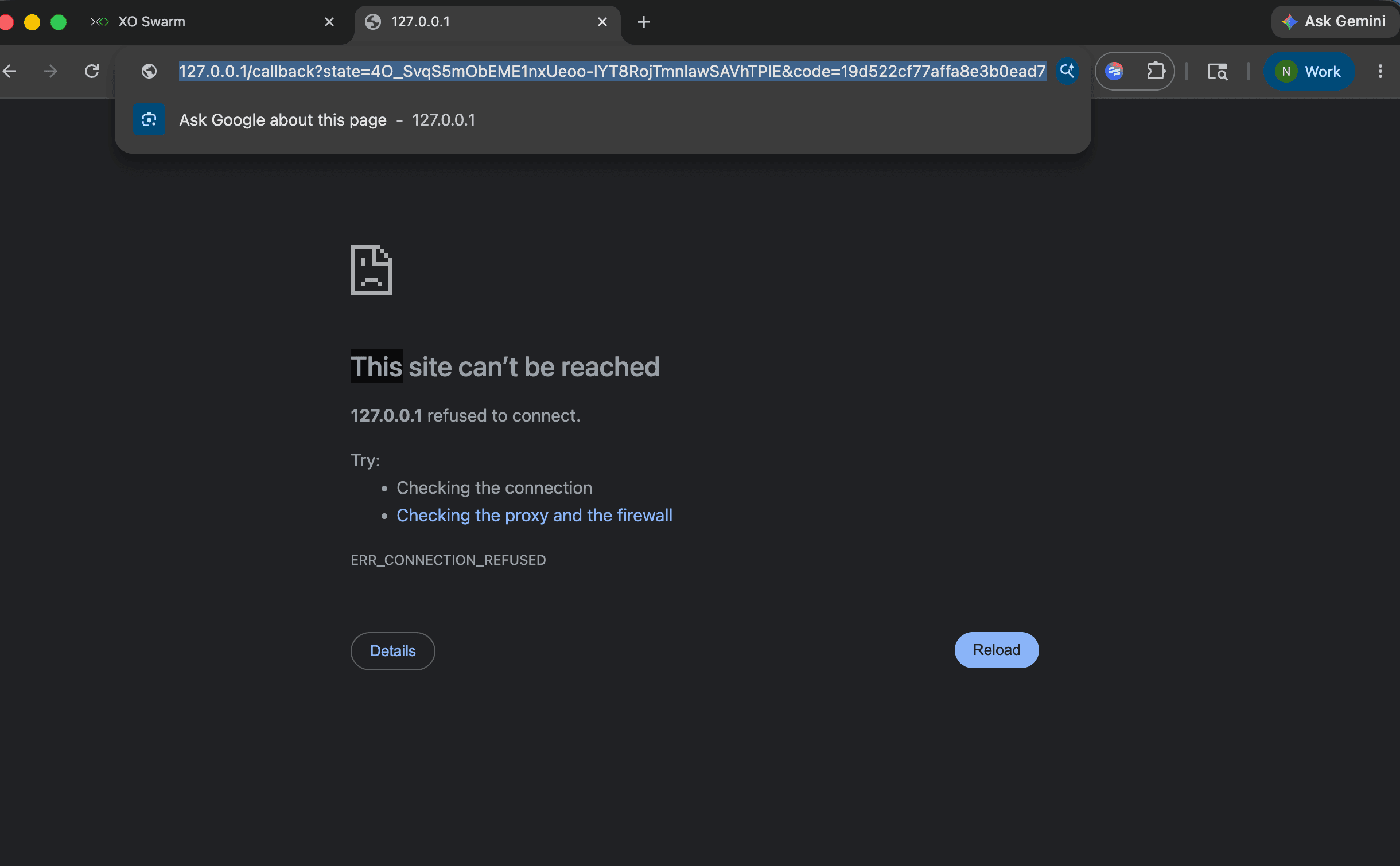
Don't worry about the connection error — XO doesn't run a local callback server. The auth code lives in the URL, not on the page.
Switch back to the XO tab, paste the URL into the verification field, and click Finish.

Your Google Drive is now connected. Your agent can read from it on subsequent runs.