Claude Code Quickstart
Create a Claude Code project on XO, authenticate Claude, and open your editor.
Set up a Claude Code agent on XO: create a project, link your Claude credentials via OAuth, and open the browser-based editor to start working.
Setup Walkthrough
What You'll Need
- An XO account
- One of: an Anthropic API key, or a Claude account (subscription) you'll authenticate via OAuth after the workspace provisions
Deploy Claude Code
Create a New Project
Go to beta.xo.builders.
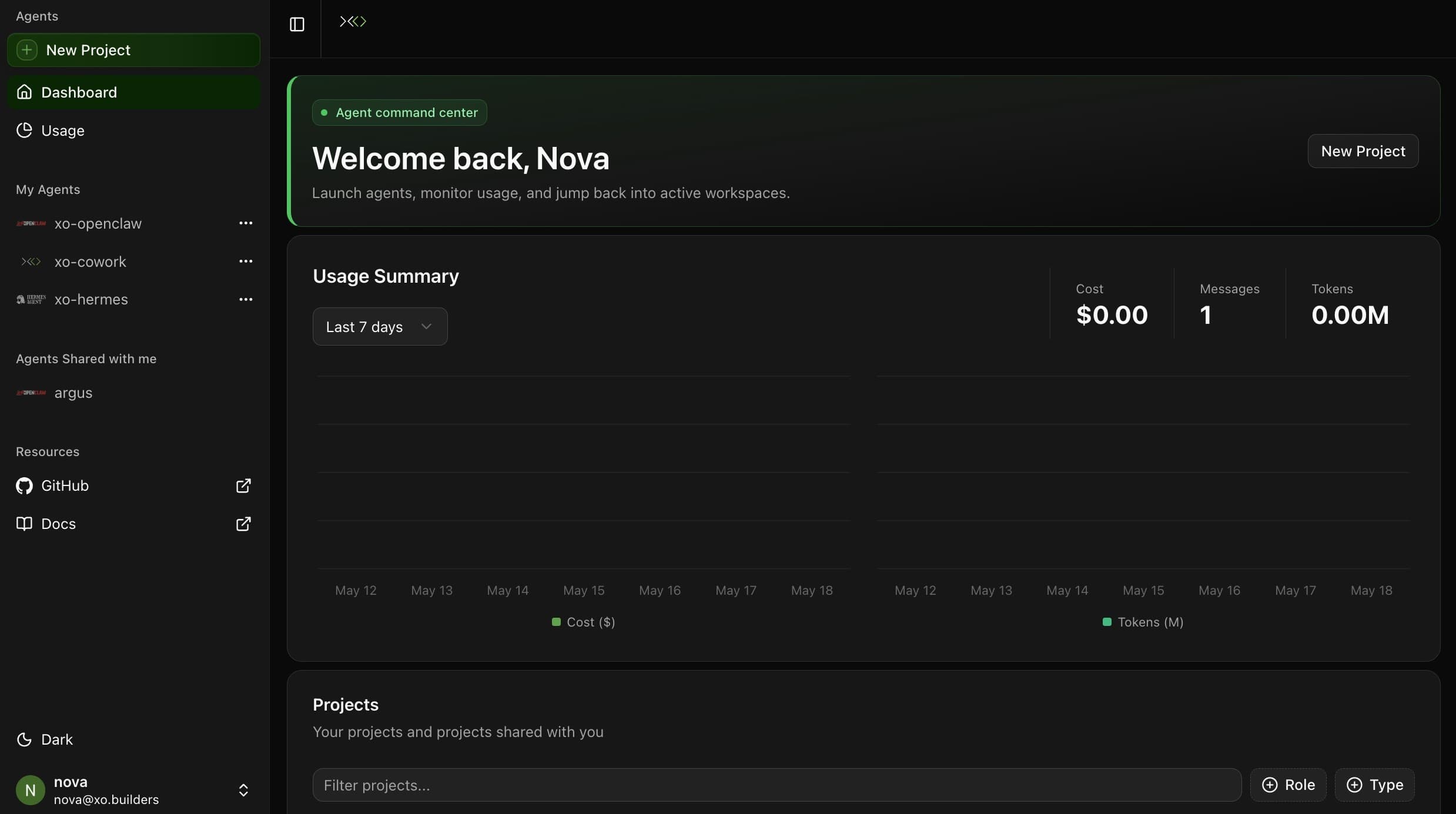
Click New Project in the left sidebar.
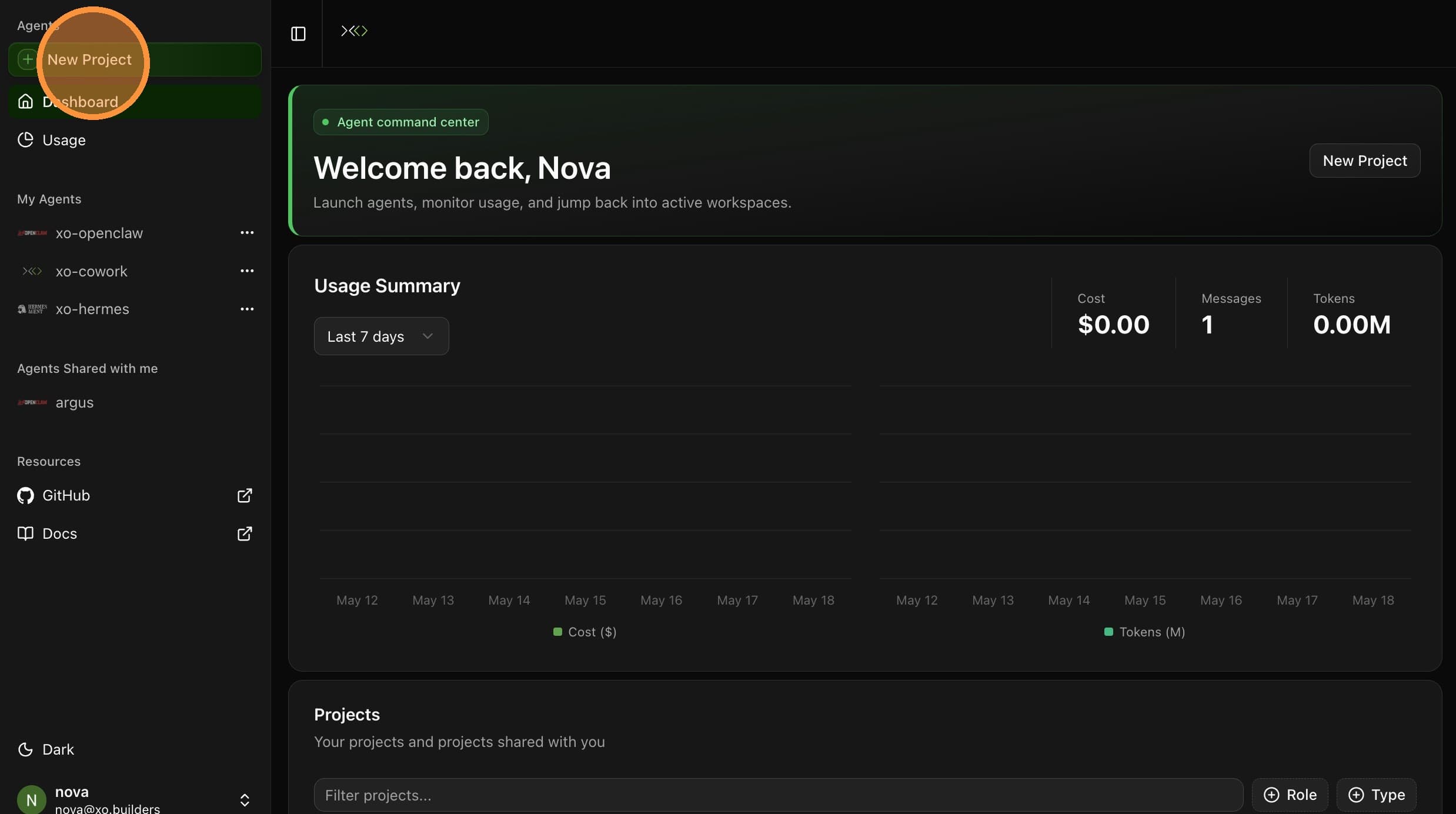
On the Claude Code template card, click Create Agent.
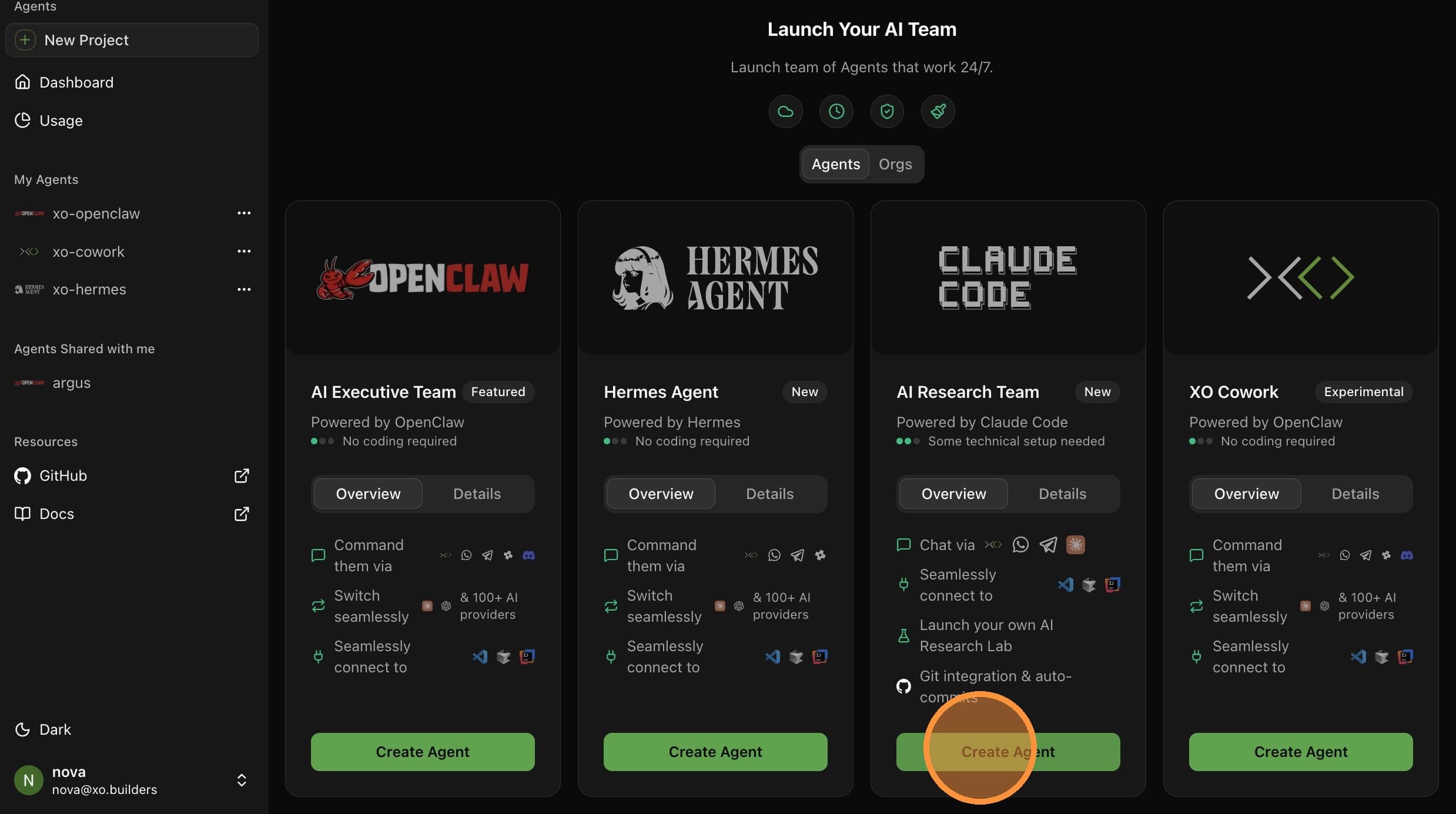
Configure Project Details
Enter a unique Project Name — e.g. xo-claude.
Optionally, paste an Anthropic API Key. You can skip this and connect your Claude subscription later via OAuth (see Connect Claude below).
Click Create Project.
Wait for Startup
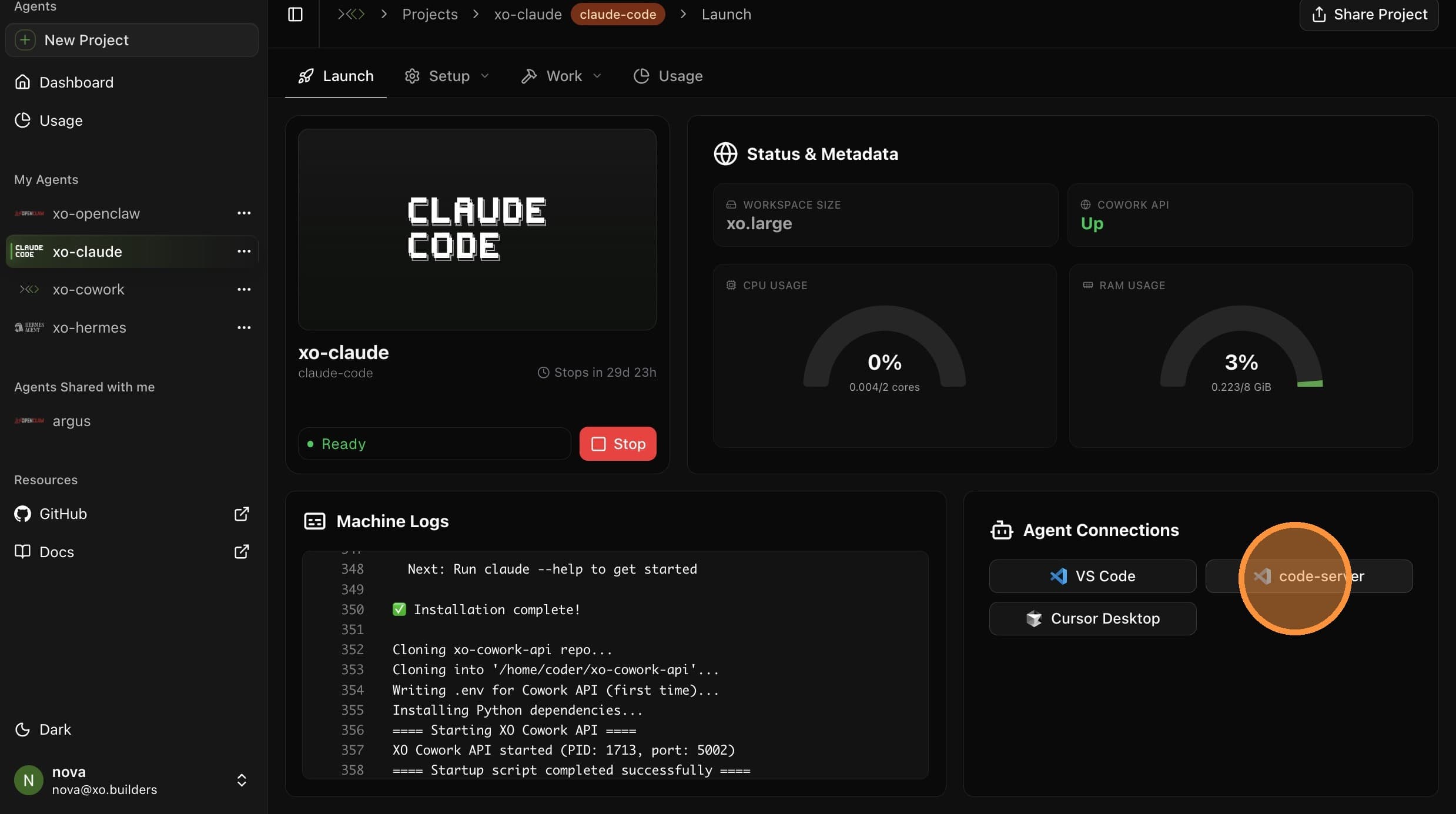
Wait until the Cowork API status shows Up.
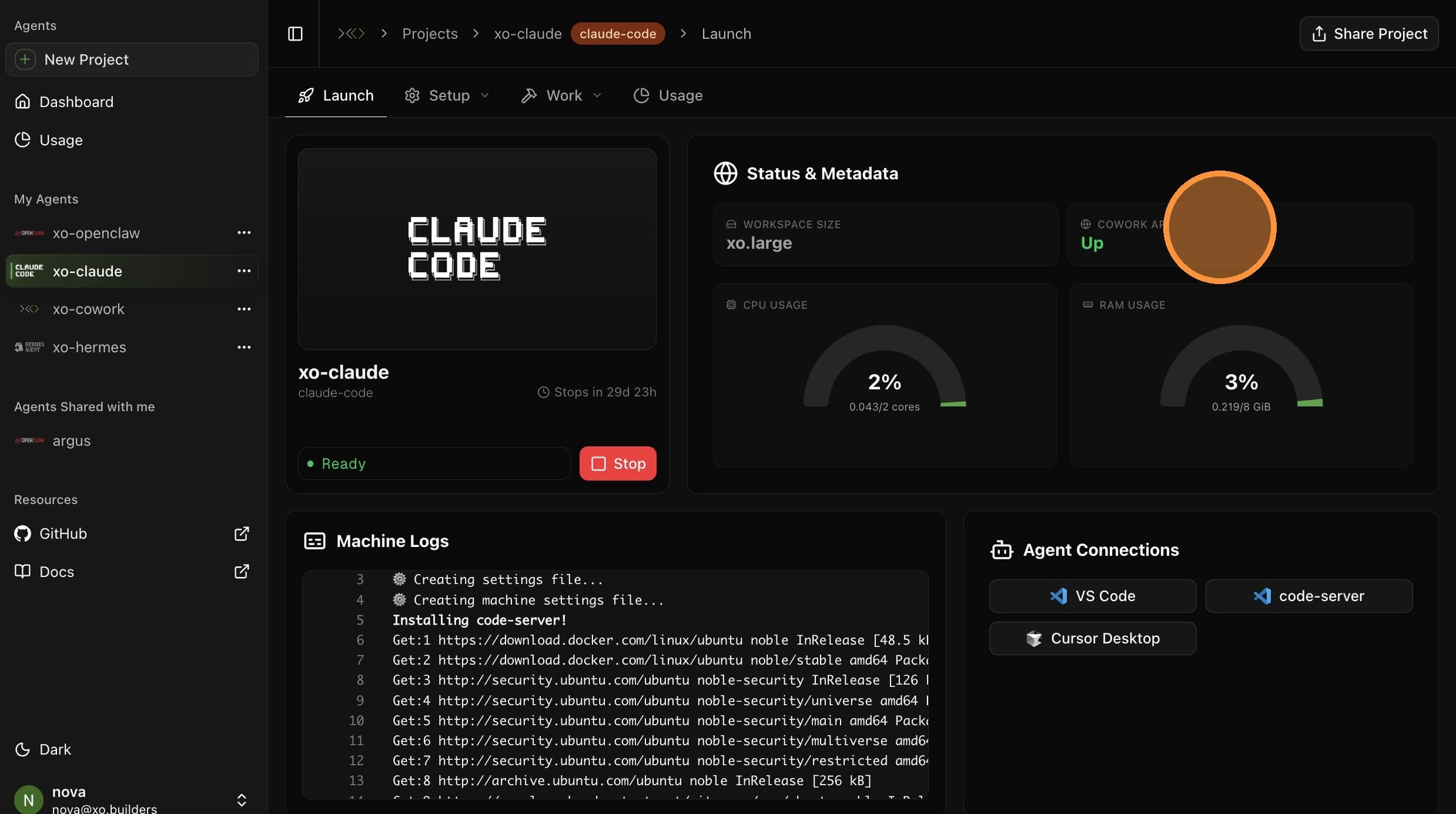
Don't proceed to the Claude authentication step until the workspace is fully running.
Verify Setup
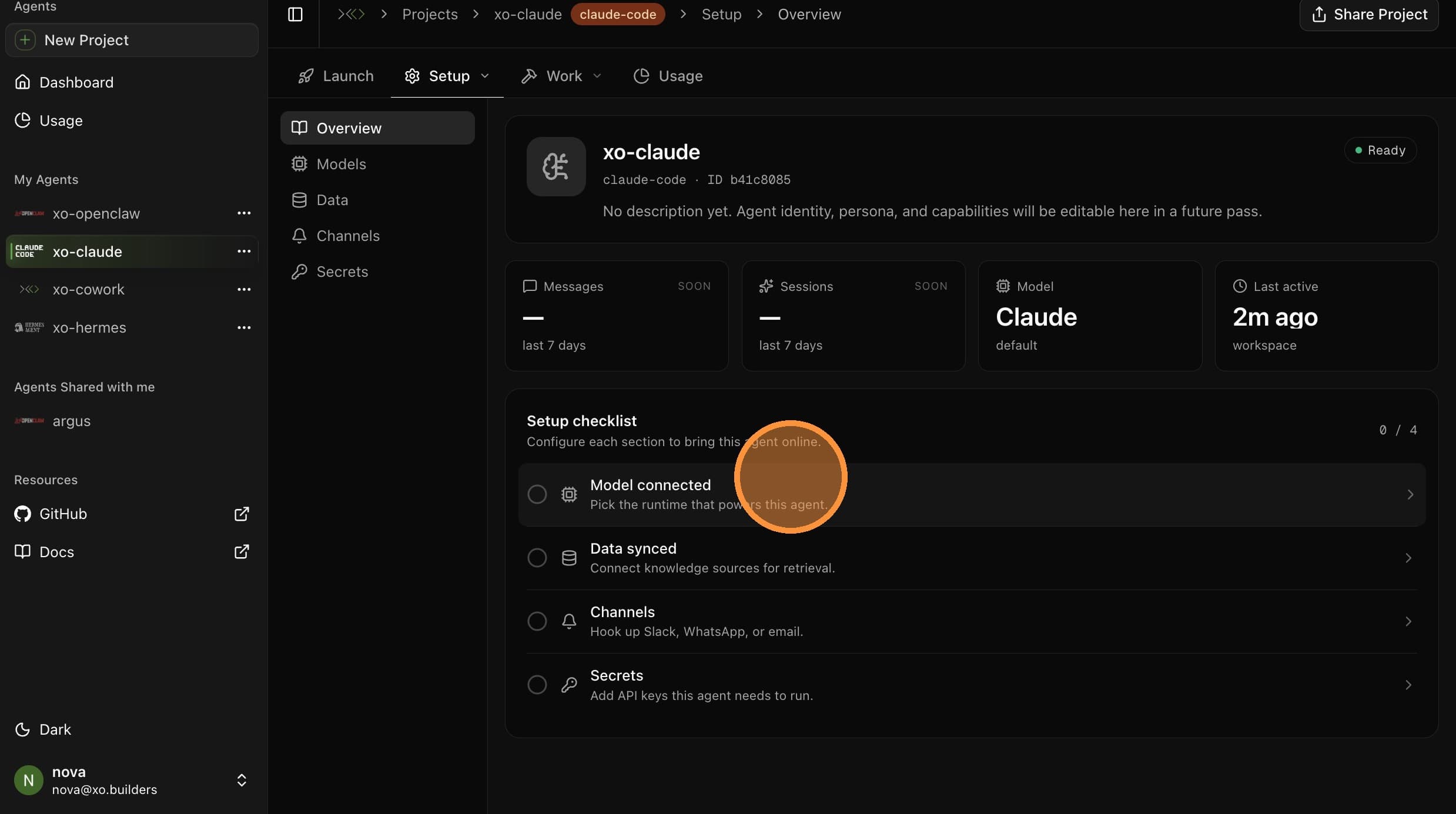
Open the Setup tab in the top sub-navigation and review the setup checklist. The Model connected row is where you'll authenticate Claude in the next step.
Connect Claude
Skip this step if you provided an Anthropic API key in Step 2 — your agent is already authenticated. Otherwise, select Model connected from the Setup checklist and click Connect Claude to link your Claude account via OAuth.
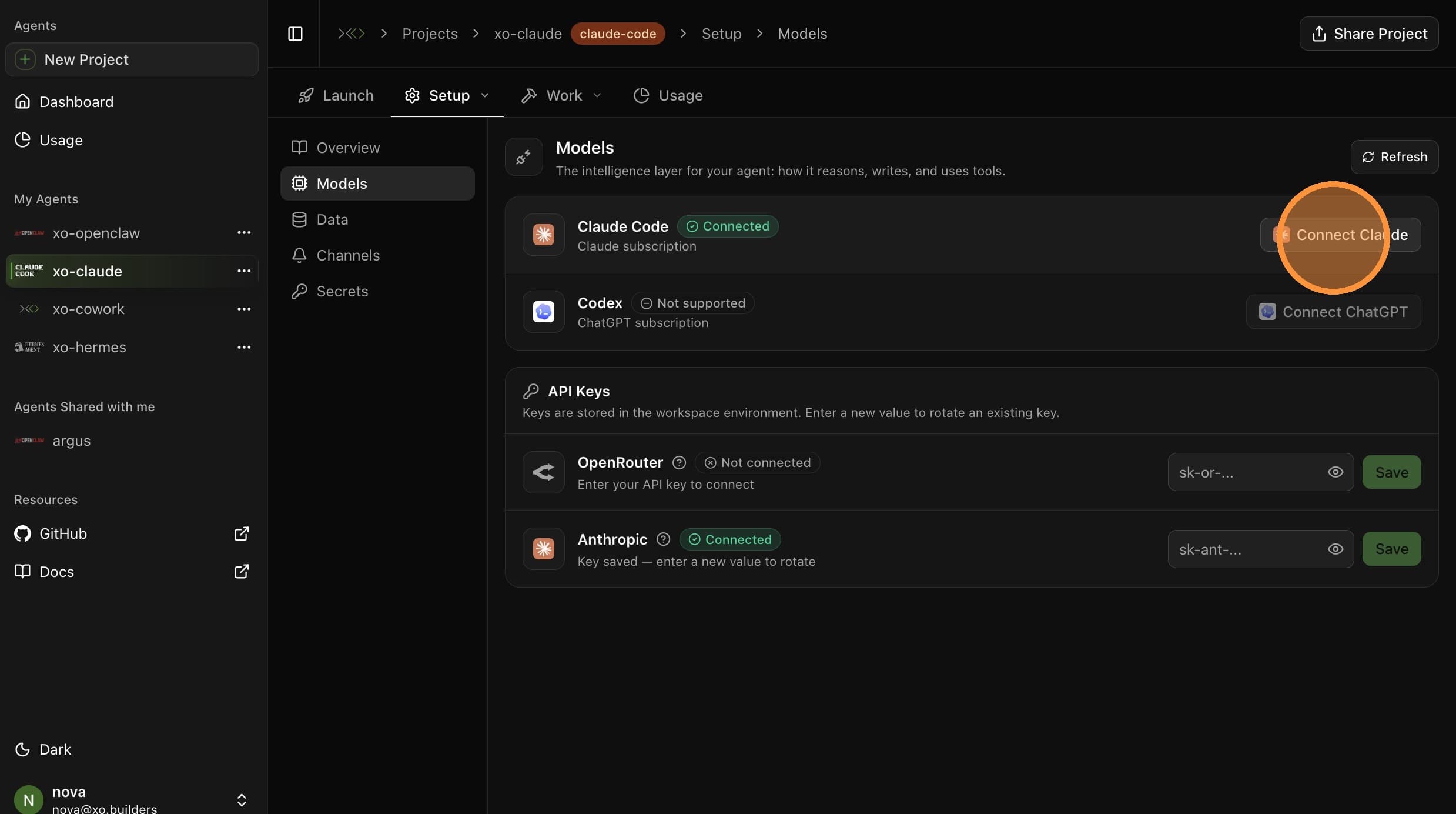
OAuth is only available after provisioning is complete. Wait for the workspace to finish starting up before clicking Connect Claude.
See Connect Claude for the full OAuth walkthrough.
Open Your Editor
Open the Launch tab.
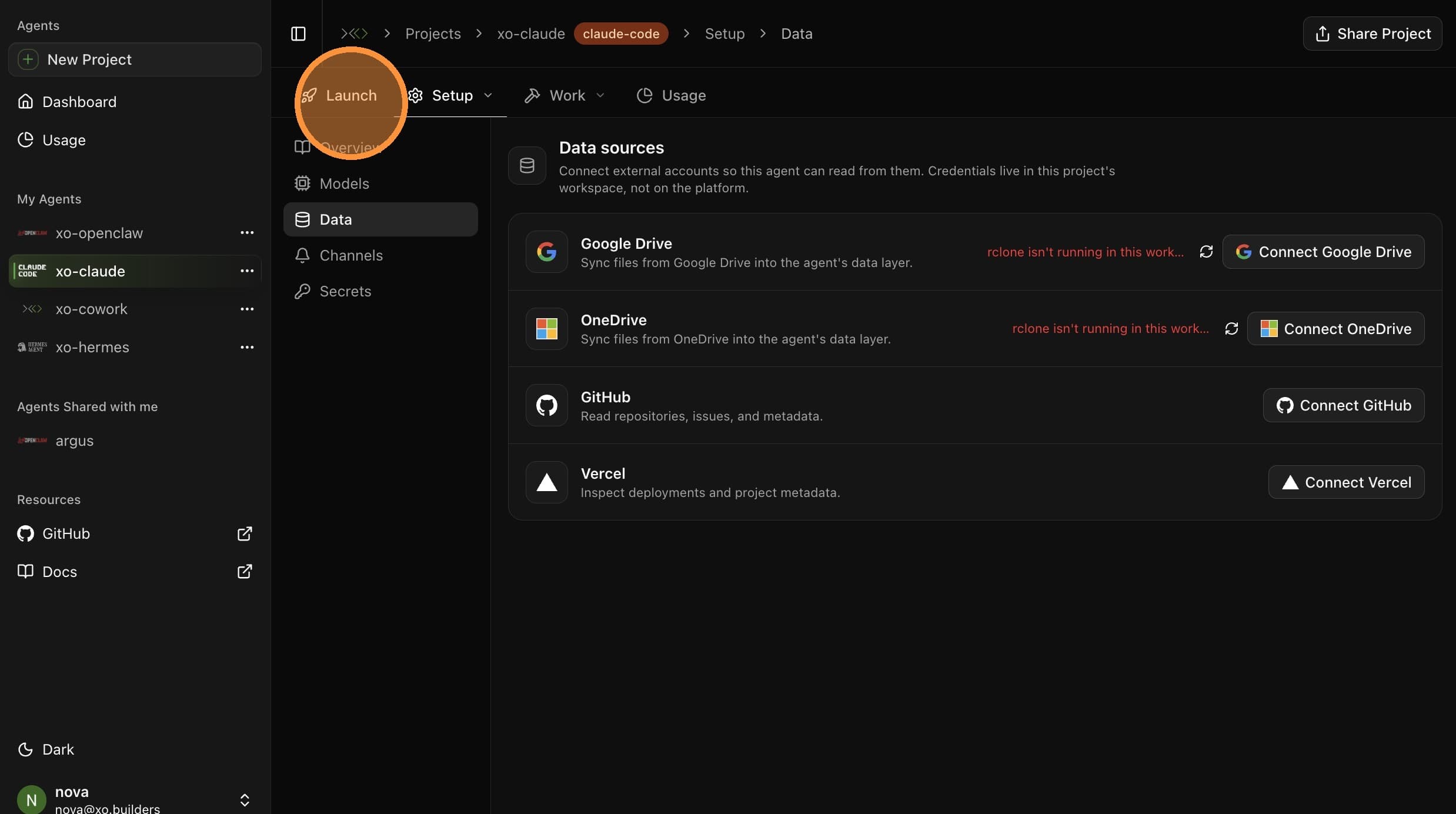
Under Agent Connections, click code-server to open the browser-based VS Code in a new tab.
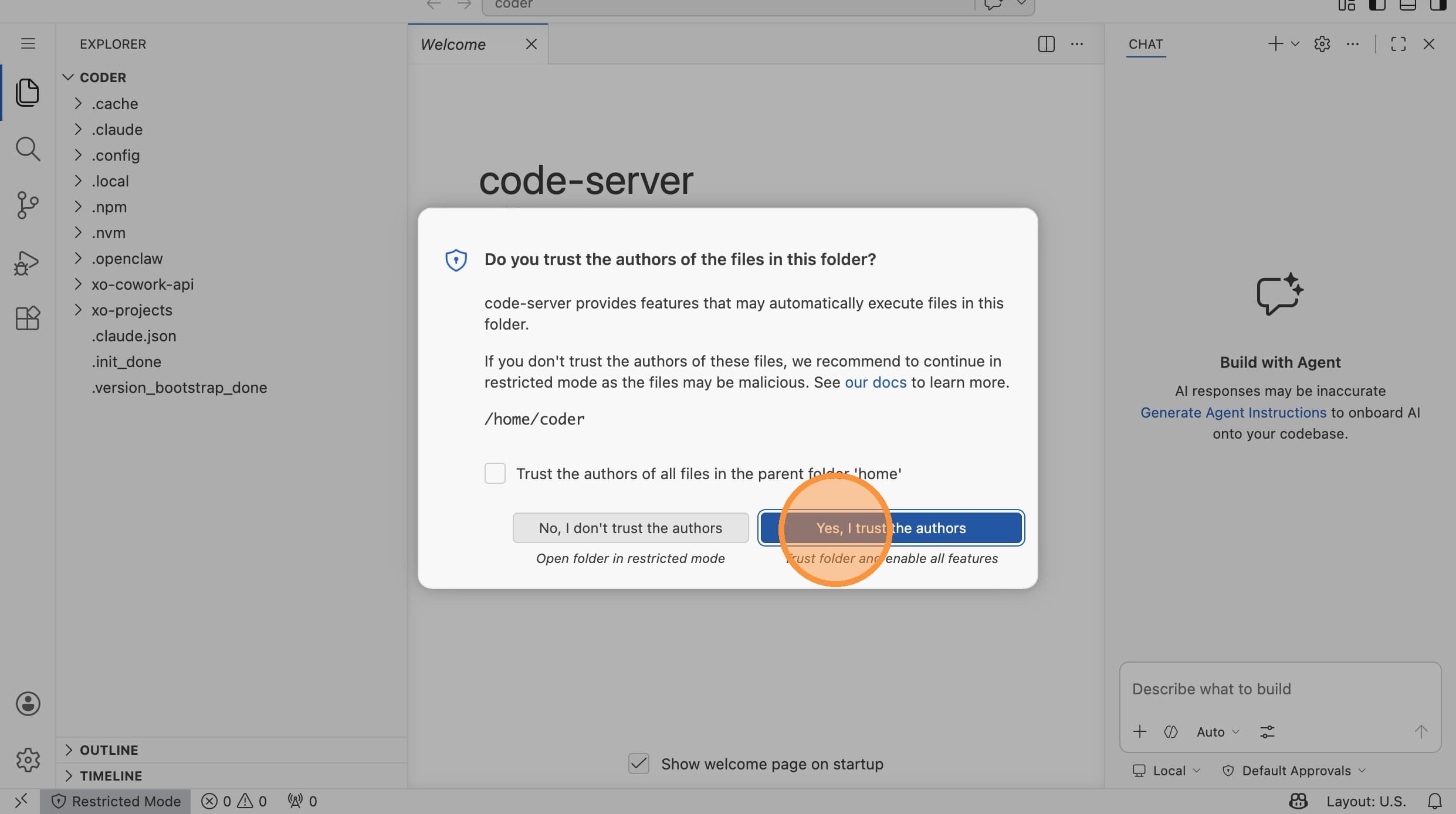
Click Yes, I trust the authors to open the workspace.
Open a terminal with **Ctrl + ** and run claude` to start a session.
Full walkthrough: Access Your Machine via VS Code Server.
Your Claude Code agent is now authenticated and ready.