XO Cowork Quickstart
Deploy your XO Coworker workspace on XO in under 10 minutes.
XO Cowork is the chat-first AI agent workspace on XO. Create a project, configure your agent through the in-workspace onboarding wizard, and start chatting with per-project memory — no infrastructure to manage.
Setup Walkthrough
What You'll Need
- An XO account
- (Preferred) a model provider — an Anthropic API key (recommended), an OpenAI API key, or an OpenRouter key
- (Preferred) a channel — Discord, Telegram (from @BotFather), or Slack
Both are optional at project creation — you can add them later in the in-workspace onboarding or from Settings.
Deploy XO Cowork
Create a New Project
Go to beta.xo.builders.
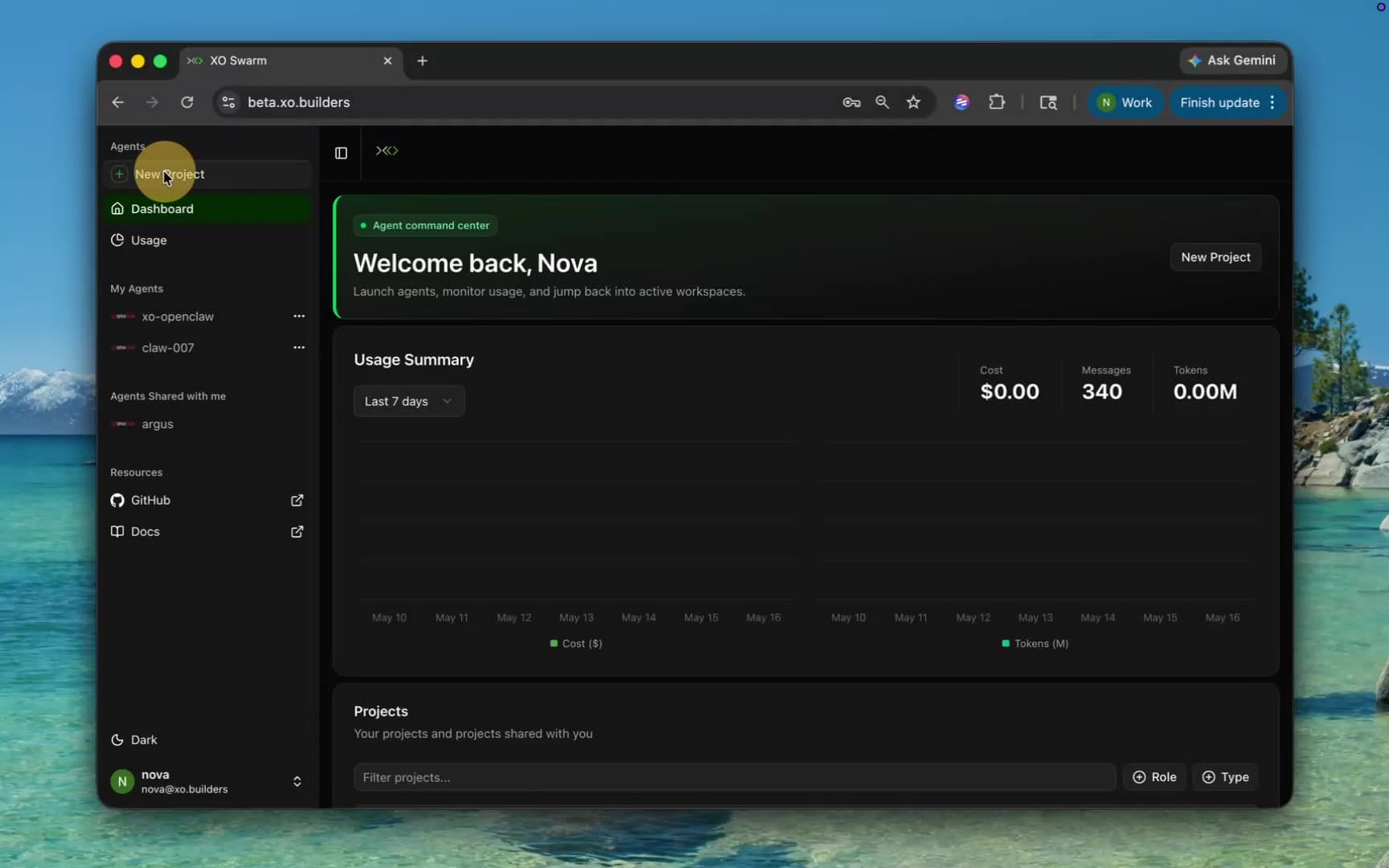
Click New Project in the left sidebar. On the XO Cowork template card, click Create Agent.
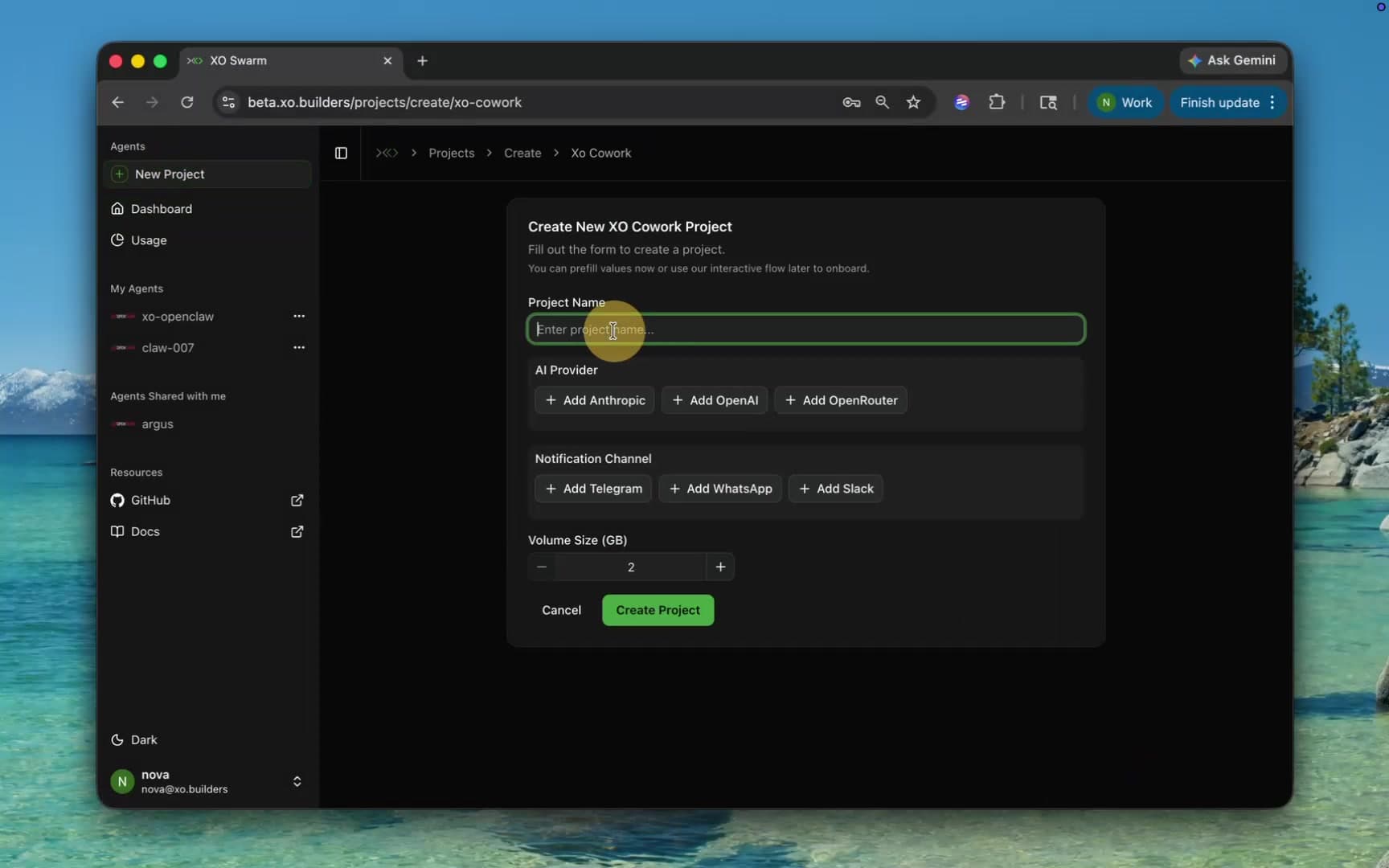
Configure Project Details
Fill in the project creation form:
| Field | Value |
|---|---|
| Project Name | A unique name — e.g. xo |
| AI Provider | (Optional) Anthropic, OpenAI, or OpenRouter |
| Notification Channel | (Optional) Telegram, WhatsApp, or Slack |
| Volume Size | Default 2 GB is fine for most setups |
All fields except Project Name are optional — you can configure them later in the in-workspace onboarding.
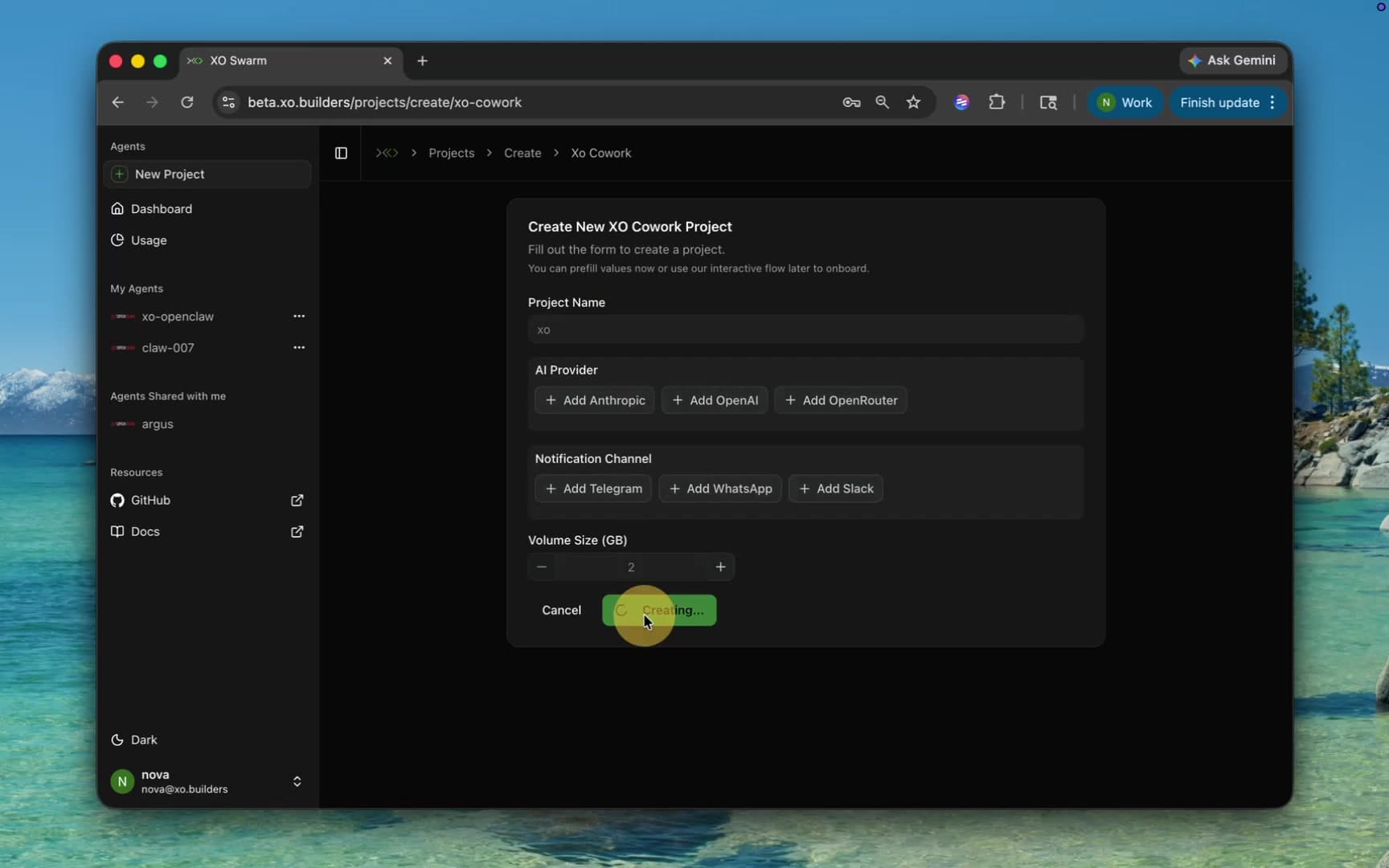
Click Create Project.
Wait for Startup
Your workspace takes about 5–6 minutes to provision.
When provisioning completes, a new browser tab opens at xo-cowork--<project>--<user>.workspace.helloxo.nl/onboard with the in-workspace setup wizard.
Name Your Workspace
In the XO-Coworker Setup wizard (step 1 of 5), enter the name that will appear throughout your workspace — this is what your agent will use.
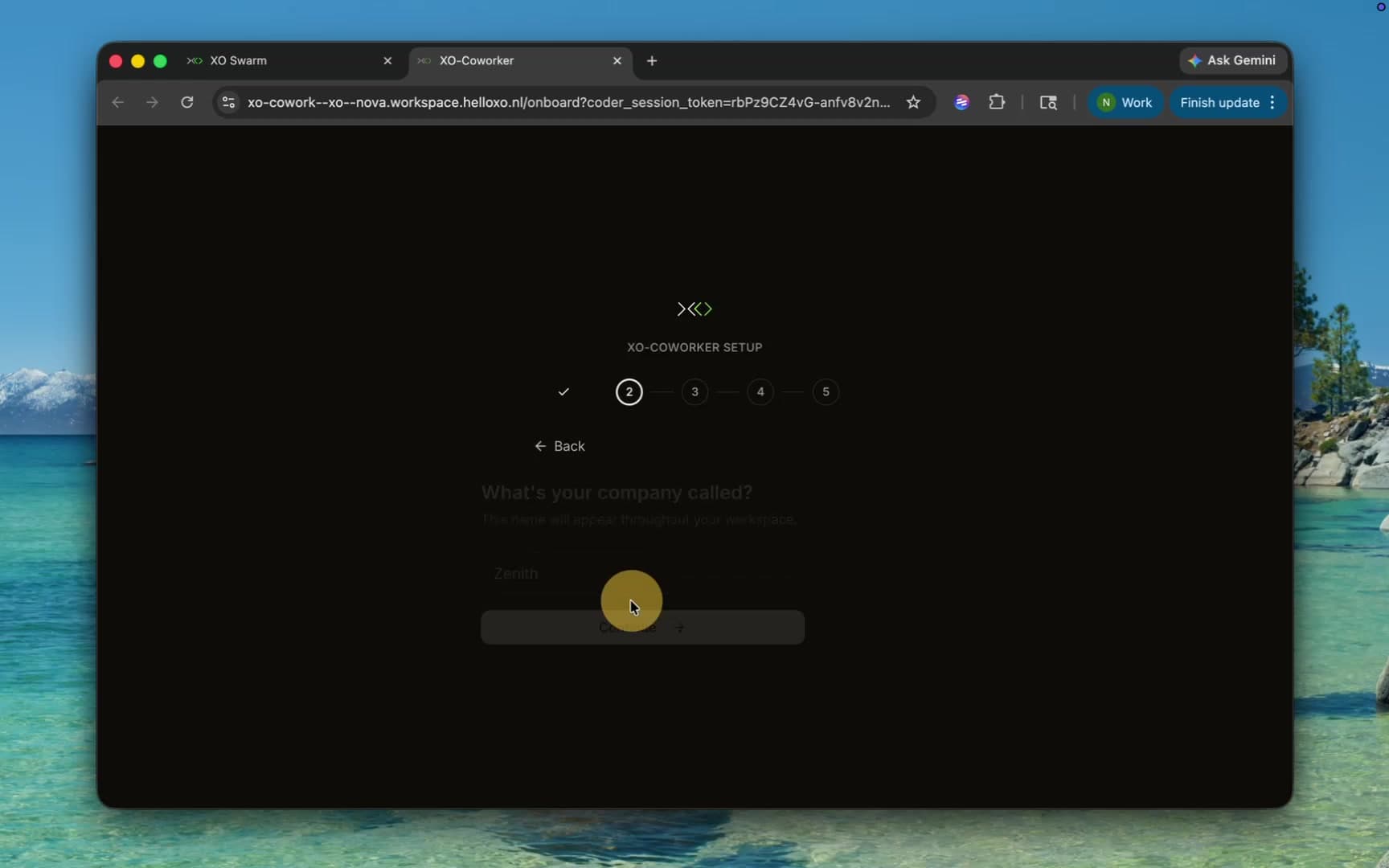
Click Continue.
Add an AI Model
Select a provider and paste your API key. Anthropic is recommended.
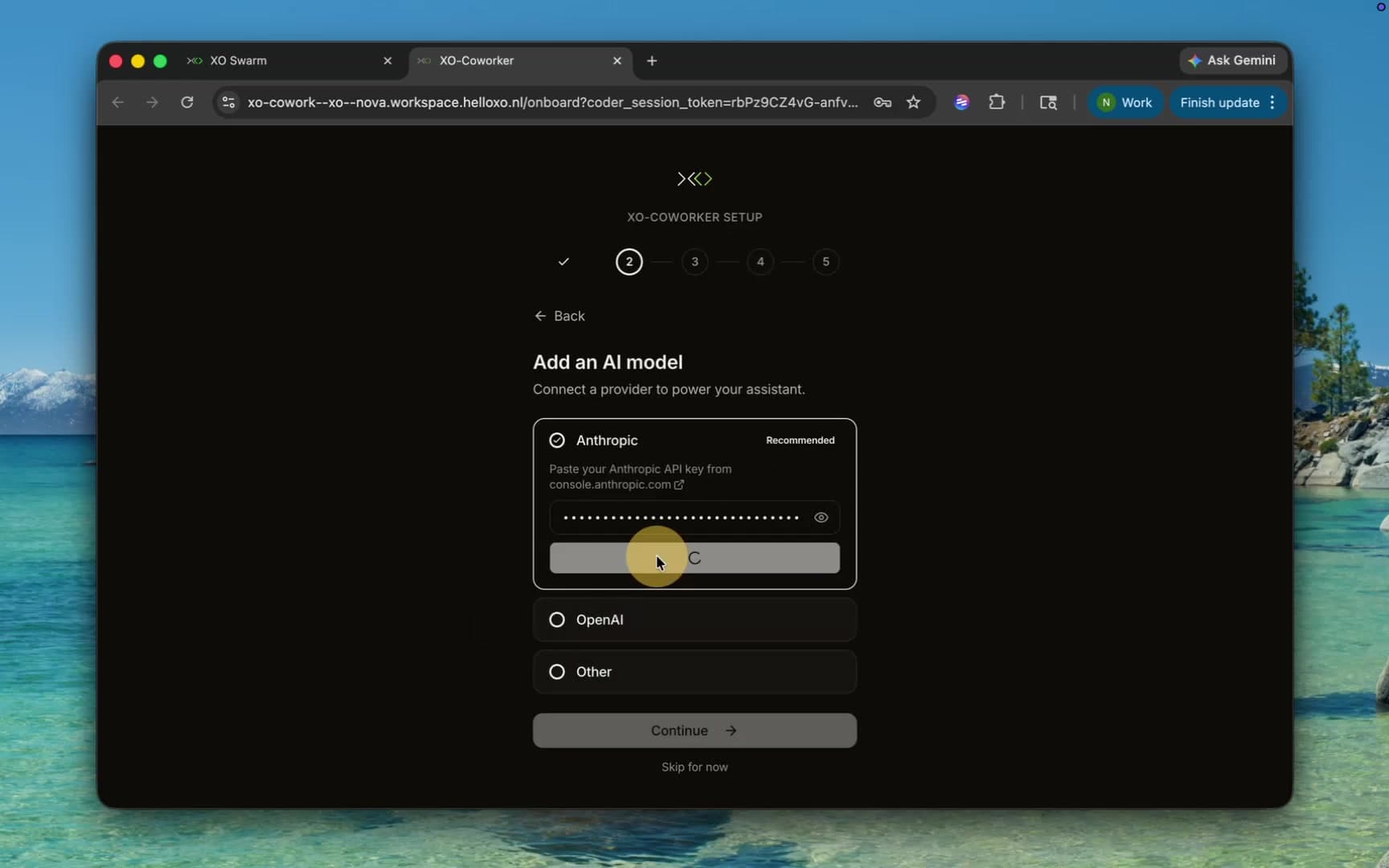
Click Save Key, then Continue (or Skip for now).
Connect Channels
Connect your assistant to Discord, Telegram, or Slack so messages flow to the apps your team already uses.
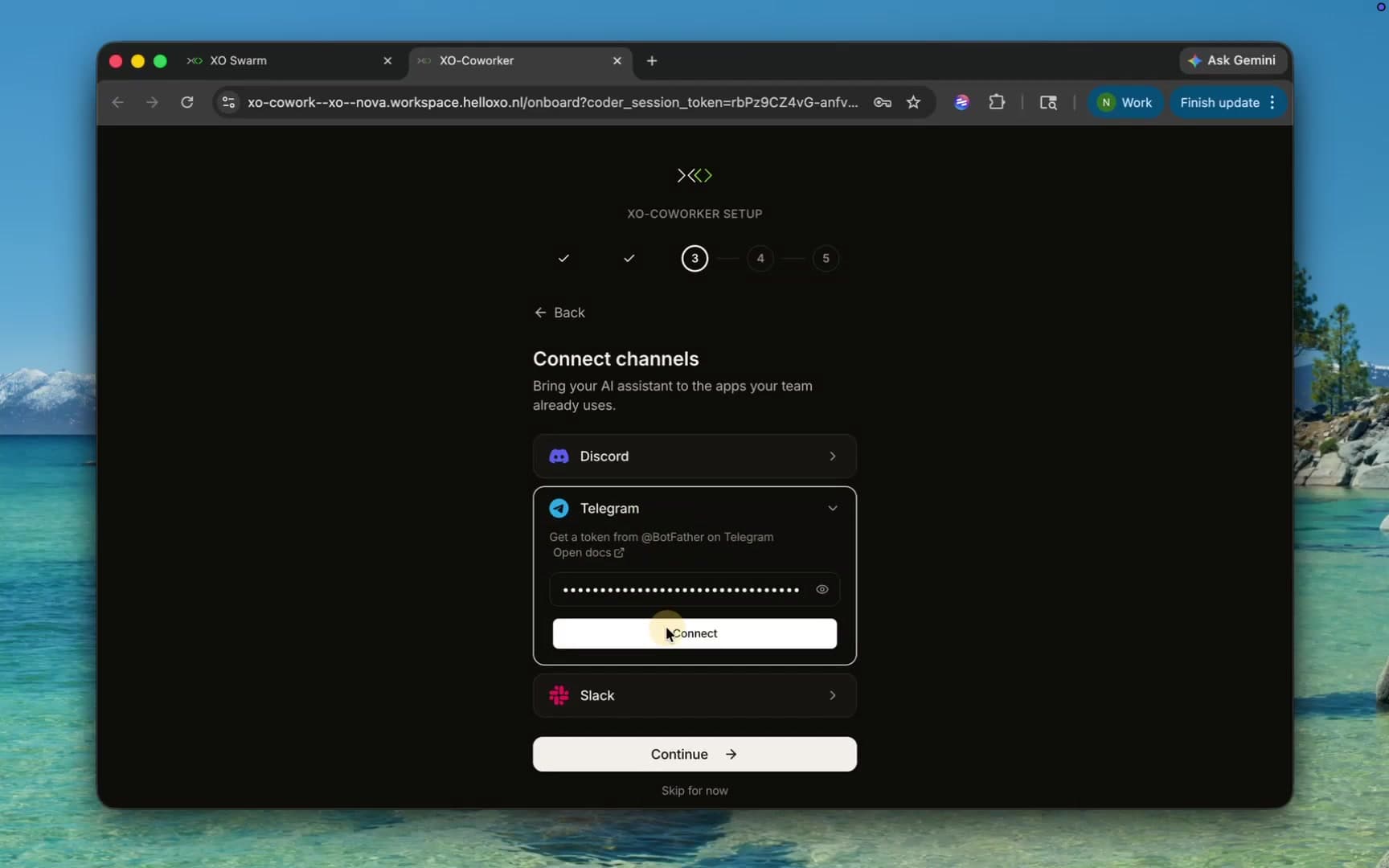
After saving a channel, restart the Gateway from Settings → Channels to apply the changes.
Click Continue (or Skip for now).
Shape Your Agent
Four markdown files define your agent's identity, voice, workspace rules, and what it knows about you — Agents, Soul, Identity, and User. Tweak them now or leave the defaults; you can revisit them anytime.
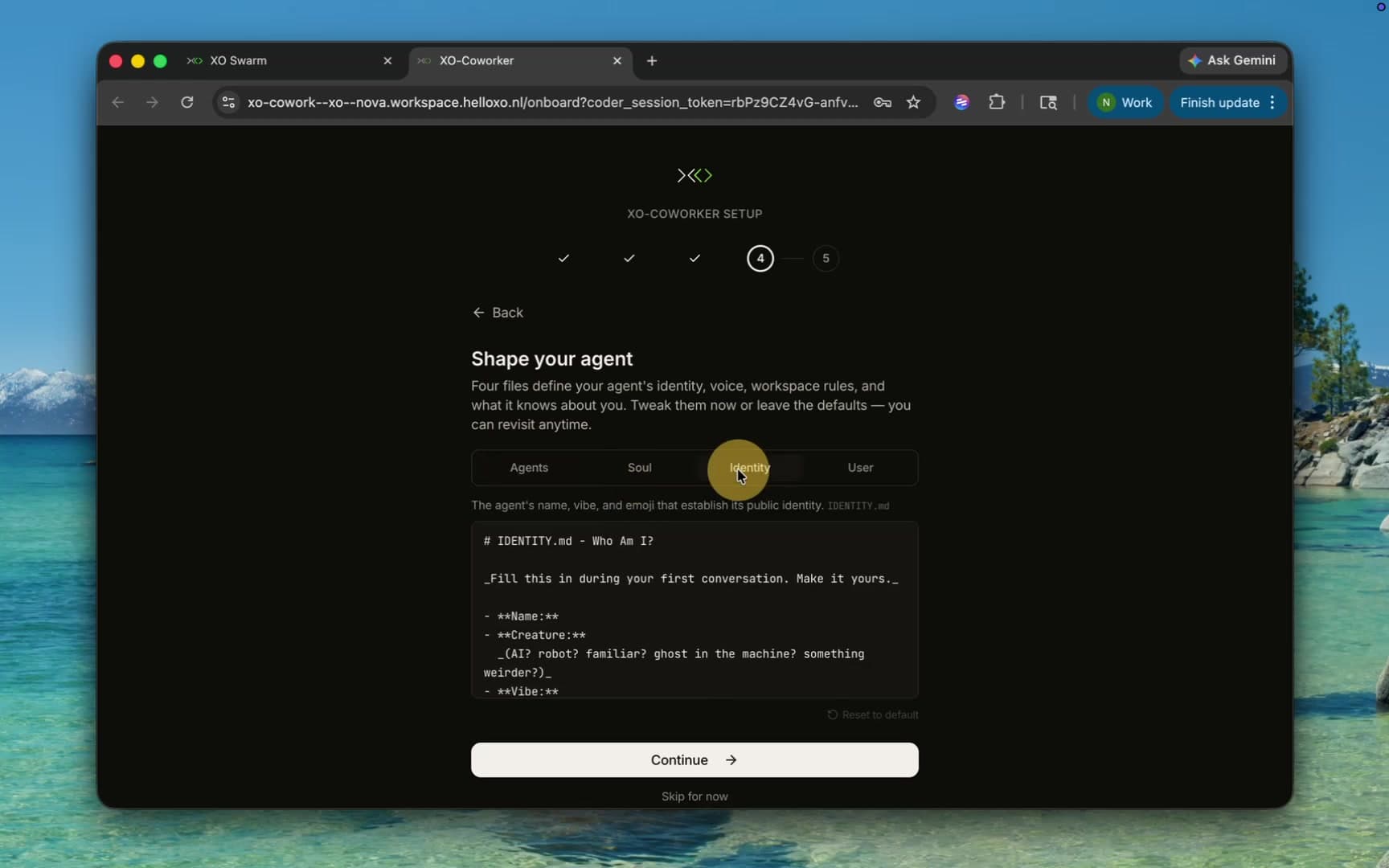
Click Continue (or Skip for now).
Create Your First Project
Name your first project — e.g. Helix. This scaffolds a project folder with starter markdown files (AGENTS.md, CLAUDE.md, OBJECTIVES.md, PLAN.md, PROGRESS.md, PROJECT.md).
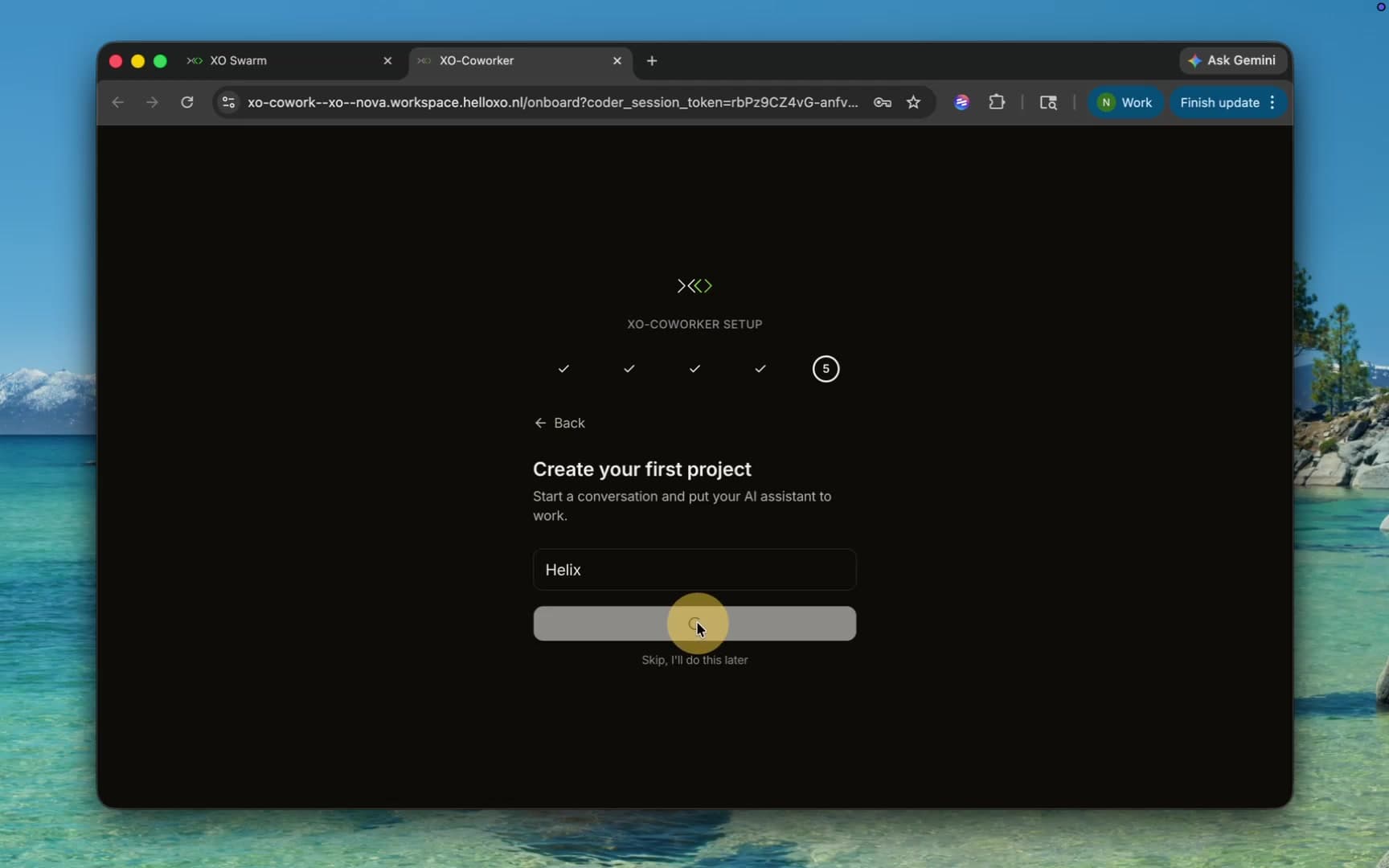
Click Create Project.
Start Working
Your project opens with the file tree on the left and a chat panel on the right. Describe what you want to work on and the agent uses your project context to help.
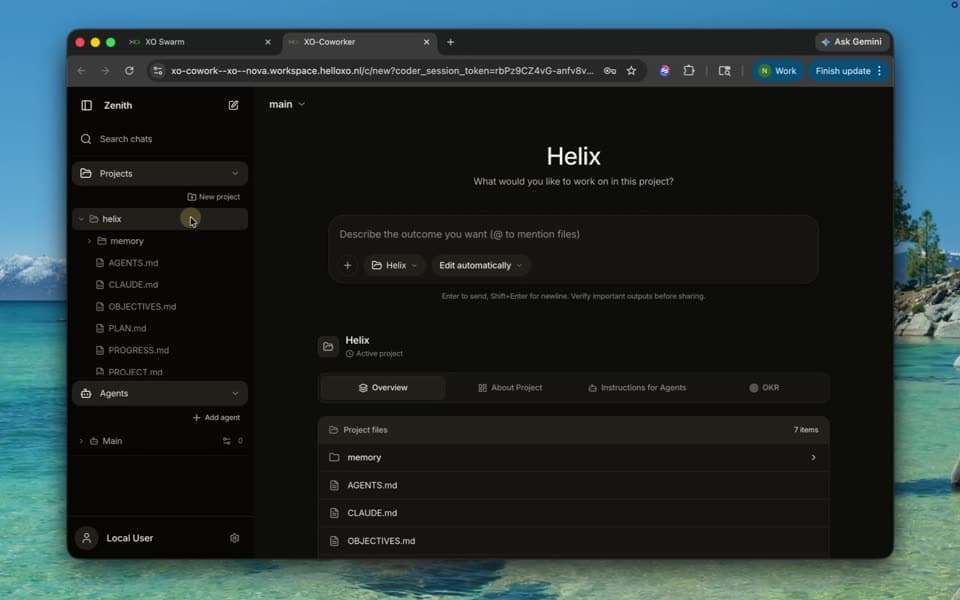
Your agent is live. You can also reach it from any connected channel (Telegram, Discord, Slack).
Next Steps
Add more projects from the Projects sidebar, customize the agent's AGENTS.md / Soul / Identity / User files, or hop into the XO Cowork API reference to drive the workspace programmatically.